How Daily OS works at Sprockett's
Every answer about the board, classes and the messages customers get, with the real screens. Search above, pick your job, or open a section.
New in Daily OS
- Nov 12Change a price in Family Checkout and New Charge, as in a dog's Check Out: tap the price and type the new one.
- Nov 11Family Checkout checks out every dog on the receipt and uses one pass for each dog on a pass.
- Nov 11Book a Service books grooming for a dog whose only hold is the Meet & Greet; daycamp and boarding still wait for it.
- Nov 10New grooming fees from today: Cancellation Fee (<12hr) is $25 and No Show Fee is $35 at checkout.
- Nov 6Add an item finds the pass first: typing full 10 lists the Full Day 10-Pass at the top, so Enter adds it.
All updates (42)
- Nov 12Change a price in Family Checkout and New Charge, as in a dog's Check Out: tap the price and type the new one.
- Nov 11Family Checkout checks out every dog on the receipt and uses one pass for each dog on a pass.
- Nov 11Book a Service books grooming for a dog whose only hold is the Meet & Greet; daycamp and boarding still wait for it.
- Nov 10New grooming fees from today: Cancellation Fee (<12hr) is $25 and No Show Fee is $35 at checkout.
- Nov 6Add an item finds the pass first: typing full 10 lists the Full Day 10-Pass at the top, so Enter adds it.
- Nov 5Retail, special services and donations are in the Add an item search at checkout, with their tax worked out. Search by name or product code, or scan a barcode.
- Nov 5Card payments ask which card: tap Visa, Mastercard, Amex or Debit after Card Terminal. The payment waits until you pick one.
- Nov 3Search shows up to 40 families, the dogs seen most recently first, and each dog says when it was last here.
- Nov 3Move a dog to another class: on the Training tab, open the class and tap Move next to the dog.
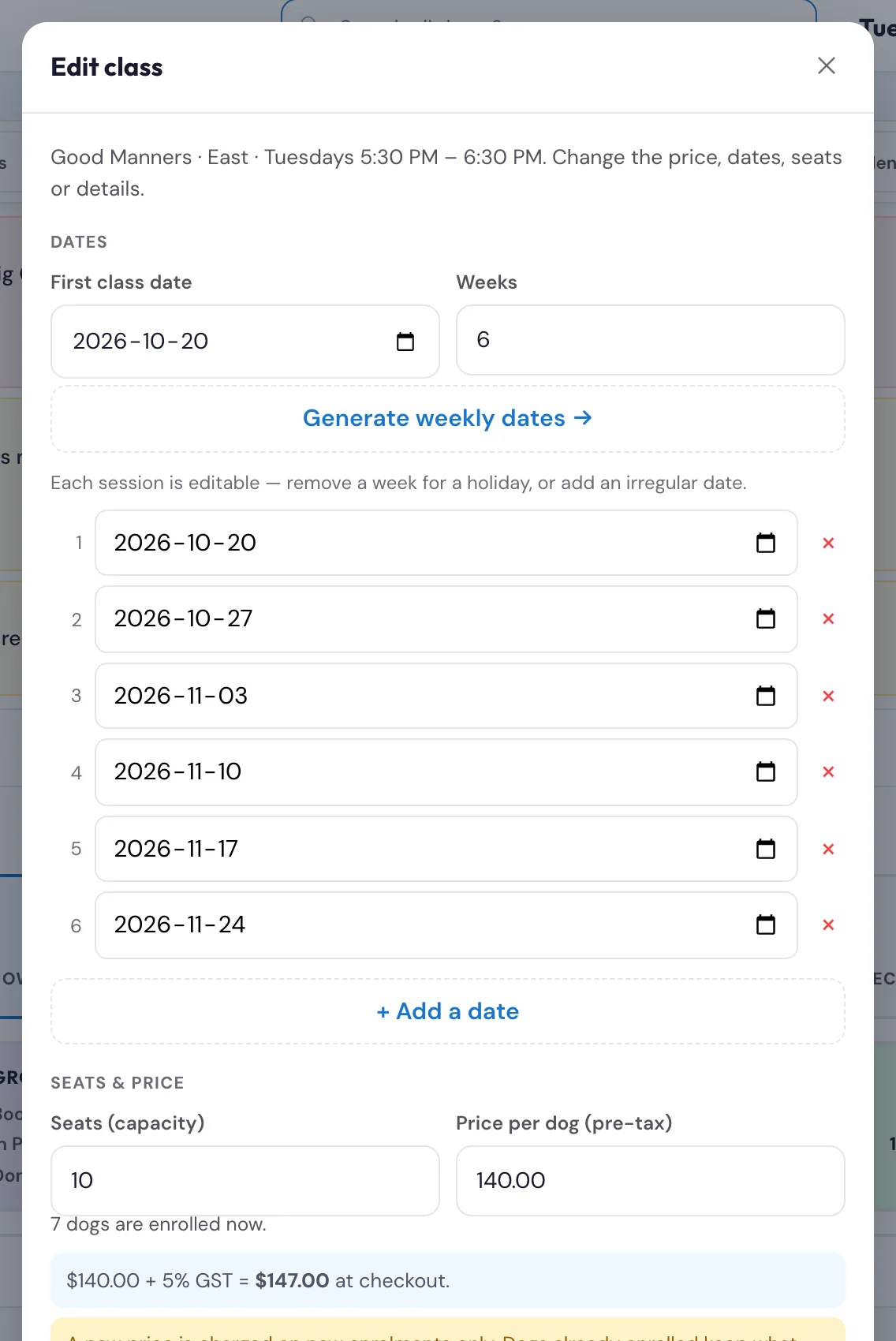
- Nov 3Admins: Edit class changes a class's price, dates, seats and details after it opens. A new price is for new enrolments only.
- Nov 3System Feedback takes up to 3 screenshots, and they're kept with the report.
- Oct 27Dogs that went home today stay on the board: tap Checked out today under a list to open it, then tap a dog to open its card.
- Oct 23Front desk can now approve vet records at both locations: in Vax Records, tap Review & approve, check the dates against the record, tick Vaccination record verified by staff and save.
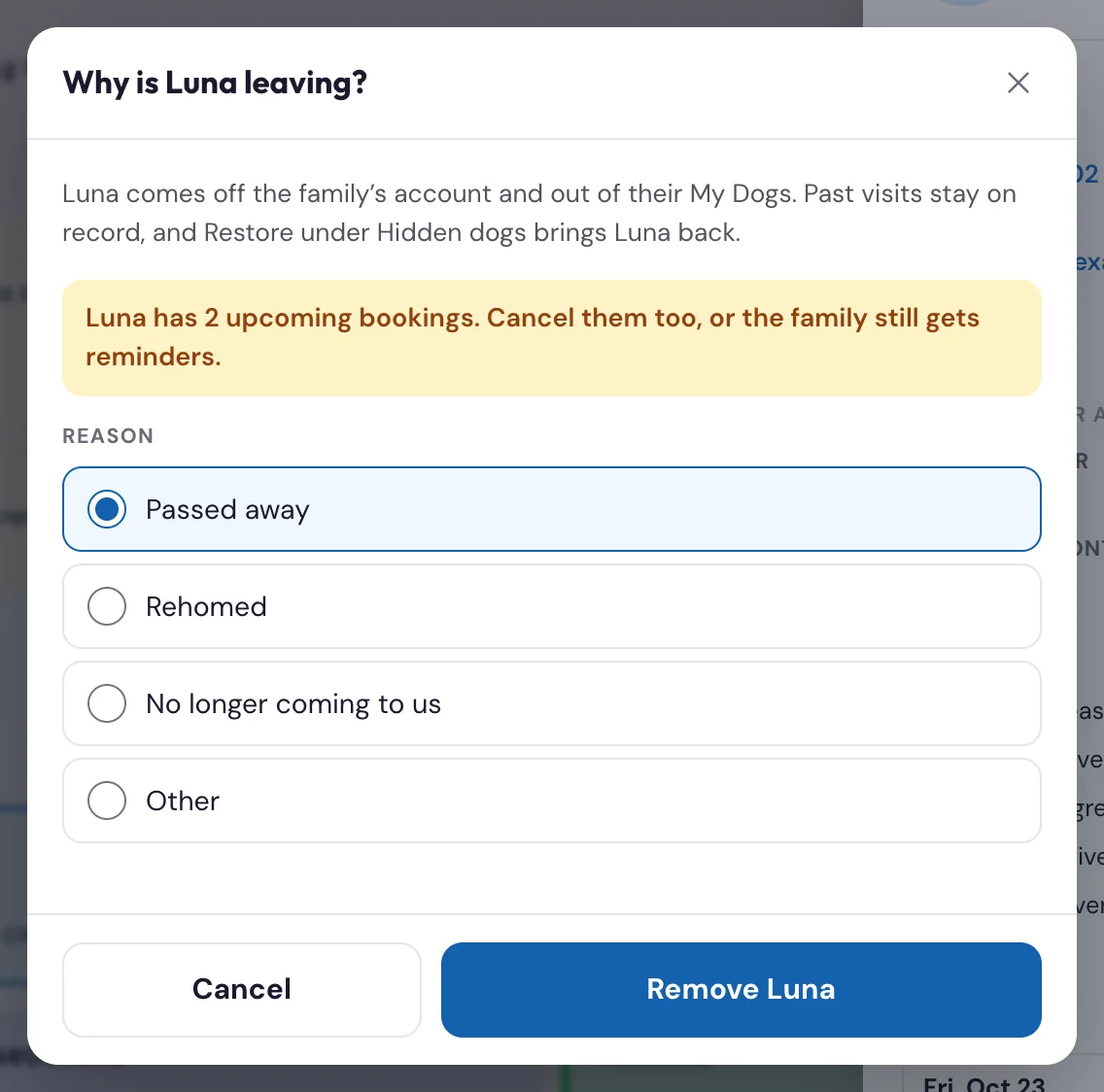
- Oct 21Remove from account: when a family's dog has passed away (or won't be coming any more), take it off their account from their profile. Restore brings it back.
- Oct 20Team: see who has a PIN and who's on now (a green dot), or when they were last on.
- Oct 19Set up my PIN: tap your name, then Set up my PIN, or forgot it? A code goes to your email and you choose your own PIN. It works when you forget your PIN too.
- Oct 19Groomers: Report an incident on any of today's grooms, right in the staff app. The desk tells the owner at pickup.
- Oct 19Groomers: 15 min left tells the desk a dog is nearly ready, with or without a text to the owner. Daily OS shows it on the dog's row.
- Oct 19People who manage the team: Team, in the staff app, adds, changes and removes staff and sends the welcome email. On the board, Open Team replaces Manage staff.
- Oct 19A new role, View only, for people who need to look but not change anything.
- Oct 16Visit history: every visit since September 2023 on the customer's profile and the dog card, the same list families see in My Dogs.
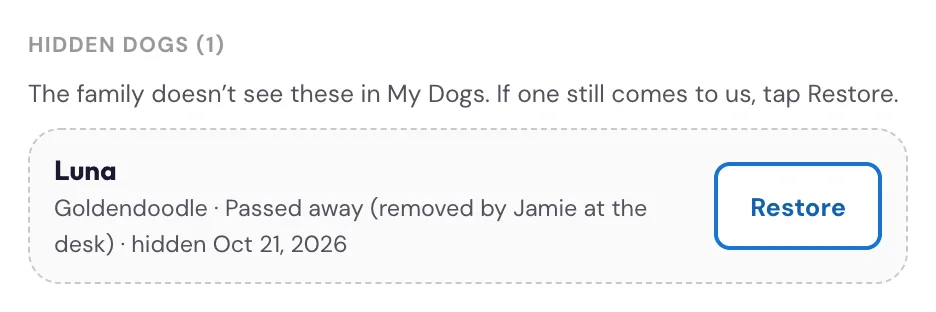
- Oct 16Customer profiles list the family's hidden dogs, with Restore to bring one back into their My Dogs.
- Oct 16Authorized to pick up: each dog's pickup list (was Alt Pickup), kept up to date by families in My Dogs.
- Oct 16Customer profiles show whether the family confirmed their details in My Dogs, plus their second owner and emergency contact.
- Oct 16Checkout: add an item by searching for it, by name or product code. Enter adds the top match, and a barcode scanner works too.
- Oct 15Desk: Note for the groomer and Booked it are on Daily OS's grooming rows, and checkout shows the groom's photos and the groomer's note.
- Oct 15Checkout: From the groomer shows the groom's photos, to show the owner.
- Oct 15Staff app Home: a button for each place you can go, including Lead Connector, and it's easier to use on a phone.
- Oct 15Managers and admins: See a groomer's app shows any groomer's day and dog cards exactly as they see them, read only.
- Oct 15Try the staff app with a preview link: your own days and dogs, nothing saved or sent.
- Oct 15Share an opening can carry a photo on a phone.
- Oct 15Groomers: Start groom and End groom (check-in and checkout stay at the desk), one 15 min text, your own message with Running late, and Book next to the desk.
- Oct 15The dog card shows every earlier groom back to 2024 and the texts with the owner.
- Oct 15Share an opening: the app writes the post for social media.
- Oct 15Desk: a groomer's Book next request shows on the grooming row and at checkout.
- Oct 15Groomers: see your whole week, with the number of grooms each day, or pick any date.
- Oct 14New: the Sprockett's staff app on your phone. Groomers see their day, the desk leaves notes for groomers, trainers take attendance.
- Oct 7Kanban view: arriving, in and going home side by side.
- Oct 7See everything a customer has booked, from their profile.
- Oct 7Find the payments taken at East or West: search Payments for the location.
- Oct 7Selling a package from a customer's profile now records the payment, so the sale shows under Payments.
- Sep 29Message everyone in a training class by text or email.
Pick your job
Getting started 14
EveryoneHow do I log in to the platform each day?#
Go to connect.kanameplatform.com and sign in with your email and password (bookmark it — this is the front door every day). Once you're in, click Daily OS in the left sidebar. The Sprockett's board opens right inside the page. You don't go to a separate website for the board — it lives inside Kanamé. (It used to be called Daily Ops; the videos still use that name.)
Watch: Find your way around Kanamé ›Read more in Kanamé Support
EveryoneI'm a new staff member — where does my account invite come from and how do I activate it?#
Everyone gets the welcome email from Sprockett's Staff App, "Your Sprockett's staff app is ready", when Theresa or John sends it from Team. It has the link to put the staff app on your phone and the steps to Set up my PIN (see "What is the welcome email?"). Not there? Check your Promotions tab and spam, then ask Theresa or John to check your email in Team and send it again.
Most people don't need a Kanamé login. If you were given one (for texts and calls with owners in Lead Connector, customer records and calendars), Kanamé sends a second email from noreply@ml.kanameplatform.com, subject "Activate Your Account | Kanamé". Click the activation link within 24 hours and set your password; after that you sign in at connect.kanameplatform.com.
The get-started guide, with pictures of each step, is in Resources → New Staff Onboarding on the board.
Watch: Set up your profile and notifications ›EveryoneMy activation link expired — what do I do?#
The activation link is only valid for 24 hours. If it's expired, ask an owner/admin (Theresa or John) to re-send your invite from Kanamé, or contact Kanamé Support (support.kanameplatform.com, also in the portal's Resources menu).
EveryoneWhy do I have to "sign in" again on the board after I already logged into Kanamé?#
The front desk is a shared screen — several people use the same Kanamé login during a shift. The board needs to know which person is doing each action so it can stamp your initials and the time on every check-in, care-log entry, and incident report. That's what the person chip and PIN are for. It's a quick layer on top of your Kanamé login, not a second password to remember — and since September 10, 2026 it is required to use the board at all: the board stays locked (no dogs, no owners, nothing to tap) until someone signs in, and the server refuses to hand out the day's data, or accept any check-in, check-out, care-log entry or temperament result, without a signed-in person.
EveryoneHow do I sign in to the board for my shift?#
Tap the person chip in the top-right corner, pick your name from the list, and enter your PIN (6 digits for the front desk, managers and admins; 4 for groomers and trainers). The chip then shows your name and stamps your initials on your actions. When the board is locked (nobody signed in), tap the big Sign in button in the middle of the screen — it is the same sign-in. The same PIN signs you in to the staff app on your phone. No PIN yet, or forgot it? Tap Set up my PIN, or forgot it? under the keypad (see "I don't have a PIN yet, or I forgot mine").
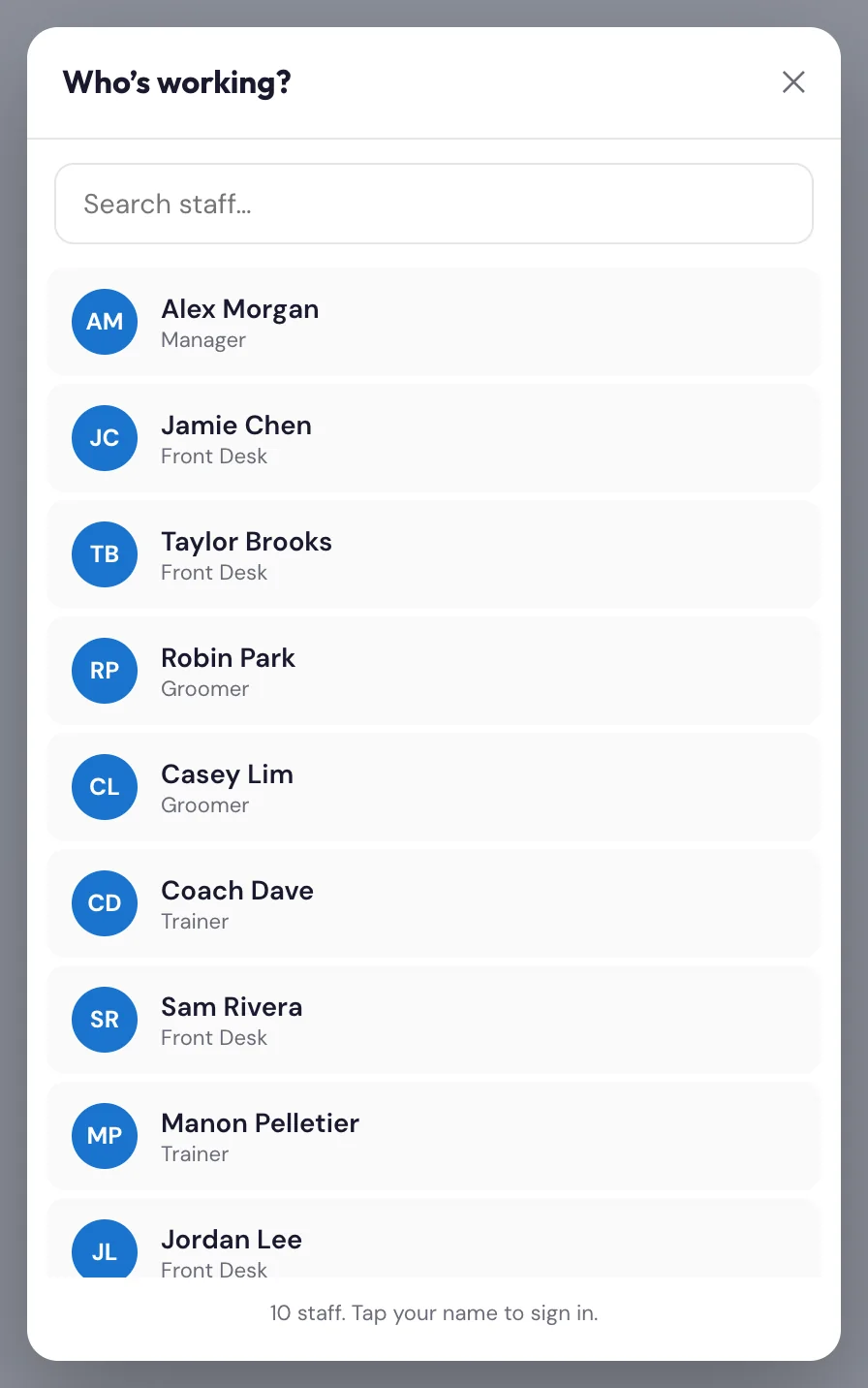
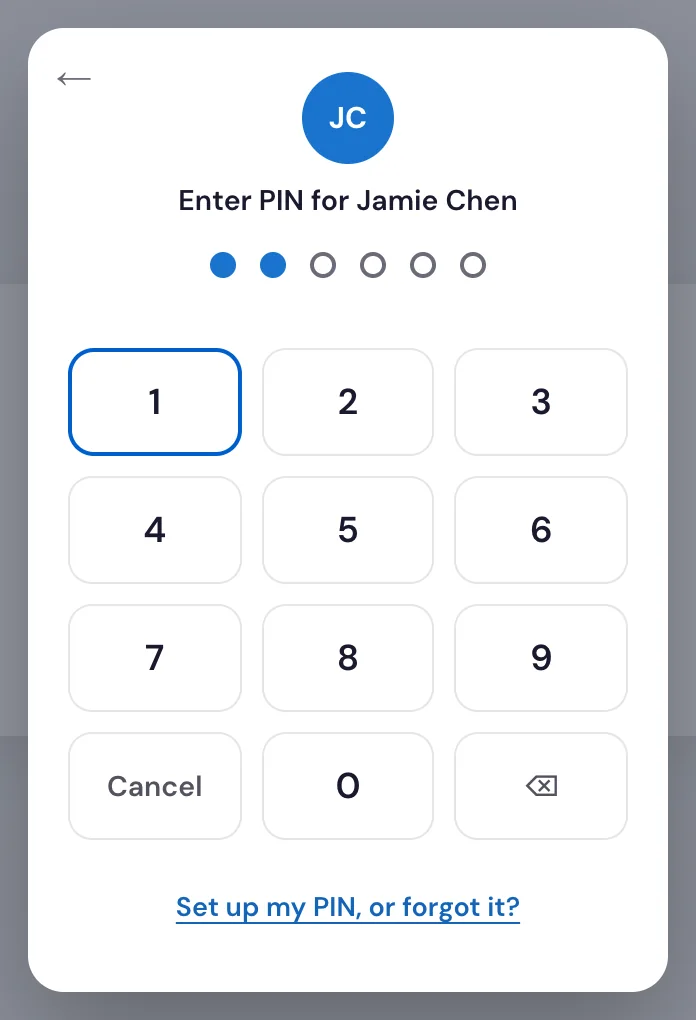
EveryoneI don't have a PIN yet, or I forgot mine. How do I get in?#
You set it up yourself, on the board or in the staff app. It works the same in both places.
- Tap your name, then tap Set up my PIN, or forgot it? under the keypad.
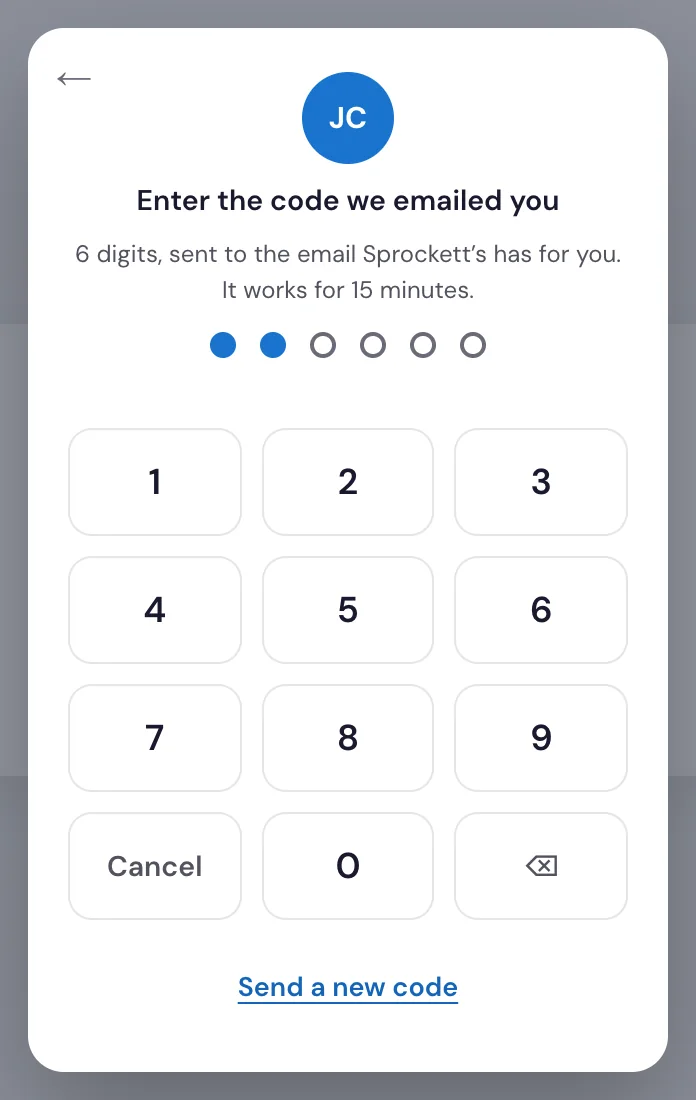
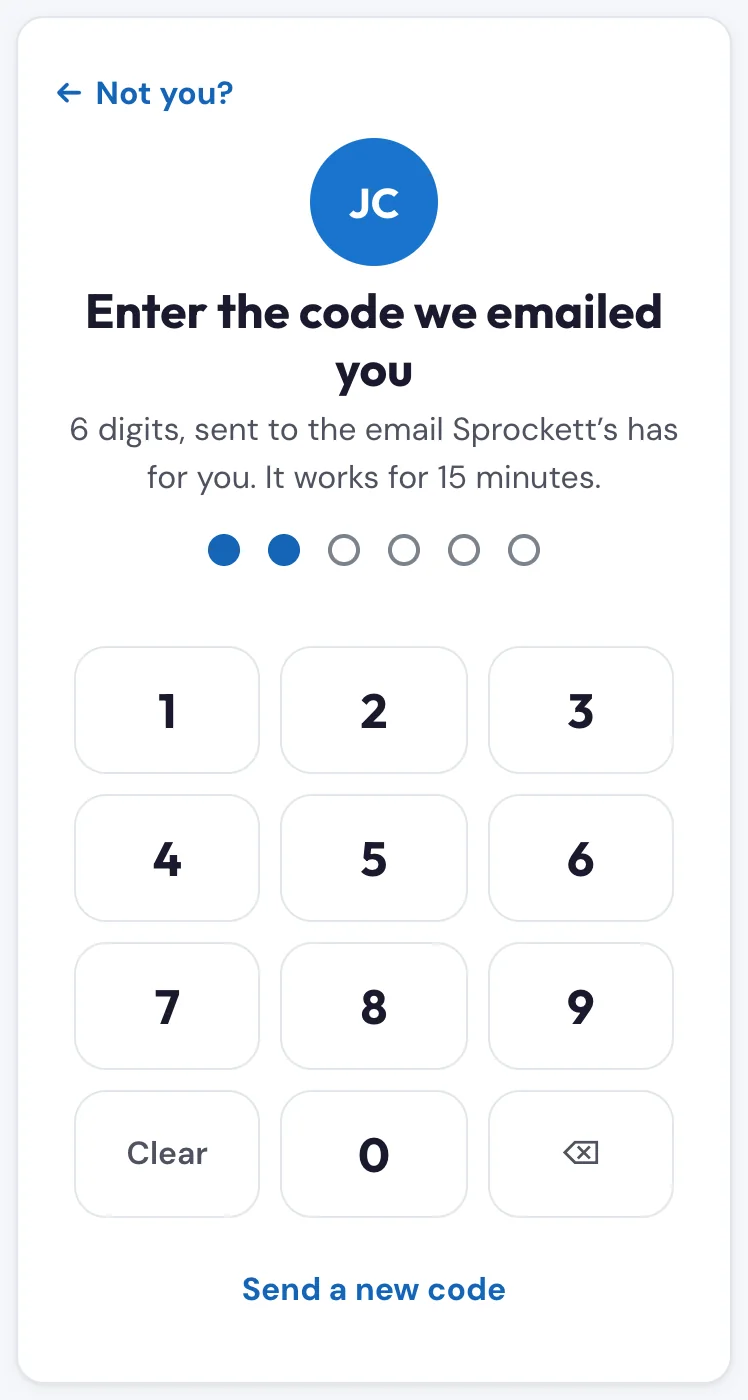
- We email a 6-digit code to the email Sprockett's has for you. It works once, for 15 minutes.
- Type the code. If it's wrong, you'll see how many tries are left. Code ran out, or too many tries? Tap Send a new code.
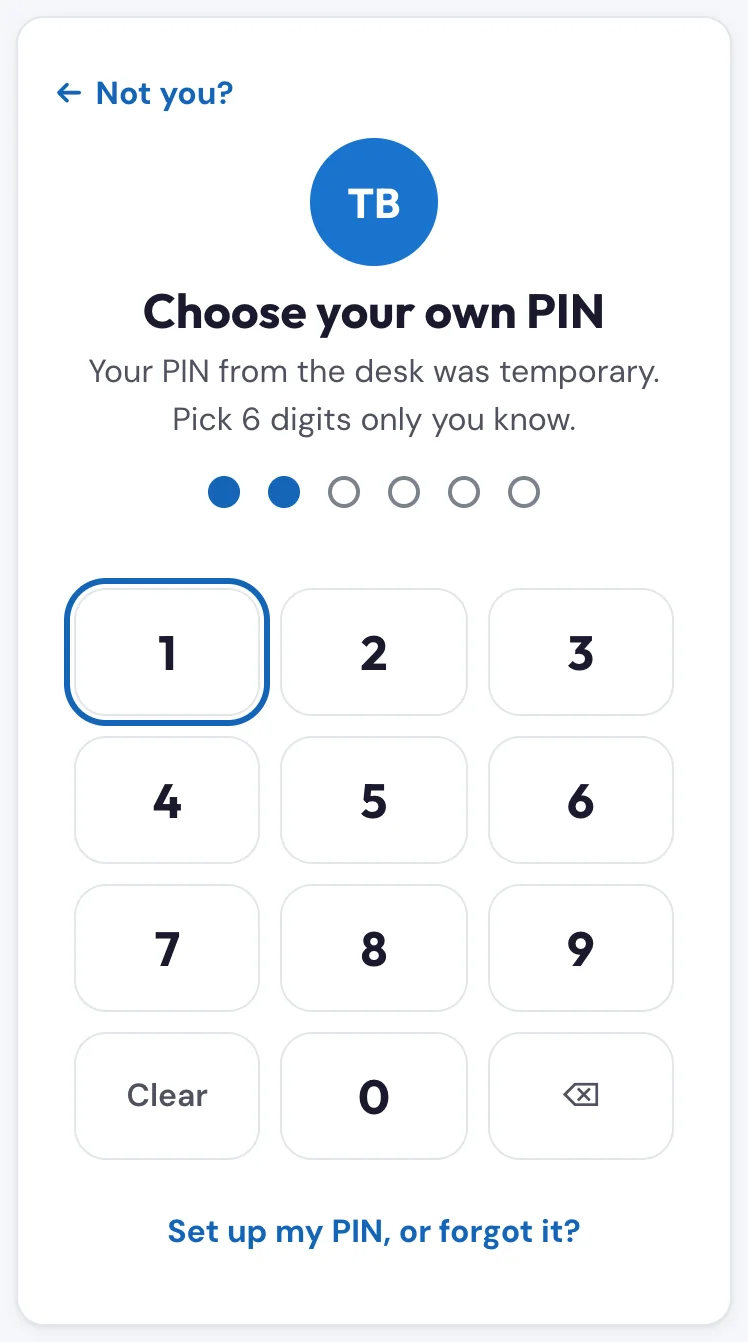
- Choose your own PIN, then type it again: 6 digits for the front desk, managers, admins and View only, 4 for groomers and trainers.
You're signed in, and your old PIN (if you had one) stops working. You can ask for one code a minute, five an hour.
No email on file, or the email doesn't arrive? Ask whoever manages the team (Theresa or John) to check your email in Team, or to give you a temporary PIN in person. Sign in with the temporary PIN and you're asked to choose your own straight away.
EveryoneThe code screen says codes are paused. What now?#
Too many wrong codes were tried on the system, so codes are paused for up to an hour. Try again later, or ask whoever manages the team (Theresa or John) to give you a temporary PIN in person.
EveryoneHow do I change my PIN?#
Tap your person chip (top-right) to open the chip menu, choose Change PIN, enter your current PIN, then your new PIN twice. The front desk, managers and admins choose 6 digits; groomers and trainers 4. Your session stays signed in afterward.
EveryoneWhat's in the chip menu when I tap my name?#
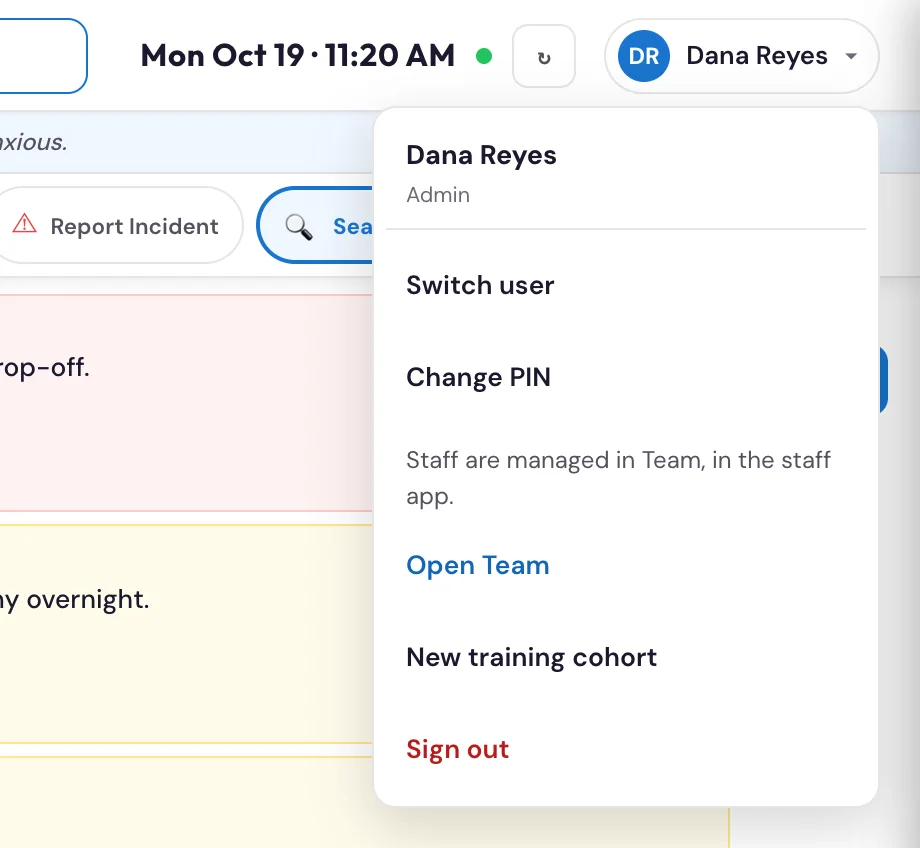
Tapping the chip when you're signed in opens a small menu with:
- Switch user — hand the terminal to a coworker (they pick their name + PIN).
- Change PIN — change your own PIN.
- Open Team — only for people who manage the team (Theresa and John to start). The menu says "Staff are managed in Team, in the staff app.", and Open Team opens Team in a new tab.
- New training cohort — admins only; opens a new training class for enrolment (see "How do I open a new training class?").
- Sign out — sign yourself off the terminal.
EveryoneHow do I sign out, and what happens if I forget to?#
Tap your person chip → Sign out. If you walk away and forget, the board automatically signs you out after 10 minutes of no activity (every tap or keypress resets the clock) and shows a short note saying it did, so the next person isn't acting under your name. Best practice on a shared desk: switch user or sign out when you step away.
EveryoneThe board is locked and just says "Sign in with your PIN to view the board." Why?#
Nobody is signed in on that screen. When no one is signed in the board shows nothing at all — no dogs, no owners, no cards — because anyone walking behind the desk could otherwise read customer details. Tap Sign in, pick your name and enter your PIN; the board loads and works as normal. The lock also comes back on its own after 10 minutes of no activity, so if you find it locked mid-shift, that is why — sign in again and carry on. Everything that was on screen before is still there once you are in.
EveryoneI typed the wrong PIN and now it says to wait. What happened?#
After 5 wrong PINs your name is locked for 10 minutes. Wait, or ask whoever manages the team to tap Unlock their PIN on you in Team. Forgot the PIN? Tap Set up my PIN, or forgot it? instead: setting a new one with the emailed code lifts the lock. If the screen says sign-in is paused for everyone, there were 20 wrong PINs on the system in 10 minutes; it opens again by itself after 10 minutes. Both stop someone guessing their way in.
EveryoneWhose initials get stamped on an action — and can I change who did something?#
Whoever is signed in on the chip at the moment you tap an action is stamped on it (initials + time). You can't re-attribute a past action — if the wrong person was signed in, switch users and the next actions stamp correctly. This is why switching users when you take over the desk matters.
EveryoneWhat is View only?#
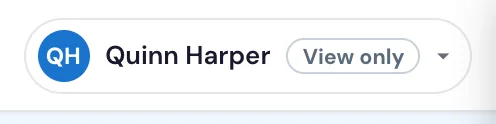
View only is a role for someone who needs to see the day but not change it. A View only person signs in with a 6-digit PIN and sees View only next to their name.
- On the board they can look at every tab, open a dog's card, search for a customer and read their profile, incidents, Meet & Greets and vet records.
- In the staff app they see what the front desk sees: every groomer's day, the notes and the classes. On a dog card, the texts with the owner show with phone numbers, email addresses, amounts and links hidden.
- Buttons that change things aren't there: no Check In or Check Out, no notes, texts, photos or incident reports, no booking or charging, no attendance, no announcements.
If a change ever gets through, it's refused and the screen says "View only: you can look, but not change anything." View only people don't get a Kanamé login and can't manage the team.
Staff app 33
EveryoneWhat is the staff app, and what do I get in it?#
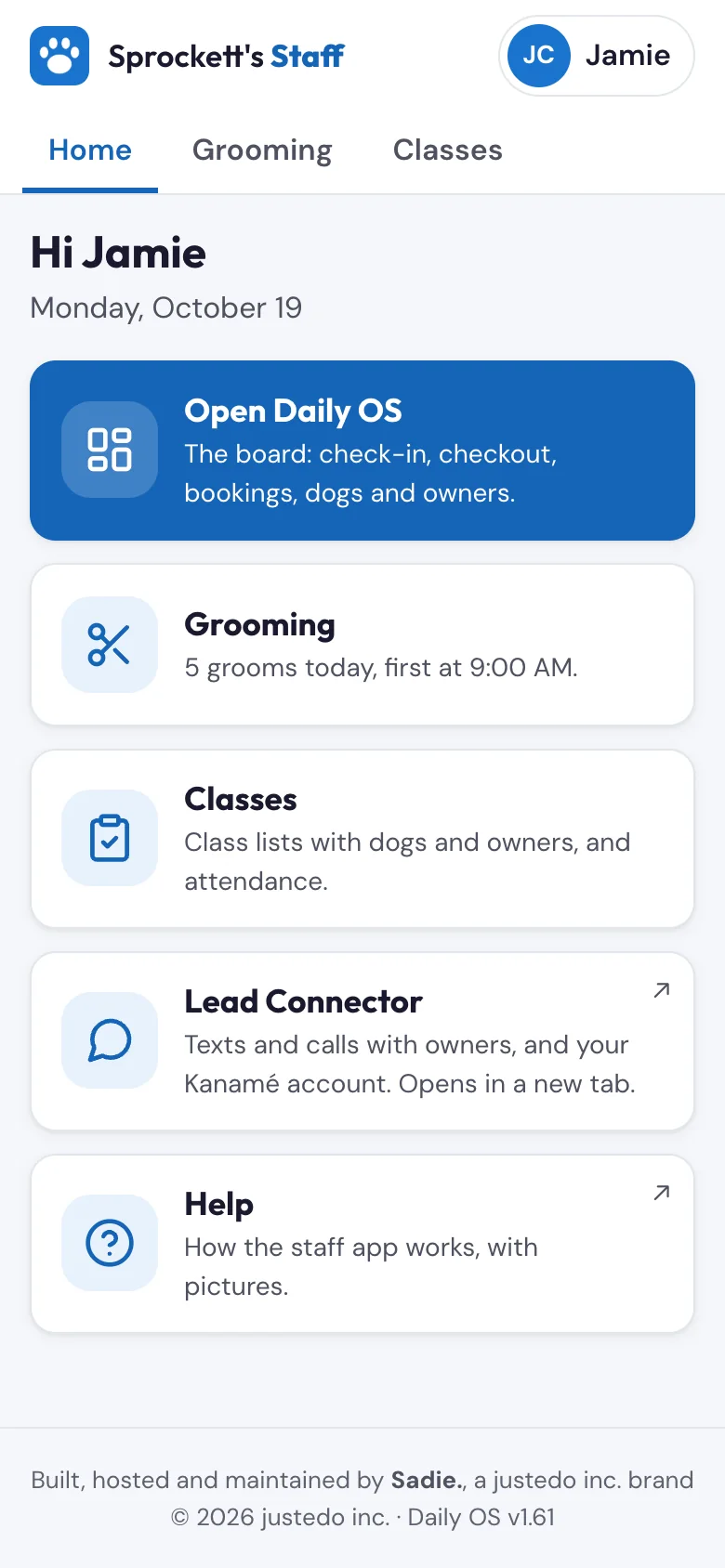
Sprockett's Staff is an app for your phone (it works on an iPad and a computer too). You sign in once with the same PIN as the board, and Home shows a button for each place you can go, for your job:
- Groomers: My day. Today's grooms as a board: Start groom and End groom, texts to the owner, photos, a note for next time and Book next. Tap a dog for its card: every earlier groom and the texts with the owner. Other days are a list. Groomers start on My day, with Home one tab away.
- Front desk, managers and admins start on Home: Open Daily OS (the board, full screen), Grooming (every groomer's day, where you leave a note for the groomer), and Classes.
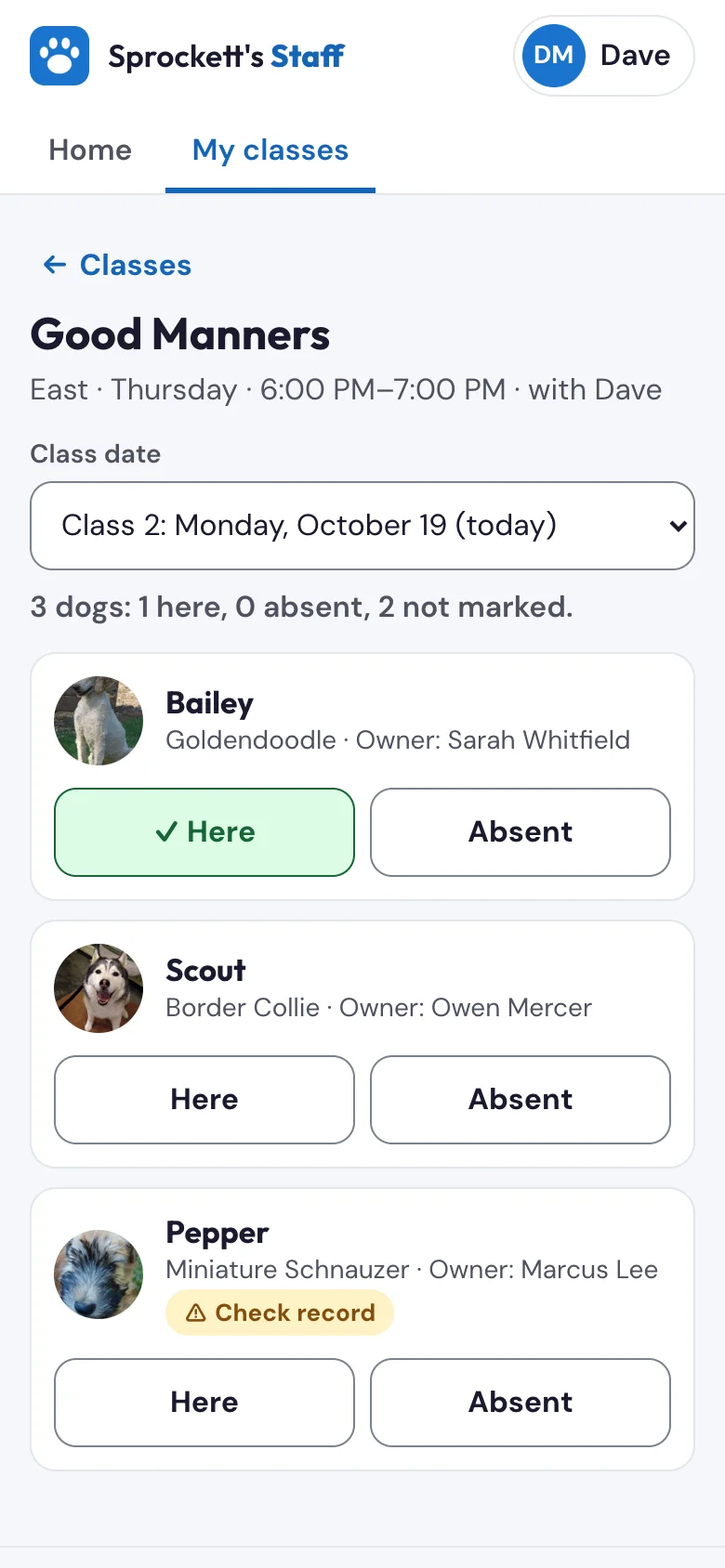
- Trainers: My classes. Your class lists with dogs and owners, and Here / Absent for each dog.
- Everyone: Lead Connector (texts and calls with owners, in the Lead Connector app) and Help.
- People who manage the team (Theresa and John to start) also get Team, where staff are added and changed.
- View only people see what the front desk sees, with nothing to press.
The app never shows an owner's phone number or email, or any prices: Sprockett's customers stay with Sprockett's. The foot of every screen shows the app's version.
Groomers · Front desk · Managers · TrainersHow do I open Lead Connector from the staff app?#
Tap Lead Connector on Home. On a phone it opens the Lead Connector app; if the app isn't on your phone yet, you land on its page in the App Store or Google Play, so you can get it (tap Open if it's already installed). Sign in with the same email and password as Kanamé on the web. On a computer, the button opens Kanamé in a new tab. Use Lead Connector for owners' texts and calls; replies to the staff app's texts come in there too, for the front desk.
Watch: Install the Lead Connector app ›EveryoneHow do I put the staff app on my phone?#
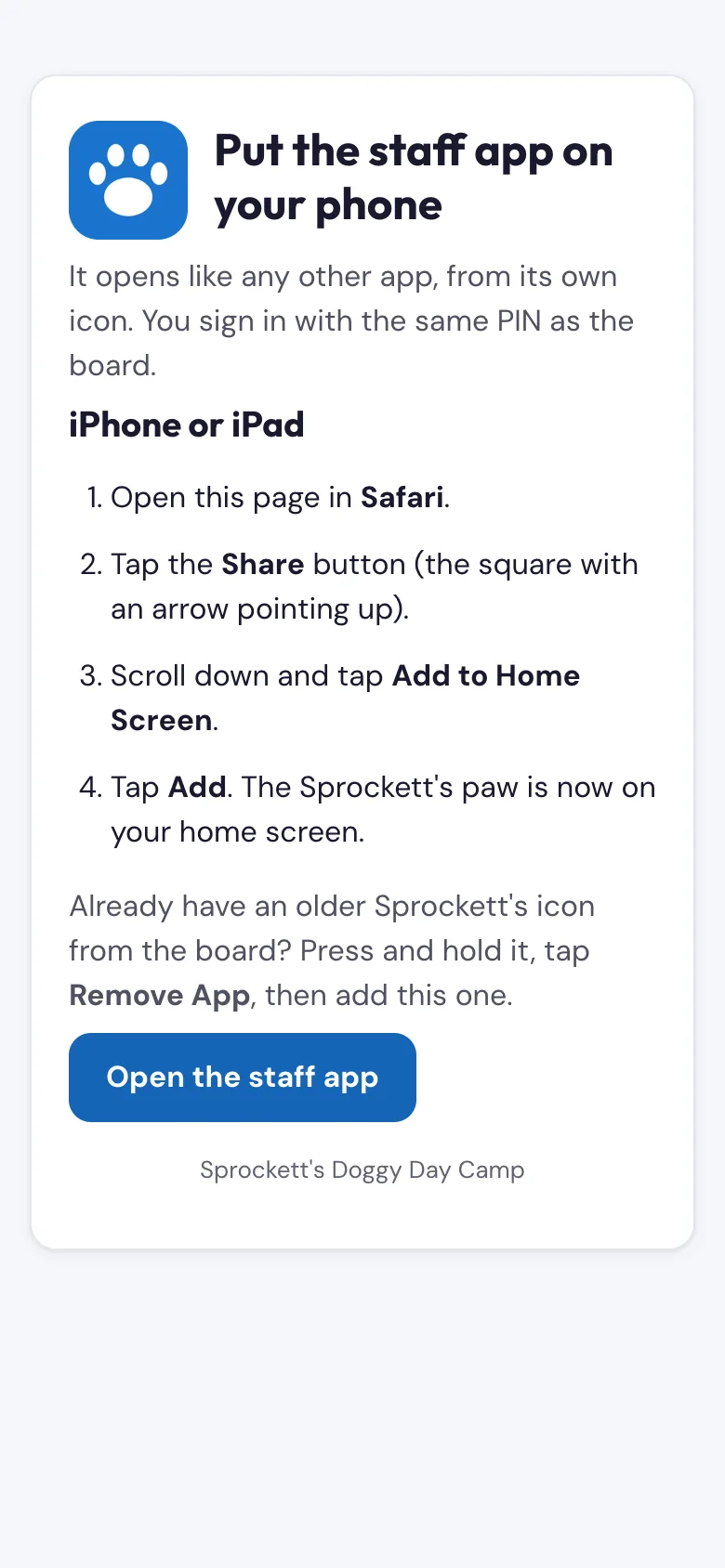
Open the link in your welcome email (or the one your manager sends you), then:
- iPhone: in Safari, tap Share, then Add to Home Screen, then Add.
- Android: in Chrome, tap the three dots, then Add to Home screen (or Install app).
The Sprockett's paw is now on your home screen. In the app, menu → Add to home screen shows the same steps.
EveryoneHow do I sign in to the staff app?#
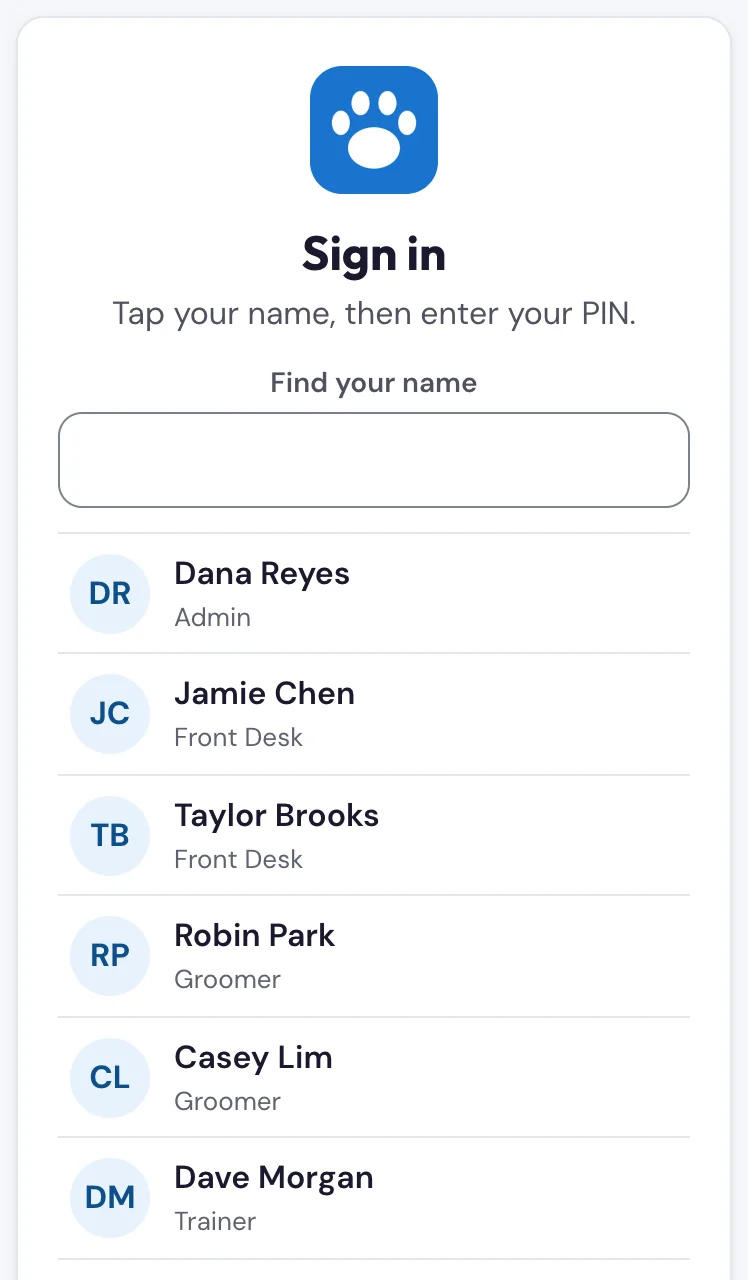
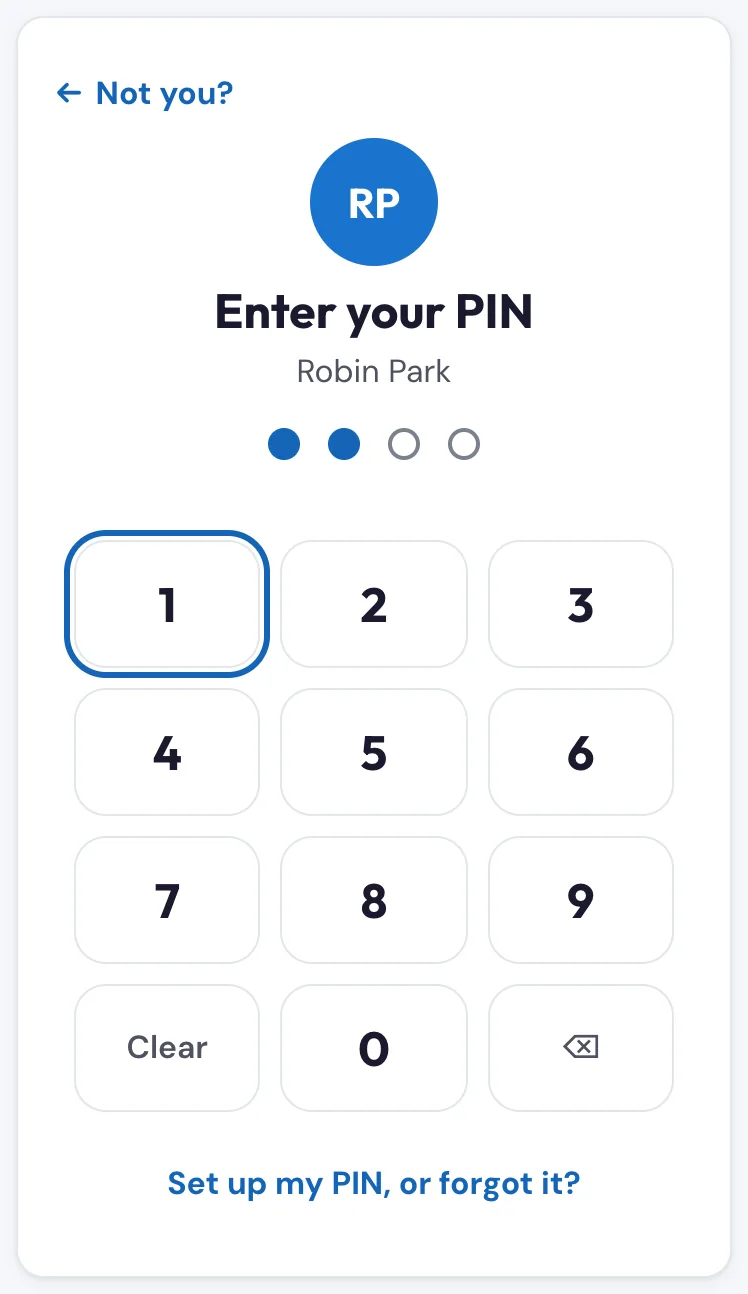
Tap your name, then enter your PIN, the same one you use on the board. No PIN yet, or forgot it? Tap Set up my PIN, or forgot it? under the keypad: a code goes to your email, then you choose your own PIN (see "I don't have a PIN yet, or I forgot mine"). If someone gave you a temporary PIN in person, the app asks you to choose your own (typed twice). The app locks after 10 minutes without a tap, so nobody else can read it if you put your phone down; sign in again to carry on.
GroomersI'm a groomer. How do I see my grooms for today, this week or another date?#
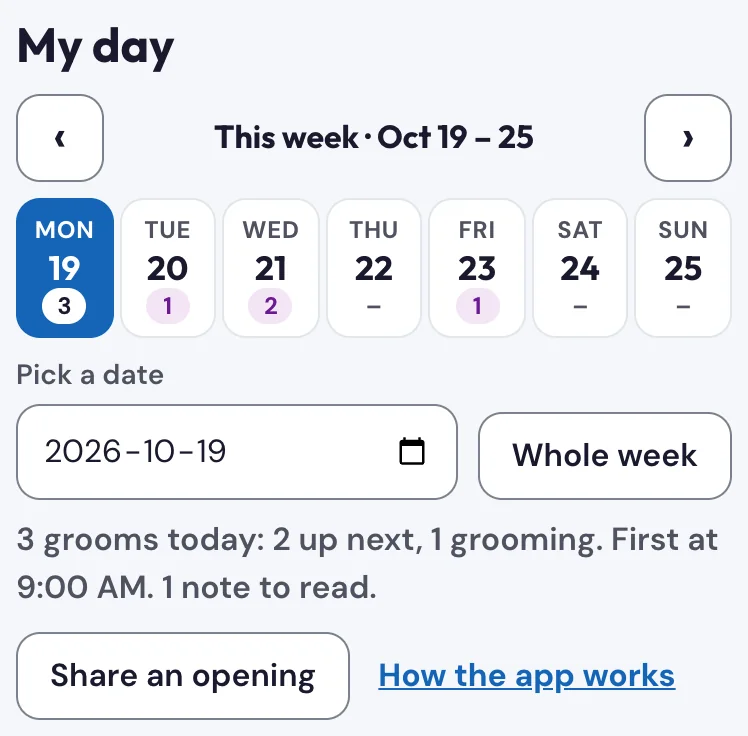
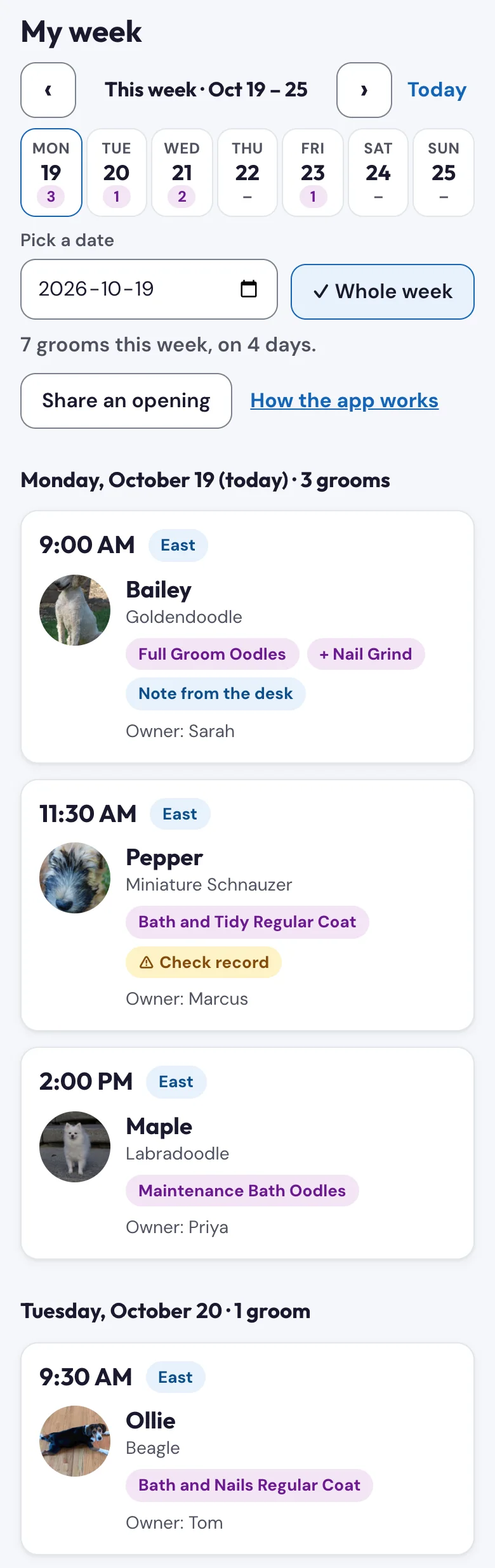
Sign in and you land on My day: today's grooms. Each one shows the time, the dog's photo, name and breed, the service and any add-ons, East or West, and the owner's first name. A yellow Check record or red On hold tag means the dog's record needs a look before you start.
- This week: the row of days at the top is Monday to Sunday, with the number of grooms under each day. Tap a day to see it. The arrows go to the previous or next week, and Today comes back.
- Whole week: lists every groom of the week, by day. Tap one to open that day on it.
- Any date: use Pick a date.
Bookings copy in a few times a day, so a groom booked in the last few hours may not show yet.
GroomersWhat's on the dog card?#
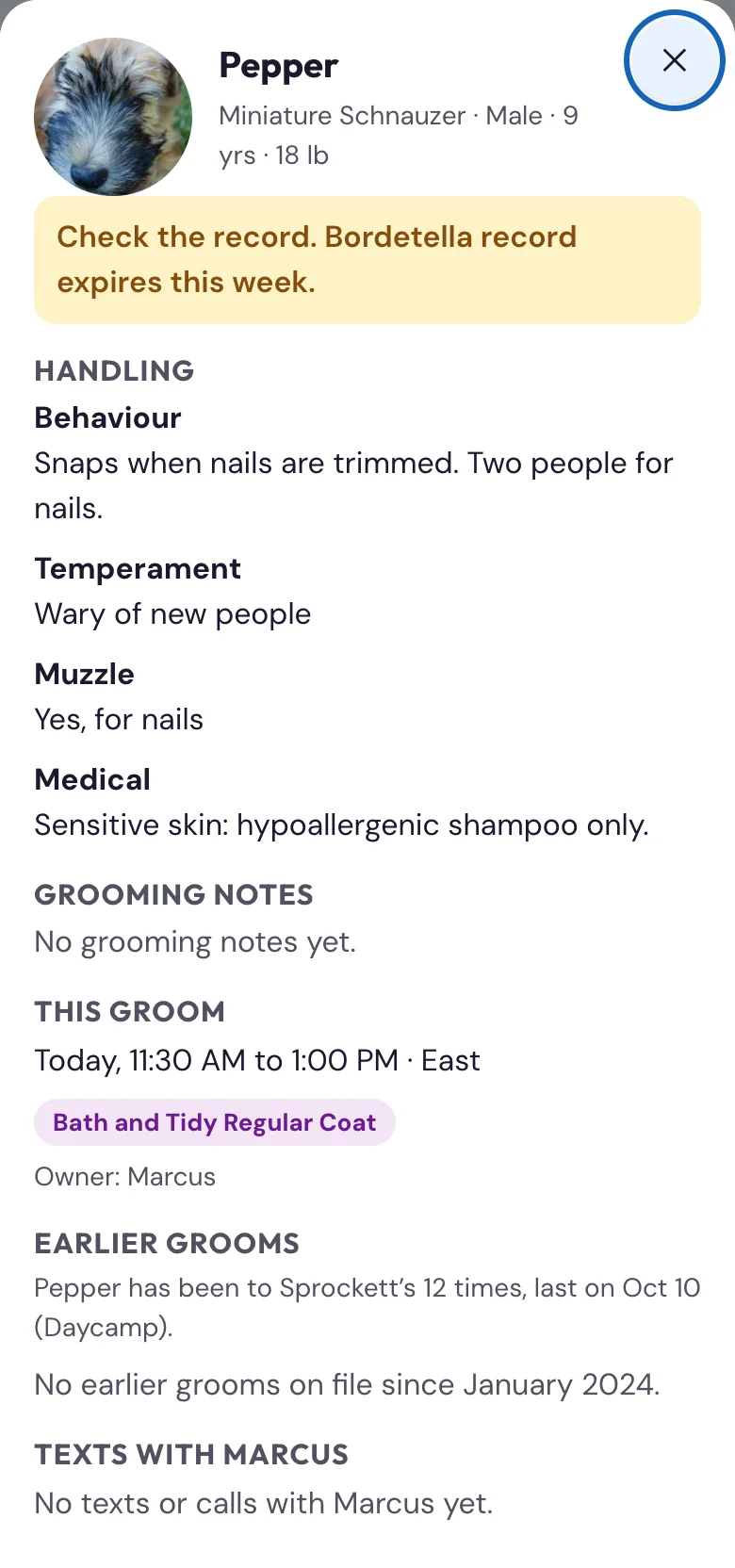
Tap a groom to open the dog card. Handling comes first: allergies, behaviour, temperament, muzzle, special notes and medical notes. If the dog is on hold or needs its record checked, the reason is at the top. Then:
- Grooming notes, and the groomer's note and photo from last time.
- This groom: the time, the services, the owner's first name, and the desk's note if there is one.
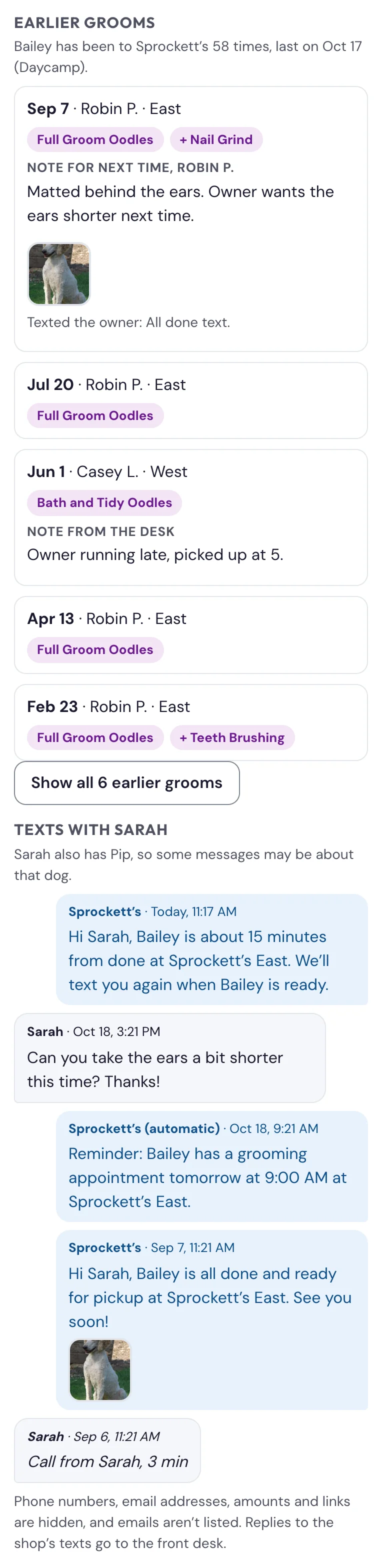
- Earlier grooms: every groom back to January 2024, newest first, with the date, the groomer, East or West and the services. Grooms done in the app also show the note for next time, the desk's note, the photos and which texts went. Show all opens the full list.
- How often the dog comes in: the number of visits and the last one.
- Texts with the owner: the texts and calls with the owner, newest first. Ones Sprockett's sends by itself (reminders, receipts) say automatic. The owner has one conversation for all their dogs, so the card says when they have other dogs. Phone numbers, email addresses, amounts and links are hidden, and emails aren't listed (the front desk sees those). The desk's own view of the card shows everything.
Close it with the X or by tapping outside it.
GroomersWhat is the note with a "Got it" button?#
It's a note from the desk about this groom (for example "Owner asked for the ears shorter"). It sits on the groom, highlighted, until you tap Got it. Tapping it tells the desk you read it, and when. If the desk changes the note, it shows as new again so you don't miss the change.
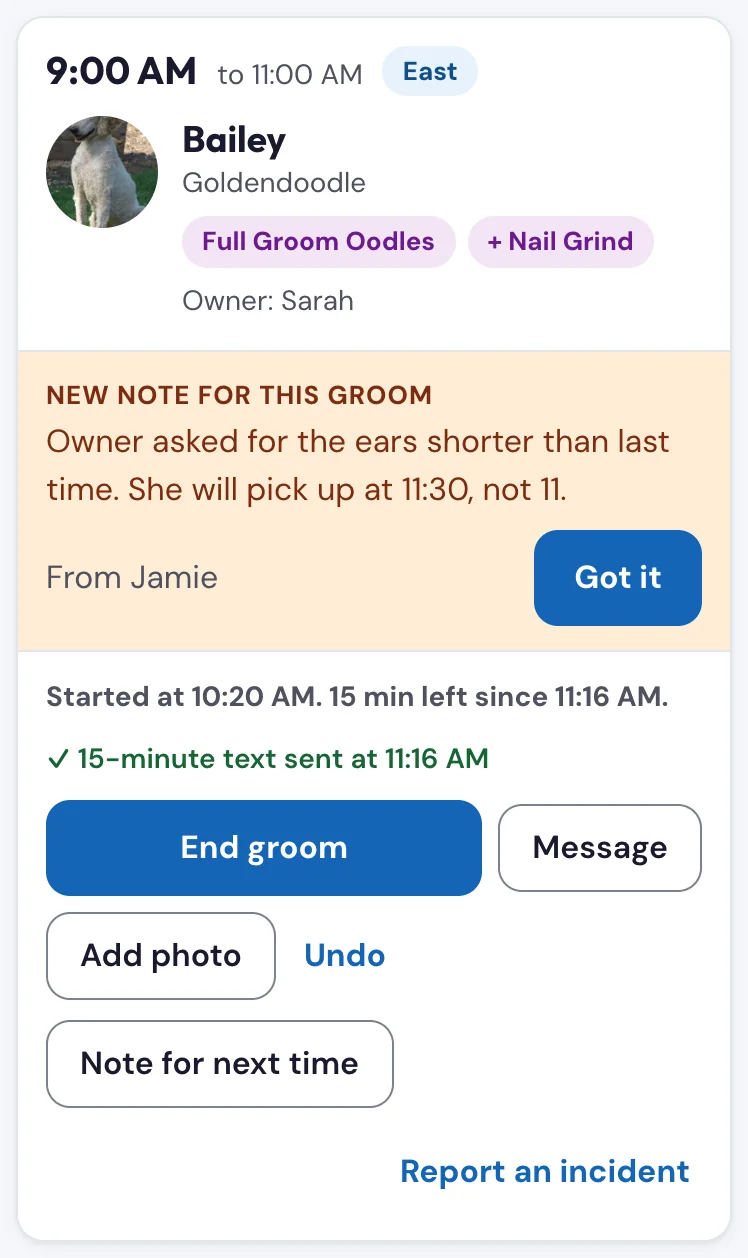
Groomers · Front desk · ManagersI'm a groomer. How do I move a dog through my day (Start groom, End groom)?#
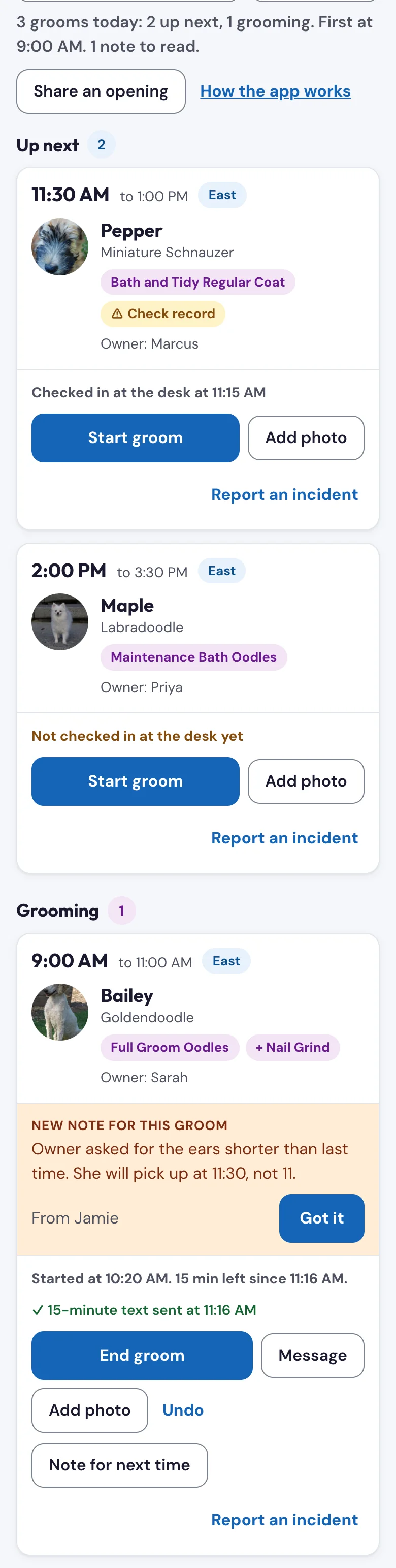
Today's grooms sit in four stages: Up next, Grooming, Done and Gone home.
- Start groom when the dog goes on the table. It moves to Grooming. When it has about 15 minutes to go, tap 15 min left so the desk can get ready (see "What does 15 min left do?").
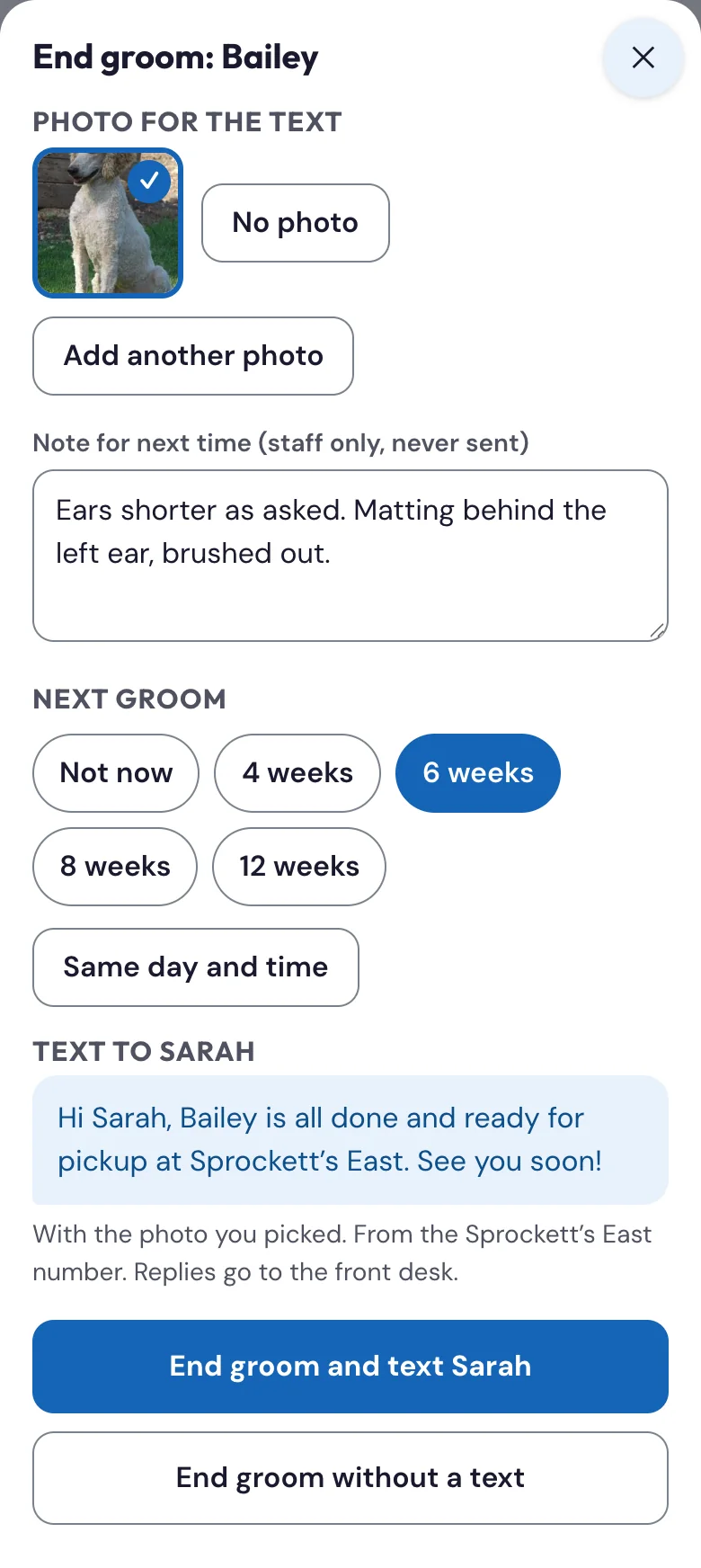
- End groom when you're finished. One screen lets you pick a photo, write the note for next time, choose when the next groom should be (Book next) and send the "all done" text, or end without a text. The dog moves to Done, waiting for pickup.
- The dog moves to Gone home by itself when the desk checks it out.
Pressed the wrong one? Undo moves the dog back a step. On a phone the stages are stacked; on an iPad turned sideways or a computer they sit side by side. The front desk sees every groomer's board in Grooming.
Checking in and checking out are the desk's job. The desk checks the dog in on Daily OS when it arrives, and the card says Checked in at the desk (or Not checked in at the desk yet). Checkout is at the desk too, because that's where the payment happens; the app never checks a dog out. If the desk hasn't checked a dog in when you tap Start groom, Daily OS shows it as checked in, so the board never shows a dog on your table as late. A dog that's on hold asks first: check with the desk before you start. A dog the desk marked as a no-show that turns up after all can still be started.
Groomers · Front desk · ManagersHow do I text the owner (15 minutes, all done, or my own message)?#
Texts come from Sprockett's East or West number, never your phone, and you never see the owner's number. Replies go to the front desk.
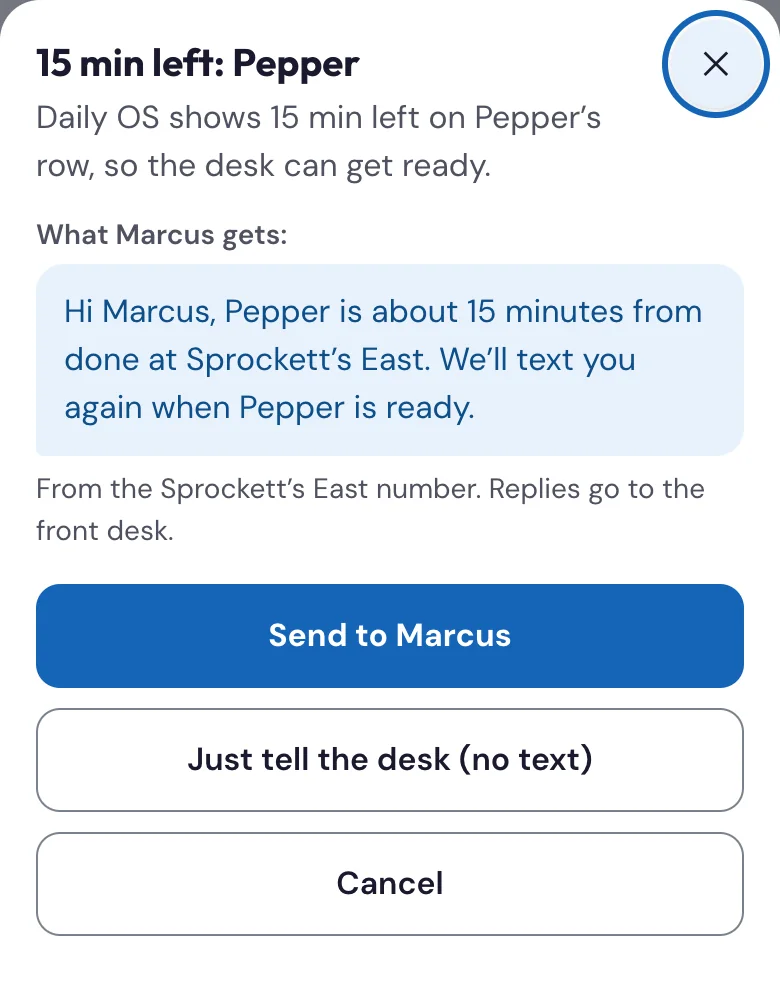
- 15 minutes: while the dog is in Grooming, tap 15 min left. The app shows the exact text: tap Send to (owner), or Just tell the desk (no text). The text goes once per groom.
- All done: in End groom, pick a photo if you like and tap End groom and text (owner). If you ended without a text, the dog's card in Done has Text (owner): all done. It goes once per groom.
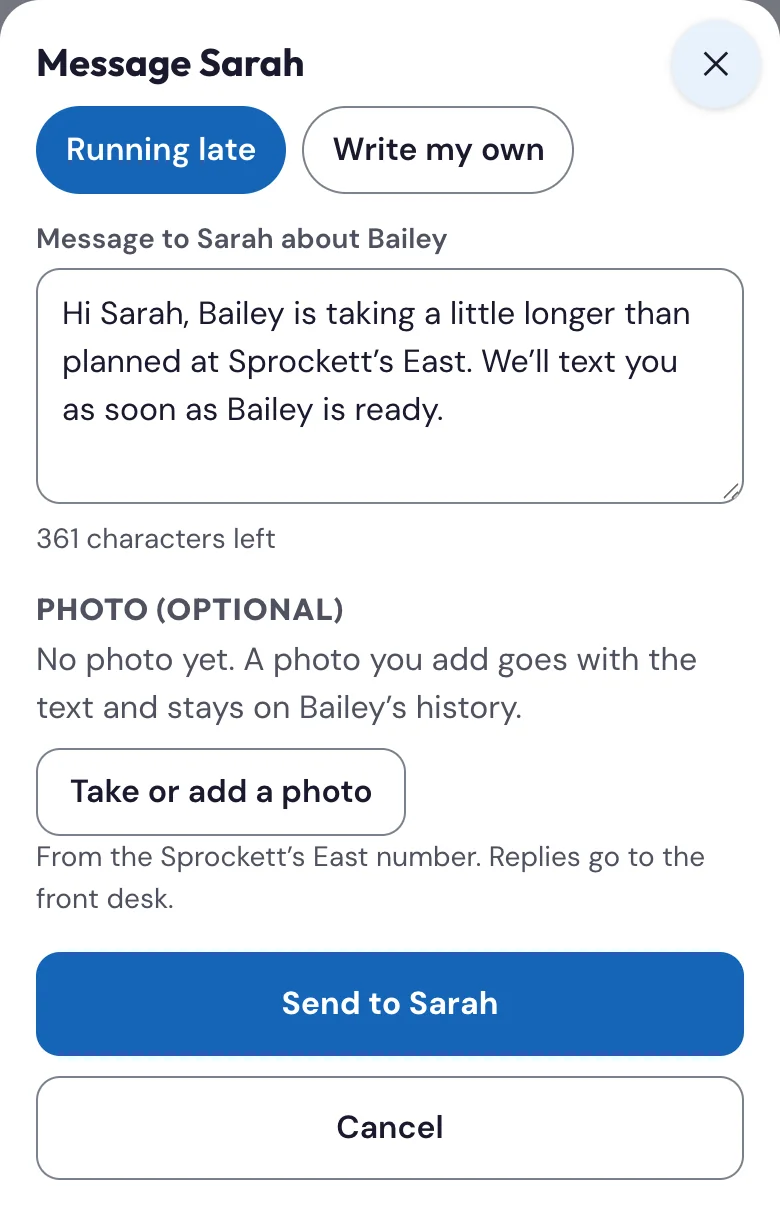
- Your own message: tap Message. Running late fills in "taking a little longer than planned" for you to change, or Write my own starts blank. Add a photo if you like, then Send. Up to 6 messages a groom.
If the owner has no mobile number on file, there are no text buttons: the desk can call. Texts only go out between 7 am and 9 pm. If the app says texts are switched off, the text is saved on the groom but nothing goes to the owner; Sprockett's turns texts on when it's ready. Every text shows on the groom, with the words for your own messages.
Groomers · Front desk · ManagersWhat does 15 min left do?#
While you're grooming, tap 15 min left when the dog has about 15 minutes to go. Daily OS shows 15 min left on the dog's row, with the time, so the desk can get ready for pickup.
- Owner has a mobile number: the app shows the 15-minute text. Tap Send to (owner) to send it, or Just tell the desk (no text).
- No mobile on file: it just tells the desk.
Undo takes the dog back to Grooming. When you tap End groom, the row changes to Groom done.
GroomersHow do I add a photo of the dog, and where is it saved?#
Tap Add photo on one of today's dogs (or Take or add a photo in End groom or Message). Your phone asks whether to take a photo or pick one you already took. The photo is saved with Sprockett's, in a Grooming photos folder in Kanamé's media library, and on the dog's history in the app: the next groomer sees it on the dog card, and it's listed under that groom in Earlier grooms. You can send it with the all done text or your own message. Took the wrong one? Tap the photo, then Remove photo (not once it went out in a text). Up to 8 photos per groom.
Groomers · Front desk · ManagersHow do I report an incident from the staff app?#
Every groom card for today has Report an incident at the bottom. Groomers see it on their own dogs; the front desk, managers and admins on any groomer's.
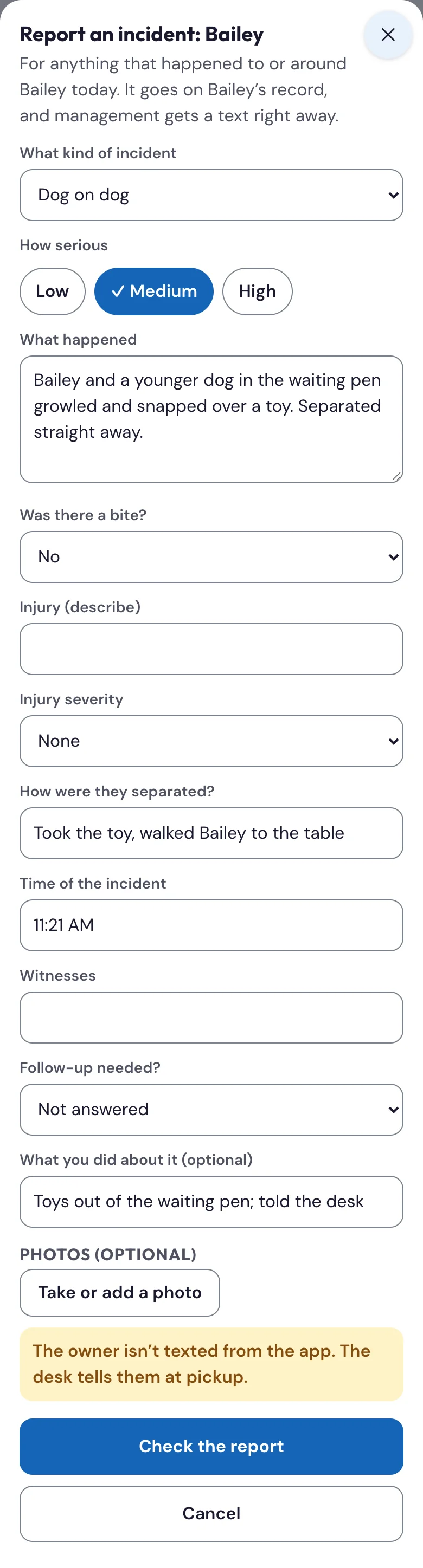
- Pick what kind of incident (the same six kinds as the desk's form) and how serious: Low, Medium or High.
- Say what happened. The questions for that kind show up underneath (was there a bite, first aid, and so on), plus the time, witnesses and whether follow-up is needed. Answer what you can.
- Add what you did about it, and up to 4 photos if you have them (Take or add a photo).
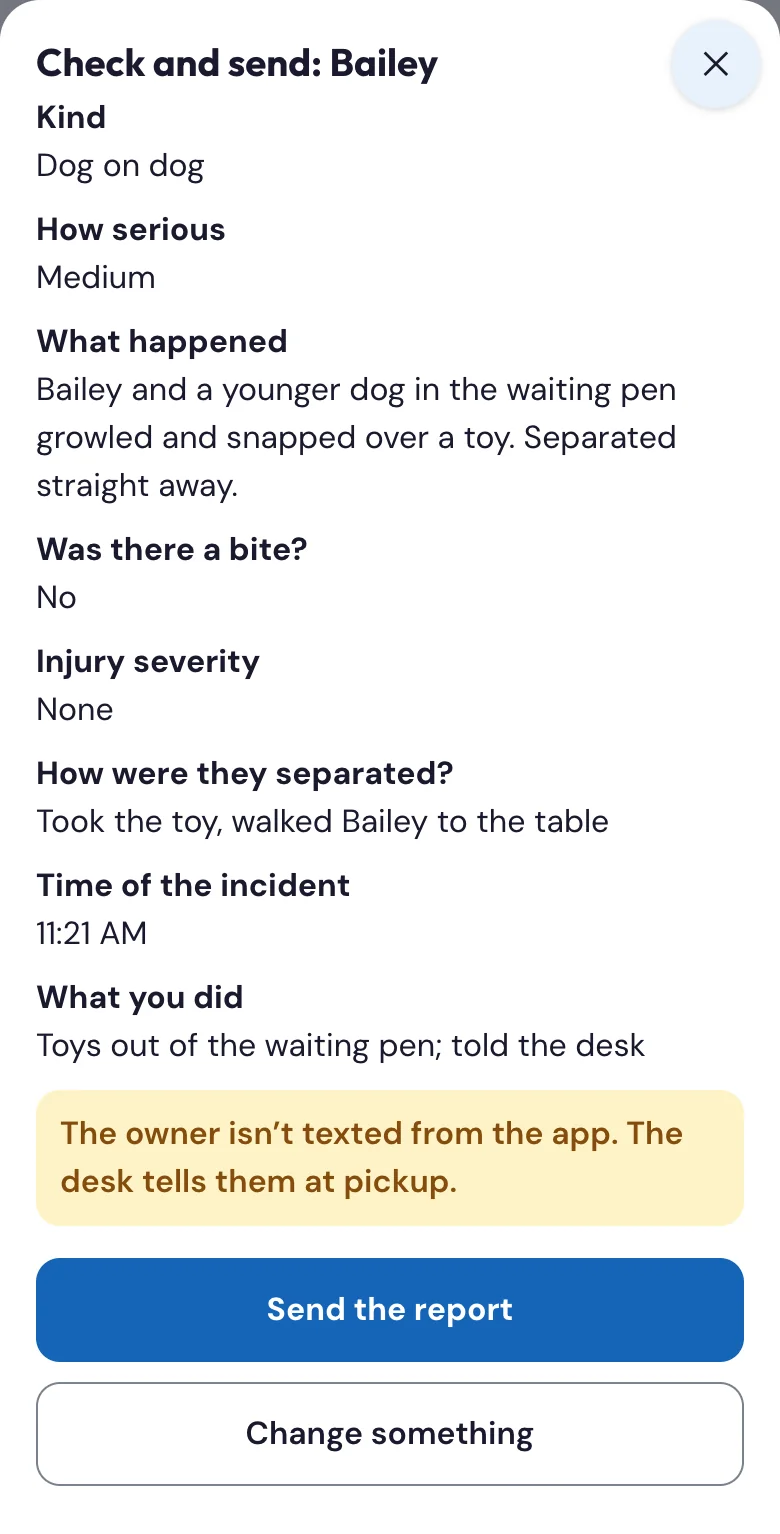
- Tap Check the report, read it over, then tap Send the report.
It goes on the dog's record, a note goes on the owner's file, management gets a text right away and the follow-up tasks are made, the same as a report filed at the desk. The groom then shows Incident reported with the time.
Groomers · Front desk · ManagersDoes the owner get a text when I report an incident in the app?#
No. Reports from the app don't text the owner. The report screen says so, and so does management's text. The desk tells the owner at pickup, in person, which is better for hard news. Reports filed at the desk on Daily OS work as before.
Groomers · Front desk · ManagersI tapped Send twice, or the app was slow. Did my incident report go in twice?#
No. The same report (same kind, same words) on the same groom only goes in once; the second try says That report already went in. A different report on the same dog is fine, up to 5 a groom. If a report didn't go in, the app says so: try again, or tell the desk.
GroomersWhat is the note for next time?#
A note about how the groom went, for whoever grooms the dog next: "Matting behind the left ear", "Shorter on the face next time", "Two people for nails". Write it in End groom, or with Note for next time on the dog once the groom has started. It's for staff only and never goes to the owner. At the dog's next groom it's on the dog card, with the last photo, and every earlier note is under Earlier grooms. The desk sees it too, at Check Out on Daily OS, under From the groomer.
GroomersHow do I ask the desk to book the dog's next groom (Book next)?#
The desk books grooms for now. In End groom, under Next groom, tap 4, 6, 8 or 12 weeks (and Same day and time if that suits). Or, once the dog is in Done, tap Book next, pick the weeks and add anything the desk should know. The request shows on the dog's grooming row on Daily OS and at checkout, so the desk can book it before the owner leaves. To change it, tap Book next: change; Withdraw the request takes it back.
Front desk · ManagersA groomer asked to book the next groom. What do I do at the desk?#
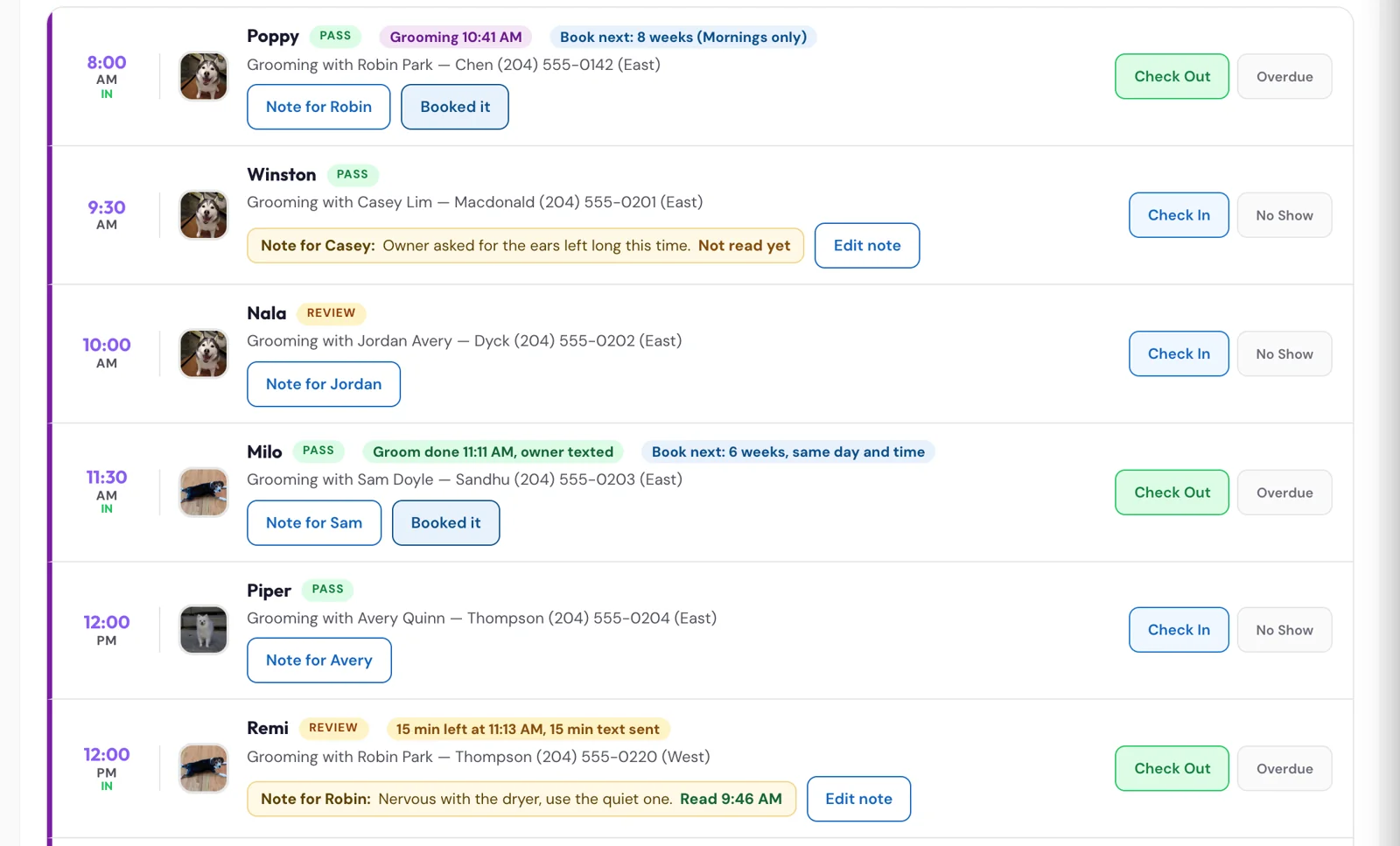
The dog's grooming row on Daily OS shows Book next: 6 weeks, same day and time (or what the groomer picked), and Check Out says it again: "The groomer asked: book the next groom in 6 weeks."
- Book it the way you book grooms today, while the owner is there.
- Tap Booked it, on the dog's grooming row or right there in Check Out (Family Checkout has it too).
The request closes everywhere: the label comes off the row and the groomer's app shows it as booked. Booked it is also on the dog in the staff app's Grooming, if you're on a phone.
GroomersCan I book or move a groom myself in the app?#
Not yet. Grooms are still booked in Sprockett's previous booking system, which the app can't change, so a booking made in the app could clash with one the desk makes. For now, use Book next to ask the desk, and ask the desk to move a groom. Once grooming bookings move to the new system, groomers will book and move their own grooms from the app.
Groomers · Front desk · ManagersHow do I share an opening on social media?#
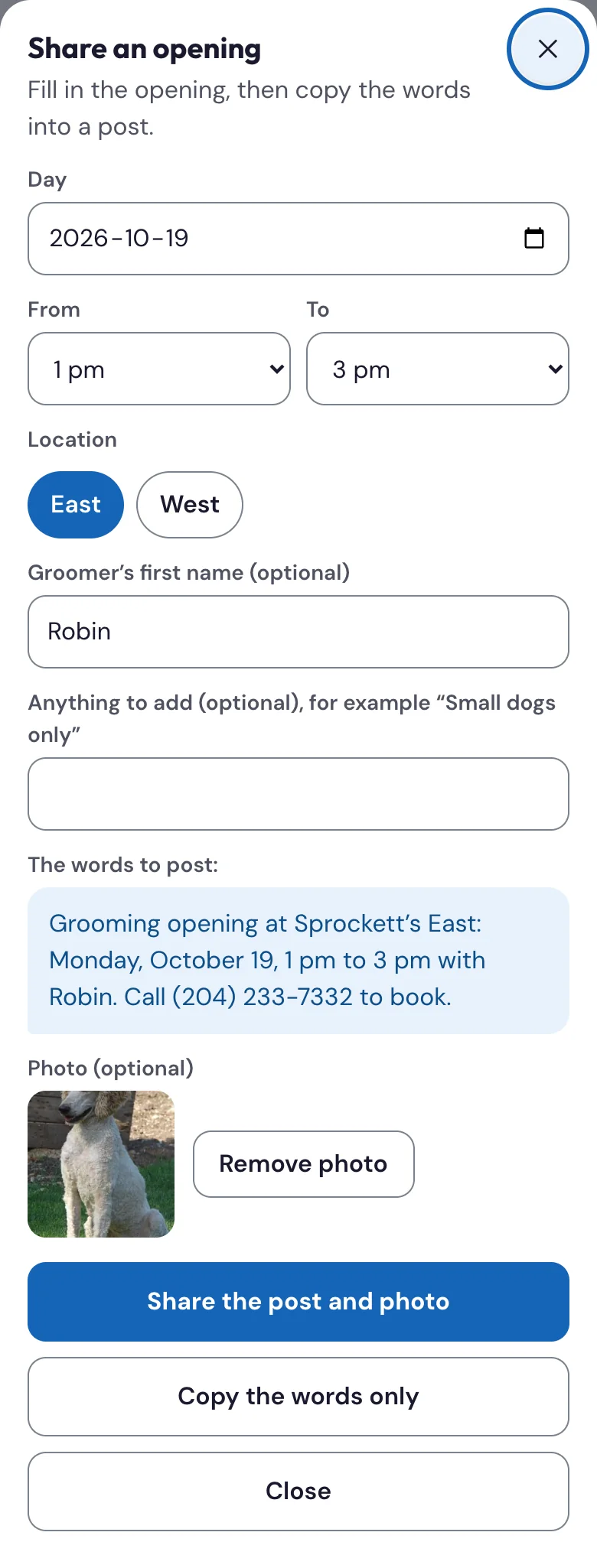
Tap Share an opening under the day (or in the menu). Pick the day, the times, East or West, and add your first name or a note like "Small dogs only" if you like. The app writes the post, for example: "Grooming opening at Sprockett's East: Thursday, October 22, 1 pm to 3 pm with Robin. Call (204) 233-7332 to book." Tap Copy the words and paste them into your post (or Share… on a phone). For now the post asks people to call the desk; your own online booking link comes once grooming bookings move to the new system.
On a phone you can add a photo: tap Add a photo and pick one (a groom you're proud of). Then Share the post and photo sends the words and the photo together to Instagram, Facebook, Messages or wherever you post. Copy the words only copies just the words, so add the photo in the app you post to.
ManagersI'm a manager. How do I see exactly what a groomer sees in the staff app?#
Managers and admins can open any groomer's app, read only:
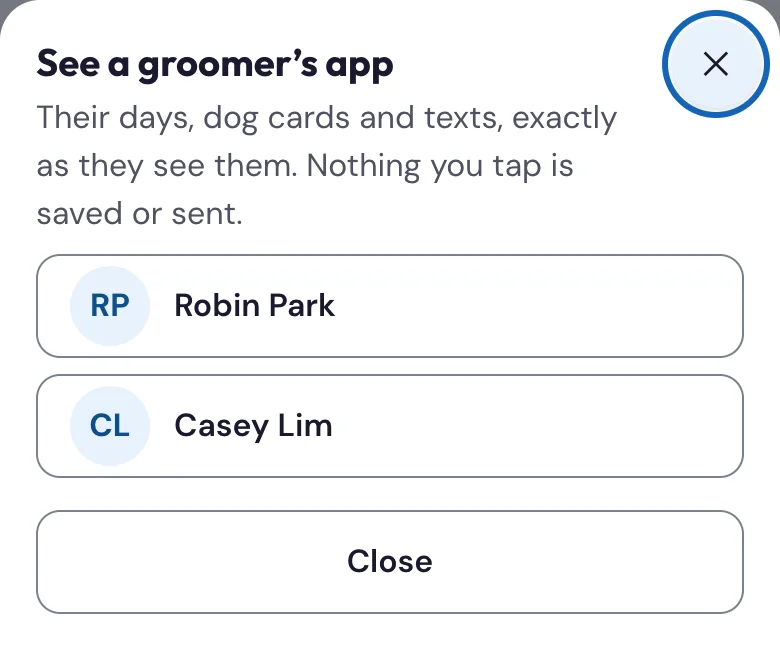
- Tap your name at the top right, then See a groomer's app.
- Tap the groomer.
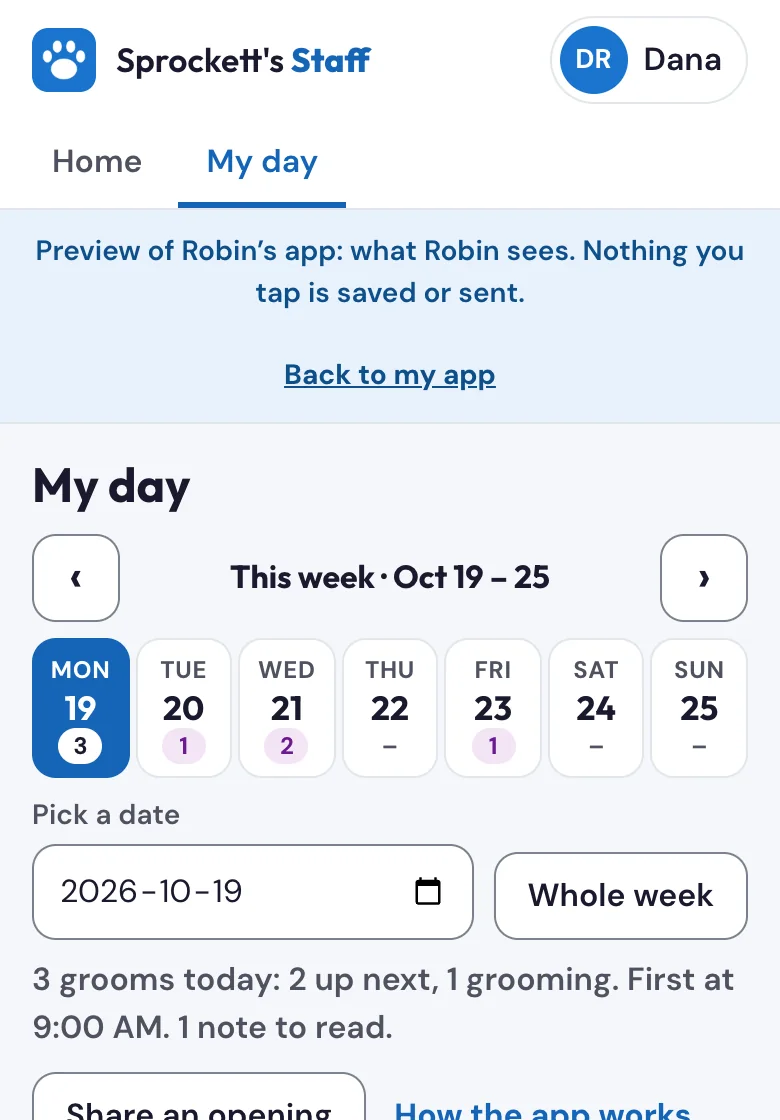
- You see their My day exactly as they do: today's board, the week strip with this week and the weeks around it, and each dog card with every earlier groom and the texts with the owner (with phone numbers, emails, amounts and links hidden, as the groomer sees them).
A blue line at the top says whose app it is. Nothing you tap there is saved or sent: Start groom, texts, notes and Book next all say "Preview only". Tap Back to my app on that line (or in the menu) to return to your own. Use it to help a groomer over the phone, check what they'll see before a busy day, or train a new groomer.
Groomers · Front desk · ManagersCan I try the staff app without changing anything?#
Yes. Your manager can send you a preview link (the staff app's usual address with ?review=1 on the end). Sign in as usual: you see your own real days and dogs, and a blue line at the top says it's a preview. Tap anything you like: nothing is saved, no dog is checked in, and no text goes to an owner. It's the way to look around and tell us what's missing before the app is switched on for you. Close the page when you're done.
Front desk · ManagersI'm at the front desk. How do I leave a note for the groomer, and see if they read it?#
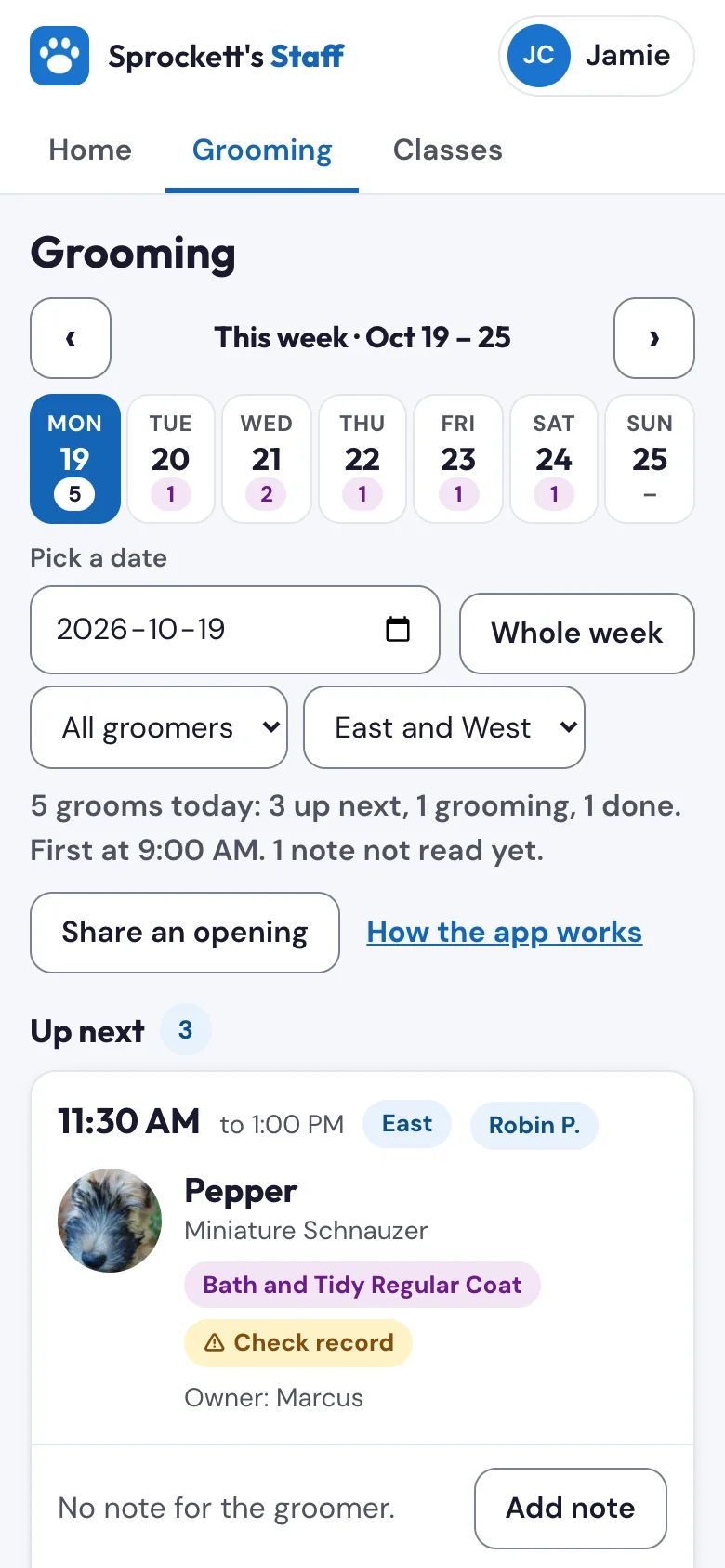
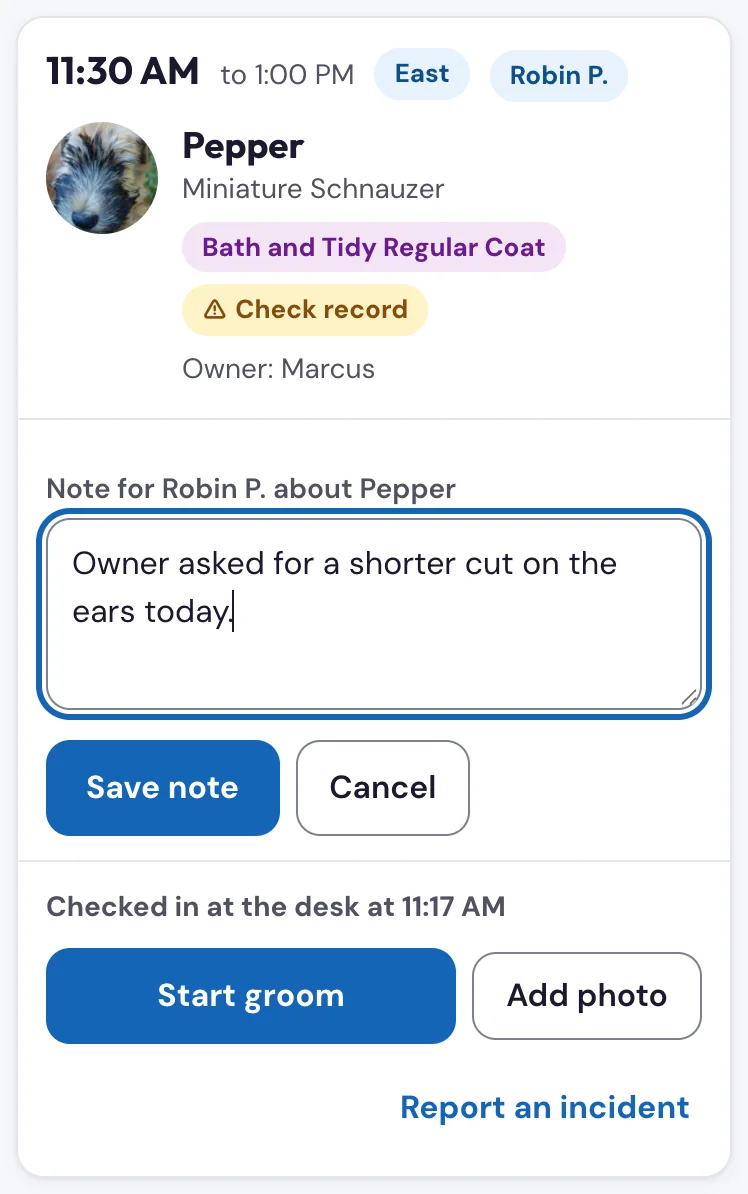
On Daily OS: open the Grooming tab. Every groom of a groomer who uses the staff app has a button with the groomer's name on it (a groomer who doesn't use the app yet wouldn't see the note, so their grooms don't have one).
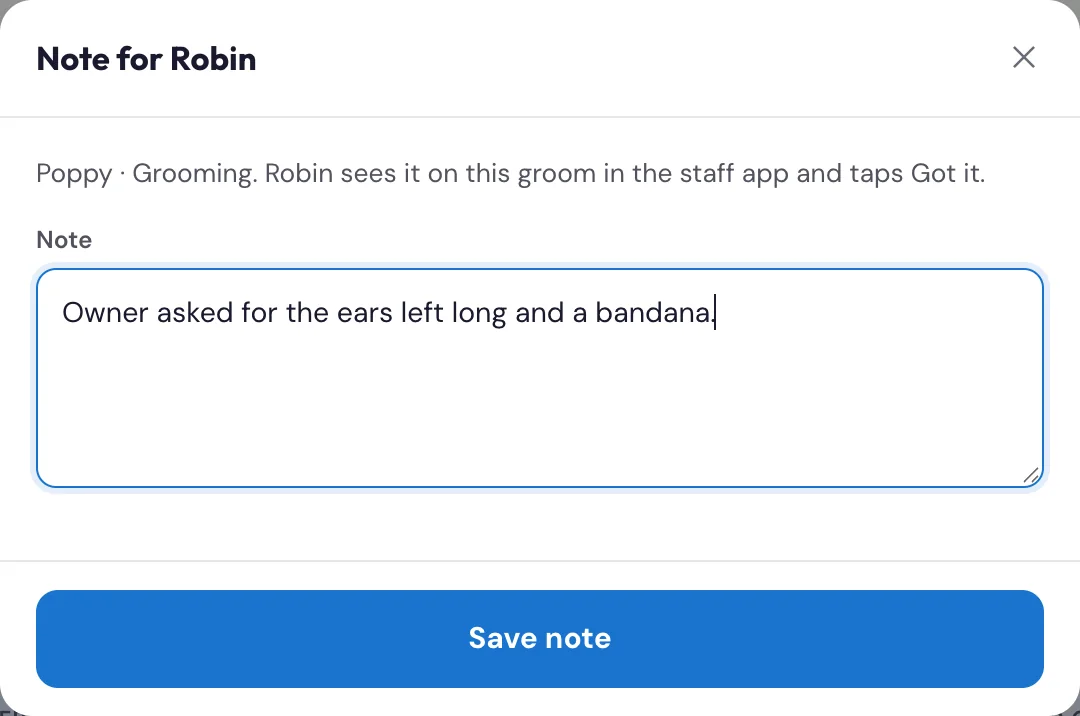
- Tap Note for Robin (the groomer's first name) on the dog.
- Type the note, for example "Owner asked for the ears left long", and tap Save note.
- The note shows on the row with Not read yet, then Read 9:10 AM once the groomer taps Got it in their app.
To change it, tap Edit note (the groomer sees it as new again); Remove note is in the same box. In the Compact layout the notes still show; switch to Rows or Cards to write one.
In the staff app, open Grooming. Today shows every groomer's dogs by stage (up next, grooming, done, gone home), with the groomer's name on each; other days list them by groomer.
- Tap Add note on the groom.
- Type the note and tap Save note.
- Under the note you'll see Not read yet, then Read by (name) at (time) once the groomer taps Got it.
To change a note, tap Edit note (the groomer sees it as new again). Remove note takes it off. Use the filters at the top for one groomer or one location.
Front desk · ManagersWhat do the groomer's labels on a grooming row mean on the board?#
They come from the groomer's staff app, so the desk can see how each groom is going without walking back:
- Grooming (with the time it started).
- 15 min left at 2:40 PM: the groomer tapped 15 min left, so the dog should be ready about 15 minutes later. If it also says 15 min text sent, the owner was texted too.
- Groom done (with the time), and owner texted when the all done text went.
- Book next: 6 weeks, same day and time: the groomer asked you to book the next groom. Book it (checkout reminds you), then tap Booked it next to it.
- Note for Robin: ... with Not read yet or Read (time): the note the desk left for the groomer, and whether they've seen it.
When a groomer taps Start groom on a dog you hadn't checked in yet, the board shows it as checked in.
At Check Out, if the groomer already texted that the dog is ready, the SMS receipt starts off so the owner doesn't get two "all done" texts. The email receipt is unchanged, and you can turn the text back on.
Front desk · ManagersA grooming row says "15 min left at 2:40 PM". What does that mean?#
The groomer tapped 15 min left in the staff app at 2:40, so the dog should be ready about 15 minutes later: time to get the checkout ready. If it also says 15 min text sent, the owner has been texted too. When the groomer finishes, the row changes to Groom done.

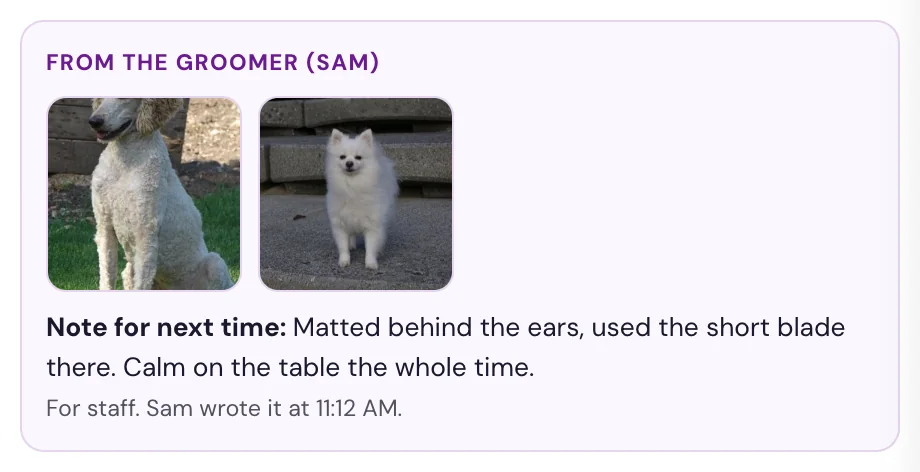
Front desk · ManagersWhat is "From the groomer" at checkout?#
When the groomer took photos or wrote a note for next time in the staff app, Check Out shows them under From the groomer, right under the dog's name:
- The photos. Tap one to open it full size and show the owner how the groom turned out.
- Note for next time. What the groomer wants the next groomer to know. It's marked "For staff": tell the owner what's useful, but it isn't written for them.
In Family Checkout each groom in the visit has its own From the groomer box, with the Book next request and Booked it if the groomer asked for one.
Front desk · ManagersHow do I open Daily OS from the staff app, and get back?#
Tap Open Daily OS on Home (or in the menu). The board opens full screen and you're already signed in. To go back to the app, tap Staff app at the top left of the board.

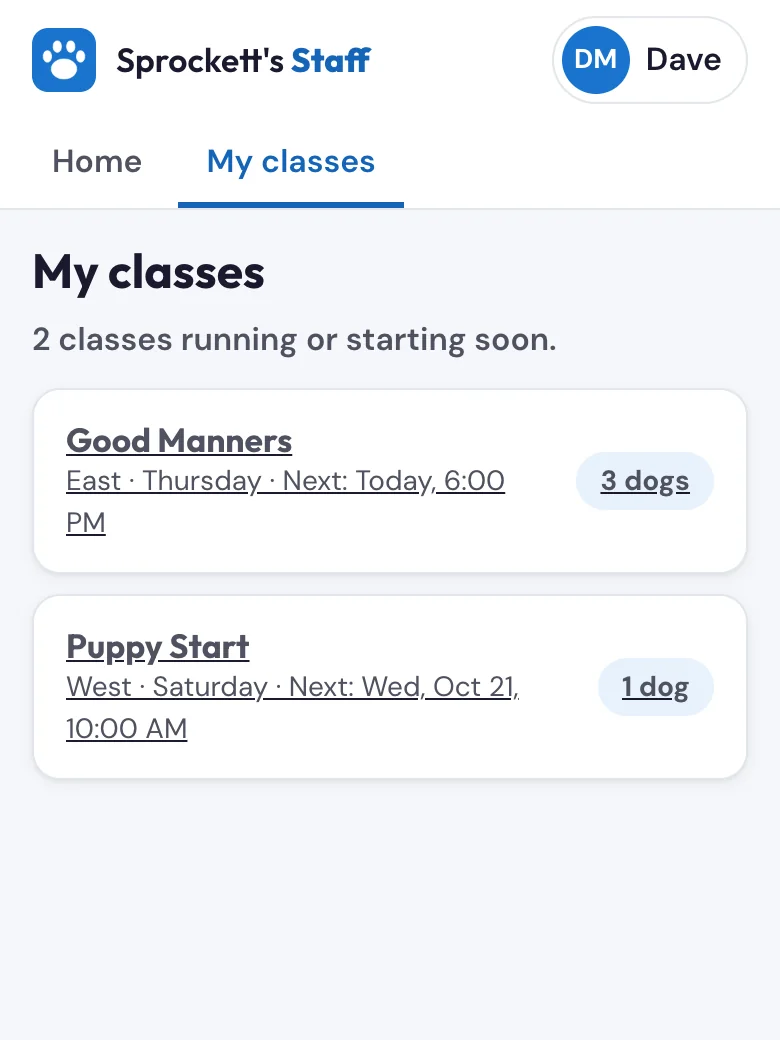
TrainersI'm a trainer. How do I see my class list and take attendance?#
Sign in and you land on My classes: the classes you teach that are running or starting soon, in order of the next class date and then the start time (6:00, 7:00, 8:00 PM on the same evening). Tap a class to see the dogs and their owners for the next class date (change the date at the top). Tap Here or Absent for each dog; tap it again to clear it. The line above the list counts who's marked. Front desk, managers and admins can see every class with All classes.
ManagersWhat is Team, and who sees it?#
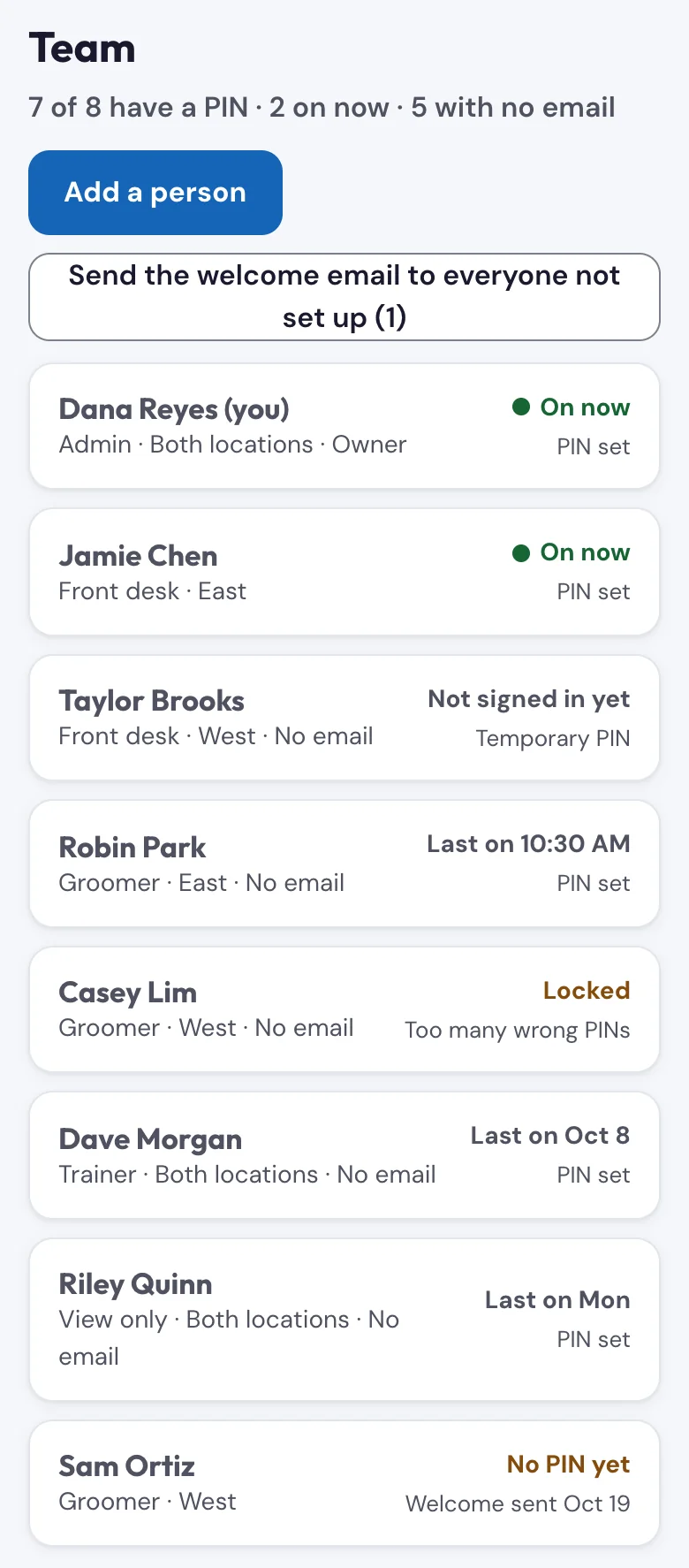
Team is where Sprockett's staff are managed. It's a button on Home in the staff app for people who manage the team (Theresa and John to start). Nobody else sees it, and the system refuses their changes even if they open the link. In Team you can:
- Add a person: their name, role, location, email, and whether they get a Kanamé login.
- Change someone's name, role, location or email. Their role decides what they see in the staff app and on the board.
- Turn their Kanamé login on or off. Most people don't need one: it's for texts and calls with owners in the Lead Connector app, customer records and calendars. On creates the login within a few minutes (Kanamé emails them an invite); off removes it.
- Pause (keeps their PIN) so they can't sign in, Bring them back, or Remove (they've left): their sign-in stops at once and their Kanamé login is removed.
- Send the welcome email, Unlock their PIN after too many wrong tries, or Give a temporary PIN in person (no email needed).
Each person in the list shows their role and location, and on the right, two short lines:
- On now, with a green dot: they've had the board or the staff app open and signed in in the last 10 minutes.
- Last on and when: a time if it was today ("9:14 AM"), the day if it was this week ("Tue"), or the date ("Oct 12").
- Not signed in yet: they have a temporary PIN they haven't used.
- No PIN yet, with Welcome sent and the date, or Welcome not sent.
- Locked: too many wrong PINs.
Under On now or Last on it says PIN set (or Temporary PIN). The line at the top counts them, for example "12 of 36 have a PIN · 3 on now". A copy of the list is kept in a Google Sheet as a backup; nobody edits the sheet.
ManagersHow can I see who has set up a PIN, or who's on right now?#
Open Team in the staff app. The line at the top counts who has a PIN and who is on now, and every person's row says On now (with a green dot), Last on and when, No PIN yet or Locked.
"On now" means they've had the board or the staff app open and signed in during the last 10 minutes. A signed-in board keeps itself up to date until it locks (after 10 minutes without a tap), so someone who walks away from it can show as on for up to 20 minutes, and someone who signs out shows as on for up to 10.
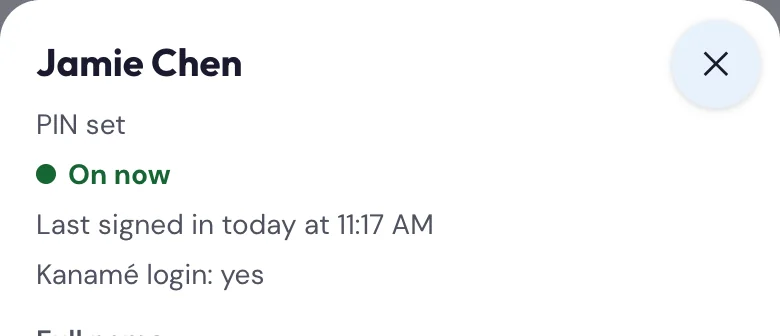
Tap a person to see more: whether they have a PIN, when they were last on, when they last signed in, and when their welcome email went. Someone with No PIN yet who has an email can be sent the welcome email from there.
ManagersWho can manage the team, and who decides?#
The owner (Theresa) decides. She can let an admin or a manager manage the team: in Team, tap them, then Let them manage the team (or Take away managing the team). Only the owner can change the owner, an admin or another person who manages the team, or make someone an admin. Nobody changes their own role, or pauses or removes themselves. Moving someone to a role other than admin or manager takes their team access away.
ManagersHow do I make someone View only?#
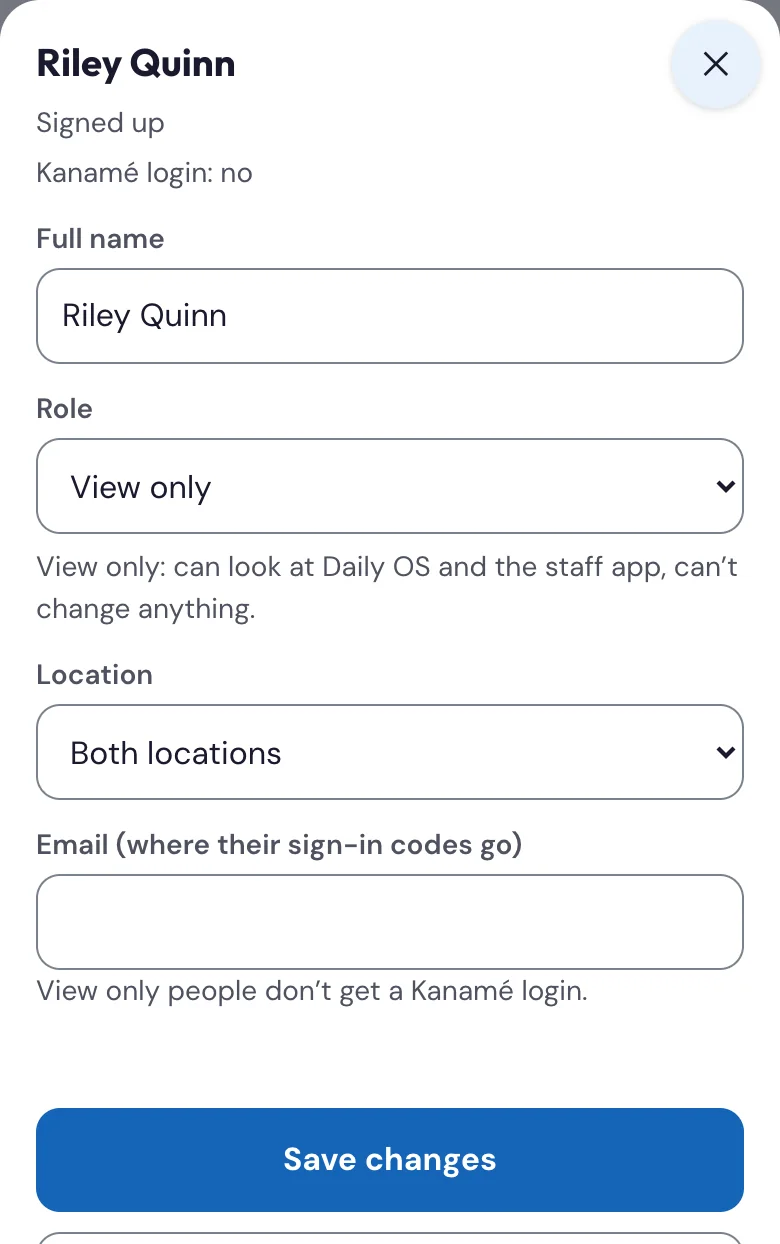
In Team, tap the person (or Add a person) and pick View only as their Role, then Save changes. The Kanamé login switch goes away: View only people don't get a Kanamé login, and if they had one it's removed within a few minutes. They set up a 6-digit PIN like everyone else. View only never manages the team. To give them back the buttons, change their role again.
EveryoneWhat is the welcome email?#
An email from Sprockett's Staff App, "Your Sprockett's staff app is ready". It has the link to put the app on your phone and the steps to Set up my PIN, plus the practice app (made-up dogs and people, any PIN works) and a short video. It also says what you'll see in the app for your job. Lost it? Ask Theresa or John to send it again from Team.
EveryoneHow do I switch to the dark theme, or sign out of the staff app?#
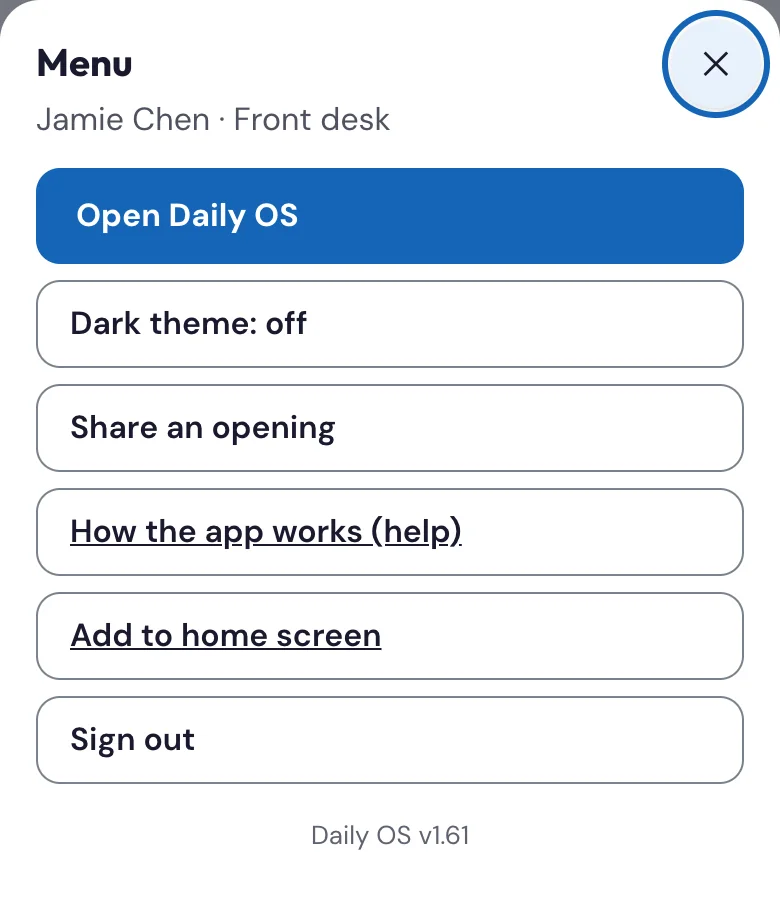
Tap your name at the top right to open the menu. Dark theme switches it on or off on this phone. Sign out signs you out; the app also locks itself after 10 minutes without a tap. The menu also has Share an opening, How the app works (help), which opens this help centre, and the version of the app. Managers and admins also see See a groomer's app (read only). On My day, How the app works under the date opens it too.
Reading the board 20
EveryoneHow is the board organized — where do I find each kind of dog?#
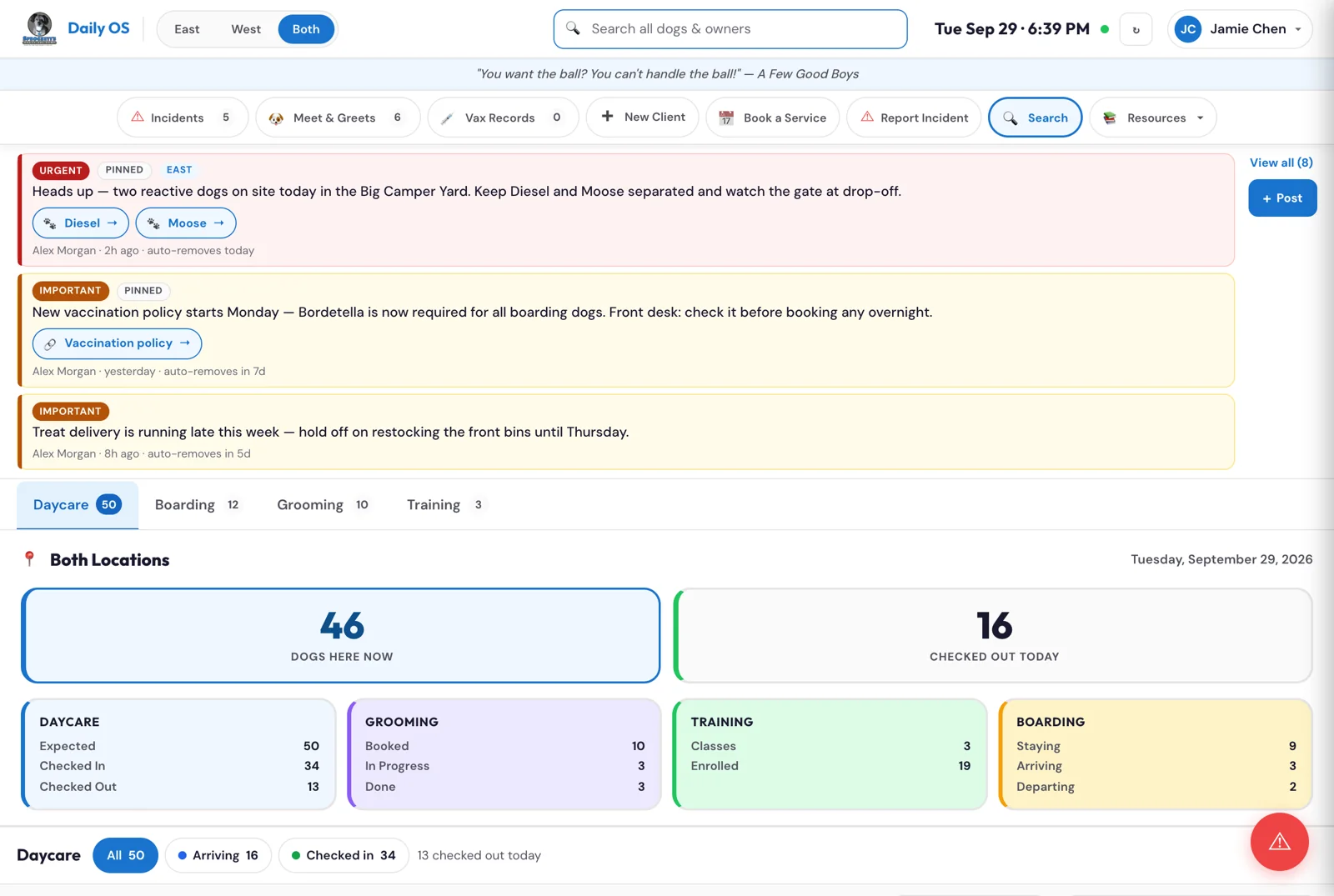
The board has four service tabs across the top — Daycare · Boarding · Grooming · Training. Each tab is that service's day list (Training lists the classes), and each shows a quick count on the tab: dogs for Daycare, Boarding and Grooming, and the classes running today for Training. Tap a tab to switch. Staff think in services ("is this a daycare dog or a grooming dog?"), so the board is grouped that way rather than by status.
The top bar, the daily line and the quick links stay at the top of the screen while you scroll, so Search, Report Incident and the rest are always one tap away. On a phone only the top bar stays.
EveryoneWhat are the buttons at the top of each tab — All, Arriving, Checked in?#
They filter the list underneath. Each tab shows All plus one button for each group in its list:
- Daycare — Arriving, Checked in, No show when there is one, and Checked out once a dog has gone home.
- Grooming — Arriving, In progress, and Checked out.
- Boarding — Arriving, Staying, Departing, and Checked out.
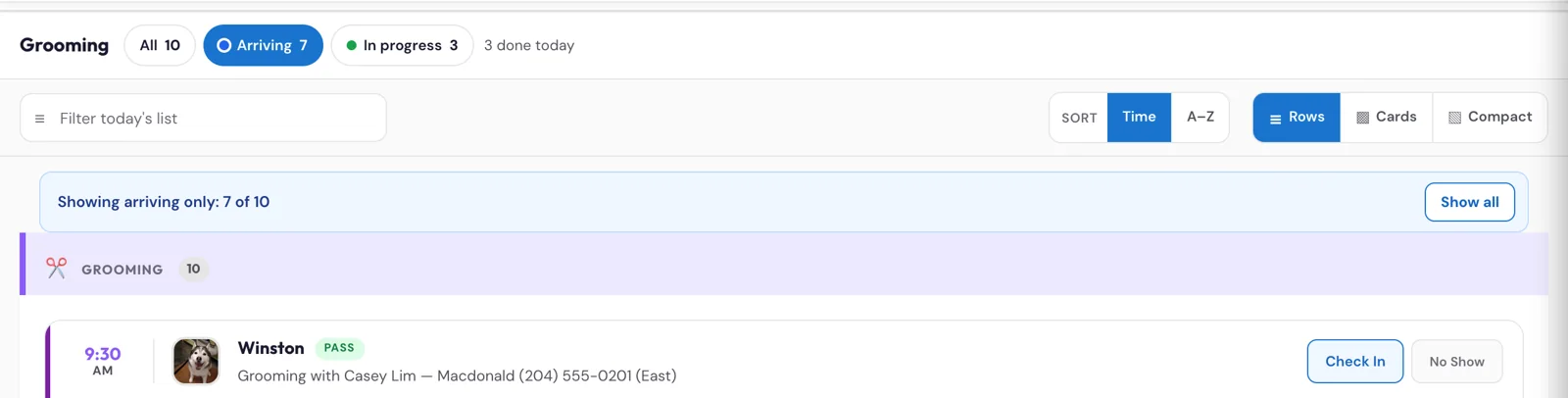
Tap one to show only that group. Tap it again, or tap All, to show everyone. The number on each button is how many dogs are in that group right now. While a filter is on, a line at the top of the list says so (for example "Showing arriving only: 12 of 30") with a Show all button, so nobody thinks dogs have gone missing. The filter turns itself off when its group empties (the last arrival checks in) and when you switch tabs. It stays on while the board refreshes itself, and so does anything typed in Filter today's list.
Checked out shows only the dogs that have gone home today, with their list opened (see "Can I find a dog that already went home today?"). Numbers with no button around them (the training numbers) are just counts; tapping them does nothing.
EveryoneCan I find a dog that already went home today?#
Yes (since Oct 27, Daily OS v1.66). Under each list there's a Checked out today line with how many dogs have left: on Daycare one for each location, and one each on Grooming and Boarding. It starts closed so the working list stays clean. Tap it to open it, and tap it again to close it; the board remembers which ones you opened. The latest to leave is at the top, with the time they left ("Out 3:42 PM").
Tap a dog to open its card, as for any dog: handy when an owner calls back, for a billing question or to follow up an incident. These dogs have no Check In, Check Out or charge buttons.
Two quicker ways in: tap Checked out at the top of the tab to see only those dogs, or type the dog's name in Filter today's list and its group opens for you.
It lists dogs checked out on the board. A dog checked out only in PetExec doesn't show here until the desk checks dogs out on the board.
EveryoneWhat do the Rows / Cards / Compact / Kanban buttons do?#
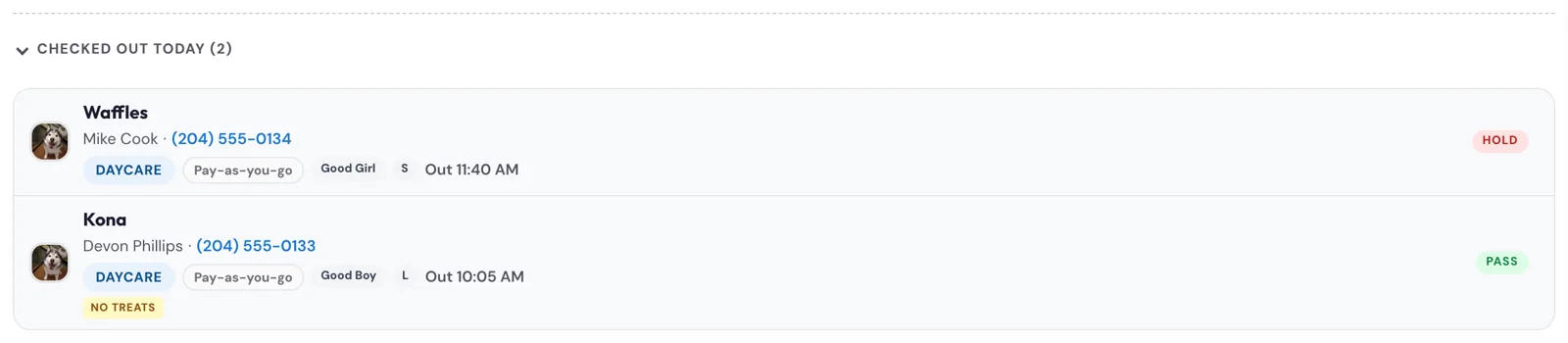
That's the layout switcher (top-right of the list). It changes how the day list looks on the Daycare, Boarding and Grooming tabs. (The Training tab lists classes, so it doesn't show these buttons.)
- Rows — a simple text list, fastest to scan.
- Cards — a photo grid, easiest to recognize dogs by face.
- Compact — a dense list for very busy days when you want everything on one screen.
- Kanban — the groups side by side as columns: on Daycare, Arriving and Checked In (and No show); on Boarding, Arriving, Staying and Departing Today. With both locations showing, East and West each get their own row of columns. Checked out today is the last column, only as wide as its name until you tap it open.
Pick whichever you like; it's a personal view preference and doesn't change anyone's data.
EveryoneWhat do the Time / A–Z buttons do?#
That's the Sort control, just left of the Rows / Cards / Compact buttons. It sets the order of today's list on the tab you're on:
- Time (the default) — earliest first. Daycare arrivals go by their drop-off window, grooming by appointment time. Dogs without a time sit at the bottom.
- A–Z — by the dog's name, so you can run down the list alphabetically when parents are lined up.
Checked-in dogs keep the order they arrived in. Boarding stays keep their own order. Like the layout switcher, it's a personal view preference — it doesn't change anyone's booking — and the board remembers your last choice on that device. The Training tab doesn't show Sort: its classes are always soonest first.
EveryoneHow do I show only one location?#
Use the East / West / Both toggle. East = 975 Thomas Ave, West = 360 Keewatin St, Both shows everything. (Boarding only runs at East.)
EveryoneThere seem to be two search boxes — what's the difference?#
Yes, two different searches:
- The Search button / global search bar finds any dog or owner in the whole system — even ones who aren't here today. Use it to pull up a profile, check a record, or find a past client.
- "Filter today's list" inside a tab only narrows that tab's current list (e.g. find one dog among today's 60 daycare dogs). It doesn't reach beyond today.
So: global search = the whole database; filter = today's list on this tab.
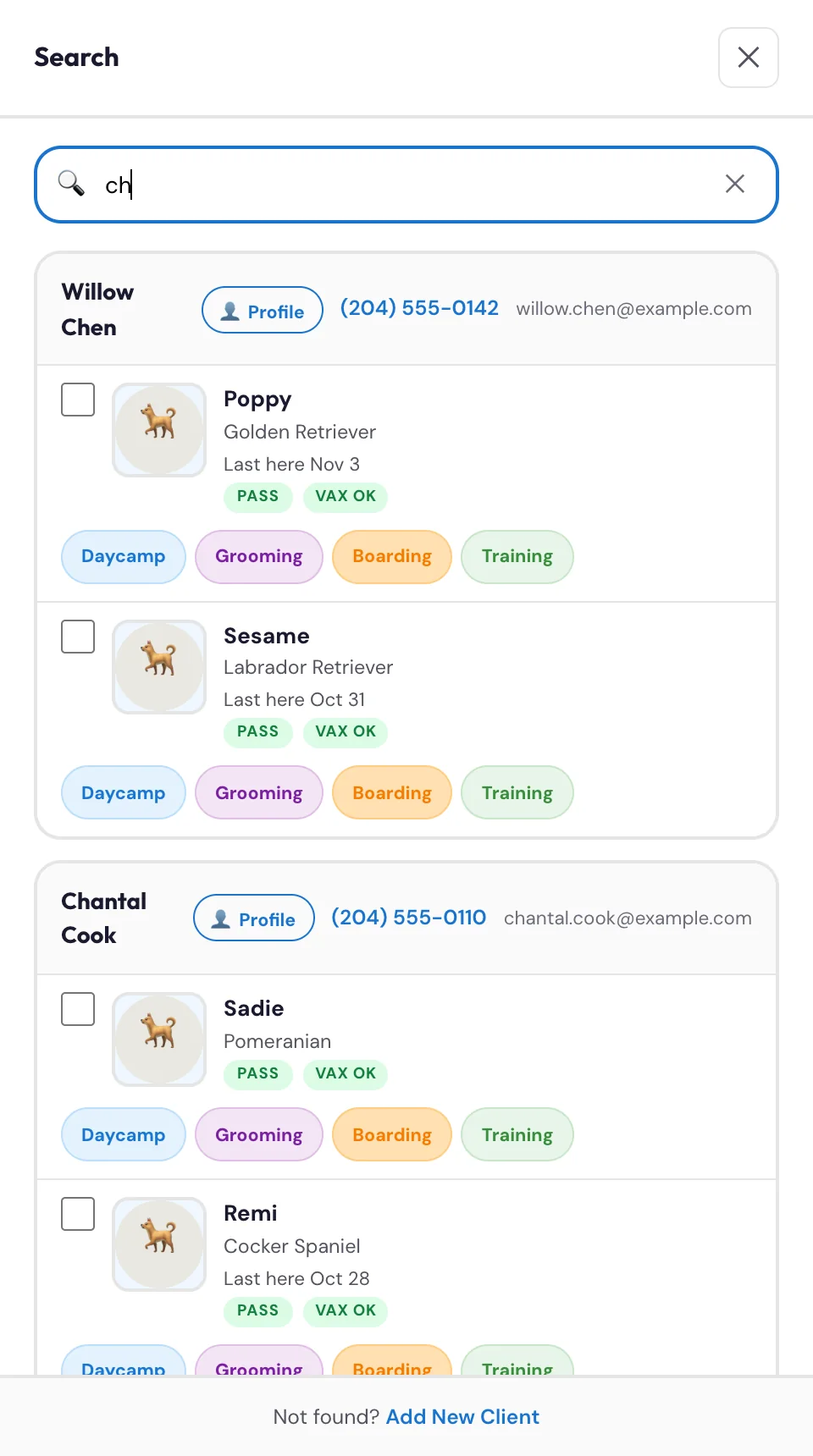
Search shows up to 40 families, the dogs seen most recently first. When lots of dogs share a name (29 families have a Nova), the closest matches come first, and among those the dogs that were here most recently are at the top. Each dog says when it was last here, for example Last here Oct 28, so you can pick the right one. With more than 40 matches the list says so: type the owner's last name after the dog's name to narrow it.
EveryoneHow do I see what a customer has coming up?#
Use Search to open the customer's profile. Under Upcoming you'll see every booking from today on, grouped by Daycare, Boarding, Grooming and Training, each with the date, the time, the service, the dog and the location. A group with more than five bookings shows the next five and a Show all button. Bookings still made in the previous booking system show up after the next sync (the first runs before opening). The customer sees the same bookings on their dog's page in their own portal.
On the Training tab the filter box says Filter classes, trainers or dogs: type a class, a trainer, or a dog or owner in a class, and the Classes list narrows to match, classes that start later included.
EveryoneHow do I open the Incidents view or the Meet & Greets view, and how do I get back to the board?#
In the quick-link pill row under the topbar, tap the Incidents pill or the Meet & Greets pill (each shows a count). That swaps the board area to that view. To get back, tap any of the four service tabs (Daycare/Boarding/Grooming/Training) — that returns you to the day board. The pills and the tabs are the two ways to move between views.
EveryoneWhat sits in that pill row under the topbar?#
Six quick links: Incidents (open the incidents view), Meet & Greets (open the M&G view), New Client (opens the new-client signup page), Report Incident (opens the incident form), Search (global dog/owner search), and Resources (a dropdown of staff links — see §12).
EveryoneWhat's the line of text and the coloured strip under the topbar?#
The light line is the daily pun (just a bit of fun). The coloured strip below it is the announcements board — pinned staff notes (see §11).
EveryoneHow do I refresh the board, or check a different day?#
The board updates itself as people check dogs in and out, but if you want to force the latest data, tap the Refresh button in the topbar. The date shown next to it is today by default — it's there so you can confirm you're looking at today's list.
EveryoneThe board reloaded by itself. Is something wrong?#
No. When there's a new version of the board, it updates itself. It waits for a quiet moment: nothing open, nobody typing, nothing saving, and nobody has touched it for 2 minutes. Then it reloads, and you stay signed in on the same tab. If you're in the middle of something, it waits. If the board has signed you out by then (10 minutes without a tap), it opens on Who's working? like any signed-out board: tap your name and enter your PIN.
EveryoneA brand-new client is at the desk — how do I start them?#
Tap New Client in the quick-link row — it opens the new-client signup page so they can join the pack. If you're not sure whether someone is already in the system, tap Search first and look them up by name; the search panel has an Add New Client link if they're genuinely new.
EveryoneCan I practise on the board without touching real customers?#
Yes. The practice board is a copy of Daily OS with made-up families and dogs: https://clients.wearesadie.com/sprocketts-d37019fd/board-practice/
Tap Sign in, pick any name and type any PIN. It works like the real board, and nothing reaches a real customer, booking or calendar:
- Book a Service: a daycamp or boarding booking for today shows on the board, ready to check in and check out. Grooming lets you pick the groom, day, time and groomer, then the dog shows on the Grooming tab. A later date goes to the family's upcoming bookings.
- Enroll in Training adds the dog to a class on the Training tab. Trainers take class attendance in the staff app, so a training dog isn't checked in on the board.
- New Client, Add a Dog and Schedule Meet & Greet open practice forms. A new family shows in search, a new dog joins the Meet & Greets list, and the Meet & Greet lands in the family's upcoming bookings. Record a pass on the Meet & Greet, and the new dog can be booked.
Each person's practice stays on their own screen, so people practising at the same time don't see each other's bookings. Reloading the page starts it fresh.
EveryoneHow do I read a dog's card?#
Every card shows the dog's photo, name, breed/age, and weight (in lbs and kg), plus its safety status, any care flags (see the legend below), a package badge, and the action button for that service. The four services read slightly differently:
- Daycare — name, owner, safety + care flags, package badge, check-in/out button.
- Boarding — adds stay length and care notes (meds, feeding) because boarding dogs stay overnight.
- Grooming — shown as a timeline row: appointment time, groomer, service.
- Training — the Classes list: one row per class; tap N enrolled for who's in.

EveryoneWhat do the little badges and coloured flags on a card mean? (legend)#
The badges are a fast visual read of a dog's needs:
- Safety status — PASS (good to go), REVIEW (warn — proceed with care), HOLD (block — vaccines or temperament aren't cleared). It comes from the dog's vaccines + temperament evaluation.
- MEDS — this dog needs medication during its stay.
- FEED — this dog has feeding requirements to follow.
- NO TREATS — do not give this dog treats. (Only dogs explicitly marked No get this flag; a blank treats field means treats are fine.)
- NAP — this dog takes a lunch nap.
- DOCS — there are unsigned contracts on file for this owner.
- Package badge — Monthly 17/22 (monthly pass: visits left this month), N passes (day passes remaining), or Pay-as-you-go (no package — they pay per visit).
Colour is never the only signal — every flag has text too, so you can scan quickly and still be sure.
EveryoneWhat do I actually DO when a dog is REVIEW or HOLD?#
The safety badge tells you the action, not just a colour:
- PASS (green) — go ahead. Check the dog in normally.
- REVIEW (amber) — warn and allow. Something needs a look (often a vaccine expiring soon). You can still check the dog in, but flag it: tell the owner what's needed and make a note. Don't ignore it.
- HOLD (red) — do not check the dog in. Vaccines or the temperament evaluation aren't cleared. Let the owner know what's missing (e.g. an expired rabies date, or a Meet & Greet still needed). Once the record is updated and the dog re-passes the safety check, the badge flips and you can check it in.
When in doubt on a HOLD or REVIEW, check with a manager — don't check a HOLD dog in to be polite.
EveryoneA dog shows REVIEW with "On vaccine grace". What does that mean, and what do I do?#
The dog has an expired vaccine on file (rabies, distemper or parvo), but it came to daycare in the last 6 months. While the vaccine grace period is on, a dog like that keeps booking and coming in while we collect a current record. Theresa decides when grace ends.
- On the board the dog shows REVIEW (amber), not HOLD. Its reasons say which vaccine expired and when, then On vaccine grace. When you tap Check In, a reminder comes up to ask for the record.
- At drop-off: check the dog in as usual and ask the owner for a current vet record. If they have it with them (the paper, or a photo on their phone), add it the usual way: open the dog, tap the pencil, Upload record under Vet vaccination record, enter the dates from it, tick Vaccination record verified by staff and tap Save. If they don't have it, they can add it in My Dogs (Update Profile), or ask their vet to email it to them.
- Check the record as usual. A record the family sends goes to Vax Records like any other: check the dates against the record before you approve it. Once the new dates are on, the grace note goes away and the dog shows PASS (or REVIEW if something else needs a look).
- What the family sees: in My Dogs, the expired vaccine with an Update Profile button, and a line saying they can still book. They never see the word "grace".
- What grace doesn't cover: it only covers an expired vaccine. A dog that also needs a Meet & Greet, has no temperament test or isn't suitable stays on HOLD, and so does a dog with an expired vaccine that hasn't been to daycare in the last 6 months. Bordetella on its own was never a hold.
- When grace ends, grace dogs with no current record go back to HOLD overnight, and the HOLD rules above apply again.
EveryoneWhat do the care flags mean for what I should do?#
Each flag is an instruction for the dog's day:
- MEDS — this dog gets medication; open the Care Scorecard and log it when given.
- FEED — follow the dog's feeding instructions; log feeding on the scorecard.
- NO TREATS — do not give this dog any treats (allergy/behaviour reason).
- NAP — this dog takes a lunch nap; settle it down at nap time.
- DOCS — the owner has unsigned contracts; remind them to sign (booking may be gated until they do).
Check-in and check-out 10
Front desk · GroomersHow do I check a dog in?#
On the dog's card, tap Check in, then tap Confirm? to confirm. It's two taps on purpose so nothing happens by accident. The dog moves into the "in" group, and the board stamps your initials and the time.

Related
Front desk · GroomersHow do I check a dog out?#
Same two-tap pattern: tap Check out on the card → Confirm?. The dog moves to the checked-out group with your initials and time. For dogs that owe payment, use the Checkout panel (§6) to take payment as part of checking them out.
Related
Front desk · GroomersA dog never showed up — how do I mark a no-show?#
On the dog's card, tap the No-show action, then Confirm?. This records that the booked dog didn't arrive (stamped with your initials + time) so the day's list reflects reality and the booking isn't left hanging as "expected." Use it once you're confident they're not coming. The dog moves to a small No show group at the bottom of that location's list (added 2026-09-11), so the day's count stays honest, and Check In stays on the card in case they turn up late.
Front deskA dog is past its pickup time — how do I handle an overdue?#
When a dog is past its expected pickup, the card surfaces an Overdue action. Tap it → Confirm? to flag the dog as overdue (initials + time), which is your cue to call the owner and may factor into late-pickup fees at checkout (Late Pickup is $10 per 15-minute increment, per dog). The two-tap confirm prevents accidental flagging.
Front deskA dog is at the desk for daycare with no booking — how do I check in a walk-in?#
Use global Search to pull up the dog, then tap Daycare. A small chooser pops up with two options:
- Check in now (walk-in) — for a dog standing at the desk right now. Pick the visit length (Full Day / Half Day / Power Hour) and it creates today's visit and drops the dog straight onto the Daycare board, checked in. Take payment (or use a package) at checkout like any other dog. If the dog already has a booking for today, it checks that booking in instead of making a second card, and if it's already checked in it tells you so.
- Book for later — opens the normal booking page for a future day.
The walk-in path is daycare only. Grooming, Training, and Boarding go straight to booking — you can't walk into an appointment slot or a future overnight reservation, those need a booked time.
The safety gate still applies: a HOLD dog can't be walked in (clear the hold first), a REVIEW dog warns you, and a brand-new dog that hasn't done its Meet & Greet yet has to do that before it can start daycare — so the quick walk-in path only appears for dogs that are cleared.
Watch: Walk-ins and phone bookings ›Front deskWalk me through a DAYCARE dog, start to finish.#
The full daycare flow on the Daycare tab:
- Arrival. The dog is in the Arriving group. Tap Check In → Confirm? — it moves to Checked In and stamps your initials + the time. (Didn't show up? Tap No Show → Confirm? instead.)
- During the day. Tap the Care button on the card to open the Care Scorecard and Mark Done on Feeding, Medications, and Play Area as you do them (see §7). Only the rows that apply to this dog are active.
- Pickup. Tap Check Out — the checkout panel opens. If the dog is on a package, the visit shows $0 and one pass is deducted automatically; otherwise the daycare rate is the line item. Pick the payment method, optionally send a receipt, and Complete Checkout.
- Late? If they're past pickup time, tap Overdue to flag it (call the owner; a Late Pickup fee of $10 per 15 min can be added as a line at checkout).
Front deskWalk me through a BOARDING stay, start to finish.#
Boarding runs at East only and spans multiple nights. On the Boarding tab:
- Drop-off. The dog is in the Arriving group. Tap Check In → Confirm?. The boarding card shows the stay length, feeding, meds, allergies, pickup date, emergency contact, and alternate pickup person — read these at drop-off.
- Each day of the stay. Tap Care to open the Care Scorecard's day-by-day grid (each stay day × feeding/med slots). Tap each cell as you complete it, mark the per-day Play Area, and use Save Note / shift notes so the next shift knows how the dog is doing.
- Pickup (departing). In the scorecard's Departure section, write the stay summary (for the owner), note items returned (leash, food, bed, meds), and tap Mark Checked Out & Save Summary. Then tap Check Out to take payment for the stay in the checkout panel.
Groomers · Front deskWalk me through a GROOMING appointment, start to finish.#
Grooming runs at both locations and is appointment-based — the Grooming tab is a list of rows sorted by appointment time, each showing the dog, the groomer, and the service.
- Client arrives. Find the appointment row and tap Check In → Confirm? (or No Show → Confirm? if they didn't come). The row marks the dog as in.
- The groom. The groomer does the service. In the staff app they tap Start groom and End groom, and the row shows it (Grooming, then Groom done). (Grooming has no Care Scorecard — that's for daycare/boarding.)
- Pickup. Tap Check Out — the checkout panel opens. Grooming is quote-based, so add or confirm the grooming service line(s) and adjust the price if needed (add-ons like nail trims are extra line items). Pick the payment method, send a receipt, and Complete Checkout. Past pickup time? Overdue flags it.
- Before they leave. Book the dog's next groom at the desk — see How do I book a grooming customer's next appointment before they leave? just below.
This covers the front-desk side of grooming (booking the dog in and out on the board). The groomer's own craft, setup, and service SOPs live in the separate Groomer Handbook — front desk doesn't need that detail here.
Front desk · GroomersHow do I book a grooming customer's next appointment before they leave?#
Every grooming pickup ends with the next groom booked. At checkout, ask: "Would you like to book [dog]'s next groom while you're here?" Most dogs come back every 4 to 8 weeks, so offer a date in that range, with the same groomer if the customer wants them. If the groomer already picked a time in the staff app, the row and the checkout panel say so ("The groomer asked: book the next groom in 6 weeks"): offer that.
- For now: book it the way you book grooming today. It copies over to the board on its own, three times a day.
- Once grooming booking moves to the new system (we'll tell you when): on the board, tap Book a Service, find the owner and pick the dog, then choose Grooming. The booking page opens inside the board with the owner's details filled in. Pick the service, the groomer and a time, and finish the booking. Then tap ✓ [dog]'s grooming booked — confirm & continue.
- Not ready to pick a date? Let them know they can call the desk to book, and ask again at the next visit.
GroomersI'm a groomer. How do I change my hours or book time off?#
Your hours live in your own staff profile, and they decide when customers can book you online. Open it at Calendar → Calendar Settings → Services → Staff → your name → Edit.
- Your normal week: Weekly Working Hours. Tick the days you work and set the hours. Tap + on a day to split it around lunch (for example 9:00 to 1:00, then 2:00 to 6:00). Set the location for each day: leave East ticked and untick West if you only work East that day. Save each day.
- A day off, a vacation or a one-off shift: Date-Specific Hours. Tap + Add Date and pick a date or a range. For time away, turn on Unavailable. To cover a shift, enter the hours and the location for that day instead. Save. These dates override your normal week.
- Not My Profile. Hours set under My Profile → Schedules don't change your booking calendar. Use the staff profile above.
The Groomer handbook in the help centre's library walks through the same screens with pictures.
Training classes 9
Trainers · Front desk · ManagersHow does TRAINING work on the board?#
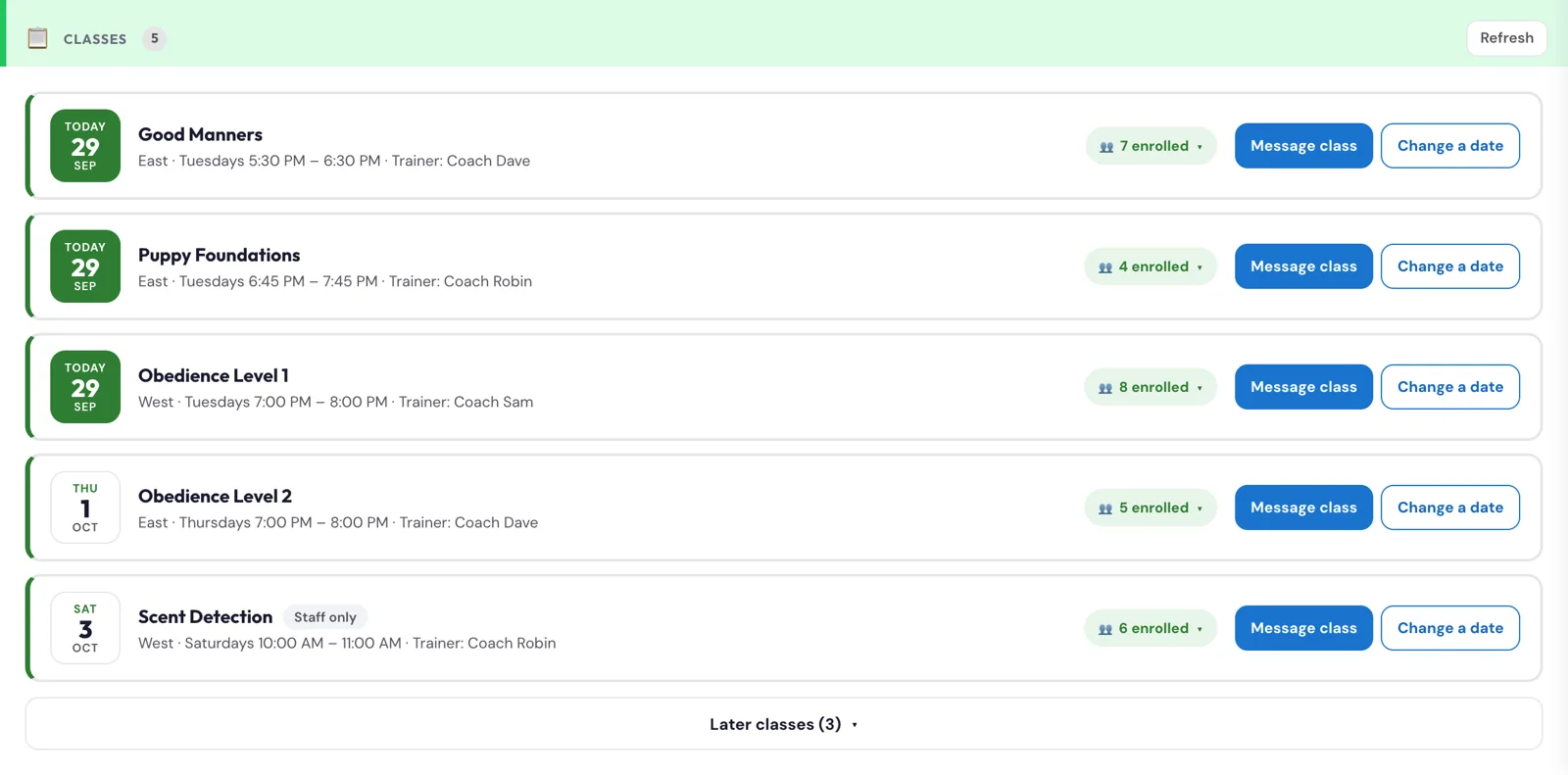
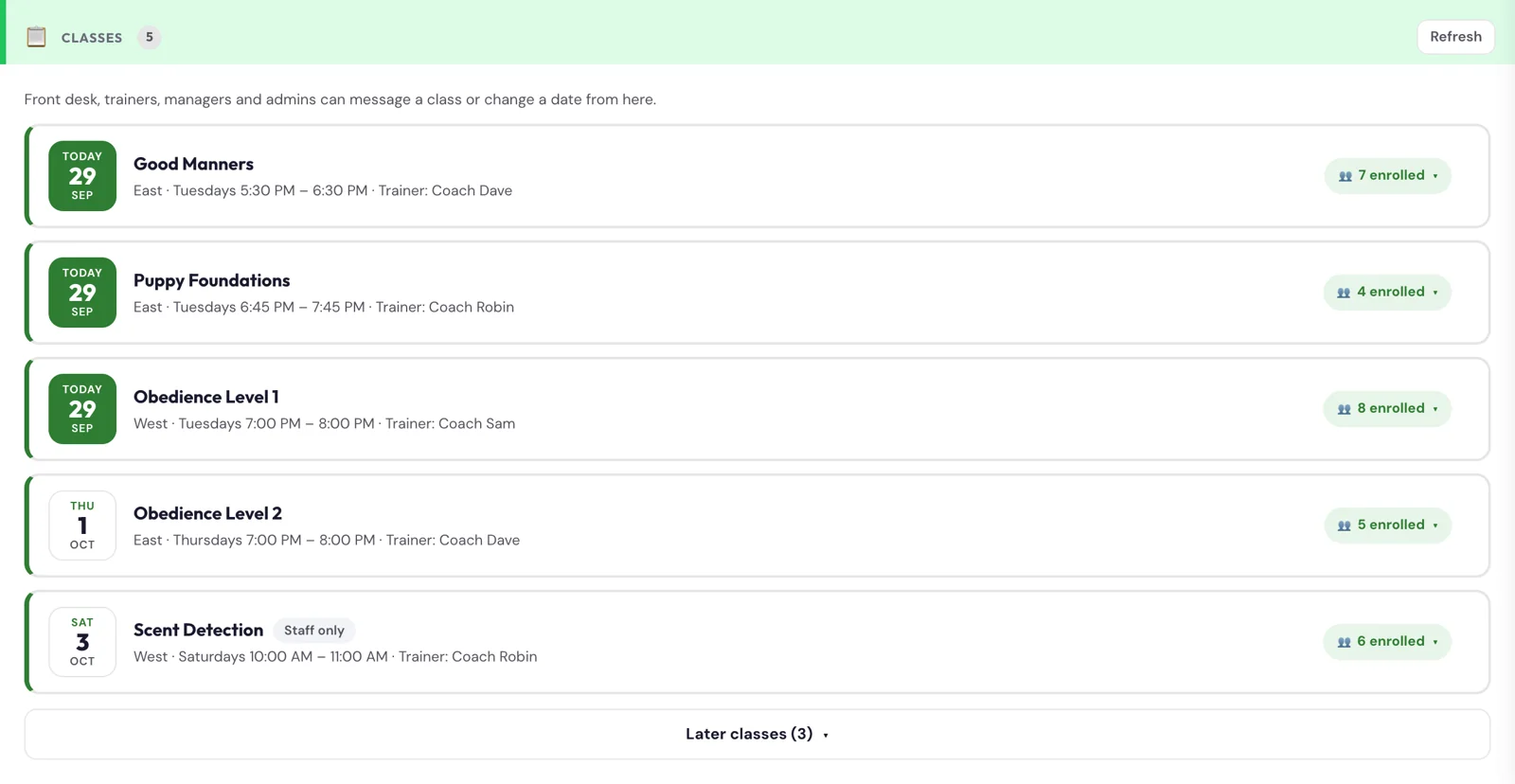
The Training tab is the Classes list: every class at the location you're viewing, one row each.
- Each row shows the next class date (a green Today when it runs today), the class name, its day, time and trainer, and Staff only for classes that aren't open for online booking.
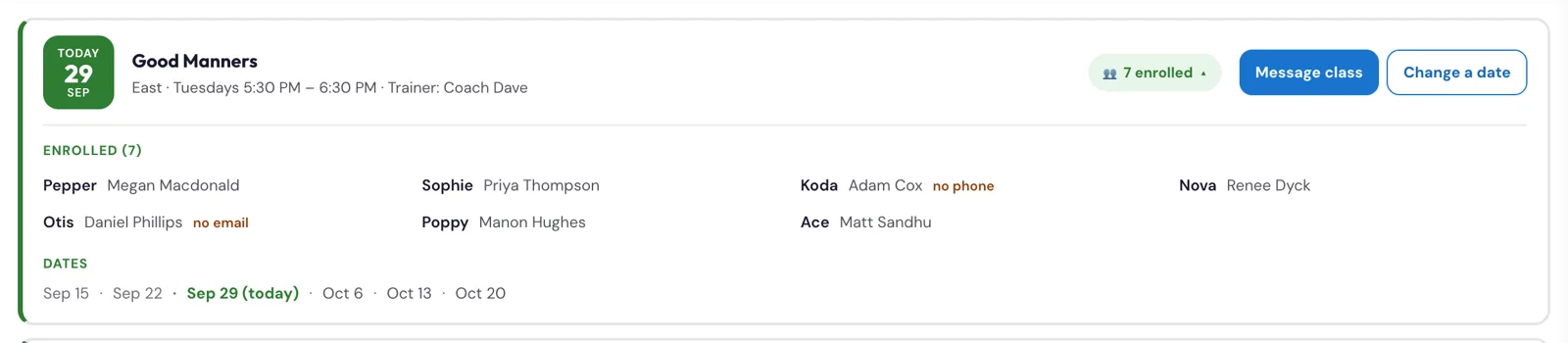
- Tap N enrolled to see who's in: each dog and its owner, with "no phone" or "no email" where we can't reach that owner, and every date of the class, past dates greyed out and the next one in green.
- Classes that are running, or start within a week, come first, soonest first. Classes that start later wait under Later classes at the bottom (see the next question).
- The numbers on the Training tab, at the top of the tab and on the Training card count the classes running today and the dogs enrolled in them.
- Front desk, trainers, managers and admins also see Message class and Change a date on each class, and Move next to each dog; admins also see Edit class (see the questions below). Refresh reloads the list.
There is no per-dog check-in/out for training; attendance is taken in class.
Trainers · Front desk · ManagersWhat's under Later classes on the Training tab?#
Classes that haven't started yet and don't start within the next week, which are mostly next season's classes, often with nobody enrolled yet. They wait behind the Later classes (N) button at the bottom of the list, so this week's classes aren't buried under them. Tap it to show them all, soonest first; tap Hide later classes to fold them away again. Typing in the filter box searches them too.
A class that's already running never moves down there, even when a date is called off, so its change and Undo stay in view.

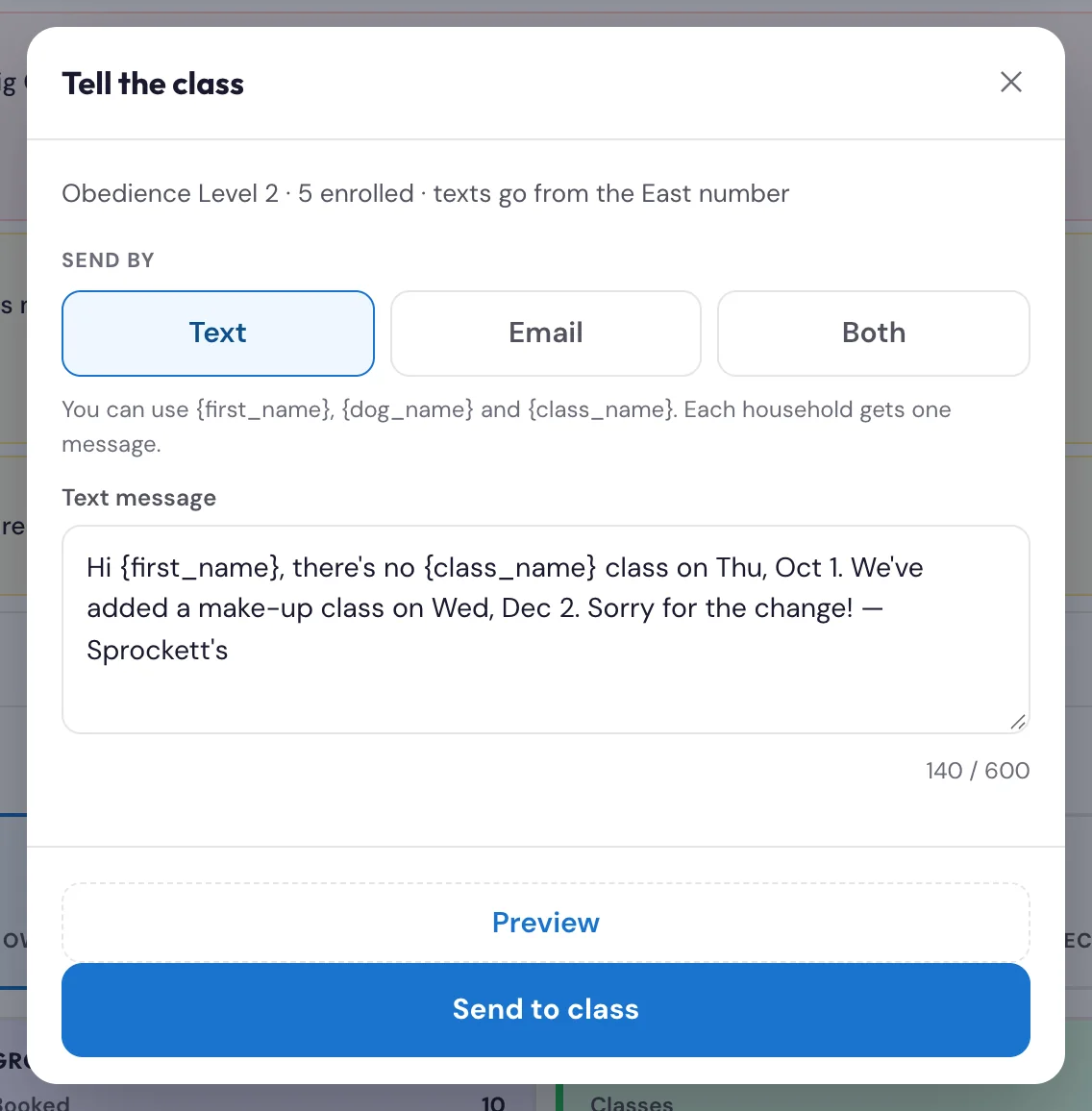
Trainers · Front desk · ManagersHow do I message everyone in a class?#
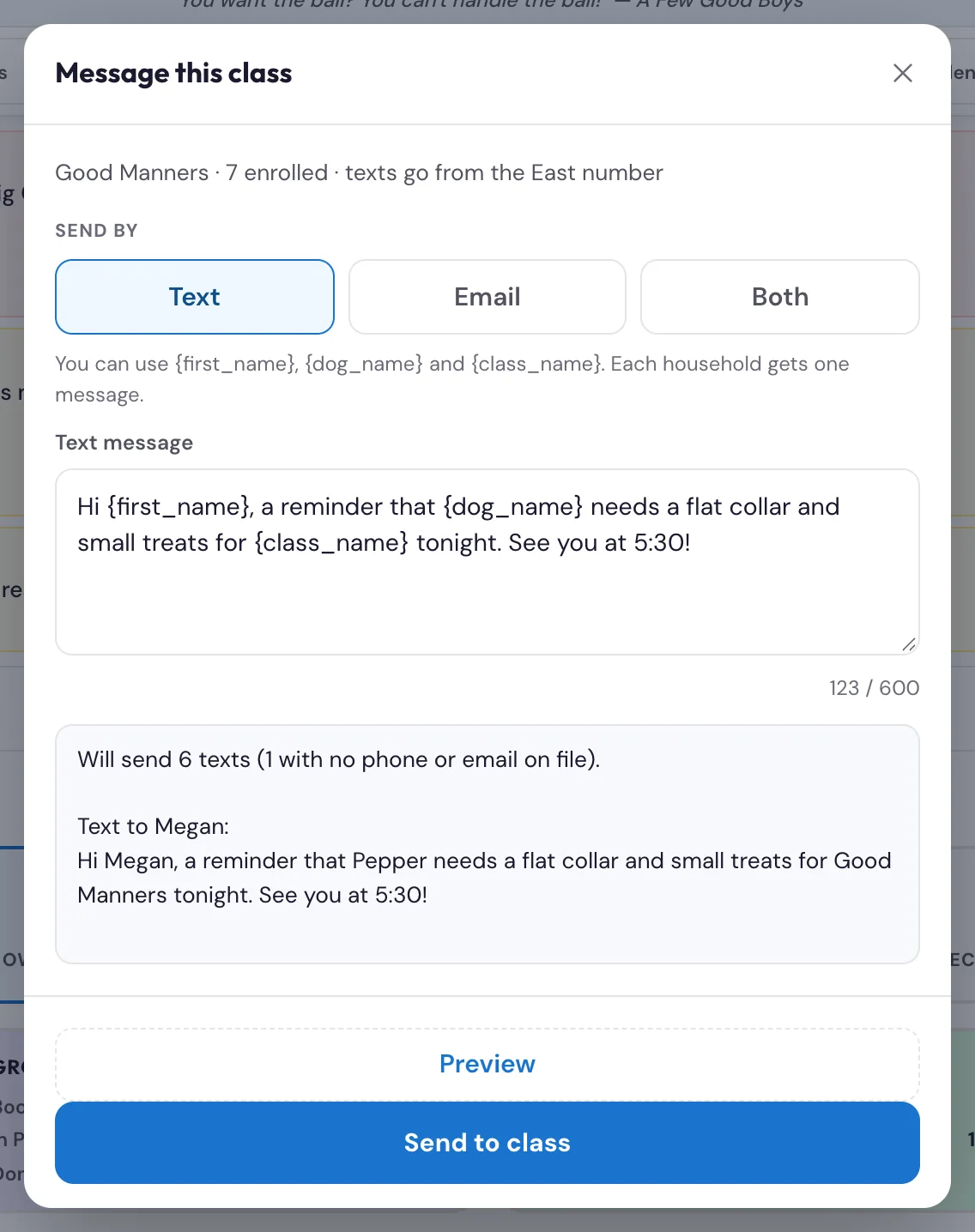
On the Training tab, find the class in Classes and tap Message class.
- Pick Text, Email or Both under Send by.
- Write the message. {first_name}, {dog_name} and {class_name} fill in for each household, and each household gets one message, even with two dogs in the class ("Rex & Luna").
- Tap Preview. It shows how many texts and emails will go out, how many owners have no phone or email on file, and the message as the first owner will see it.
- Tap Send to class.
Texts go from that location's Kanamé number (East or West), so replies land in that location's Kanamé inbox. A mistyped placeholder such as {first_nme} is caught before anything sends. Afterwards the class shows "Last message: Text to 7 by Sam, Sep 29".
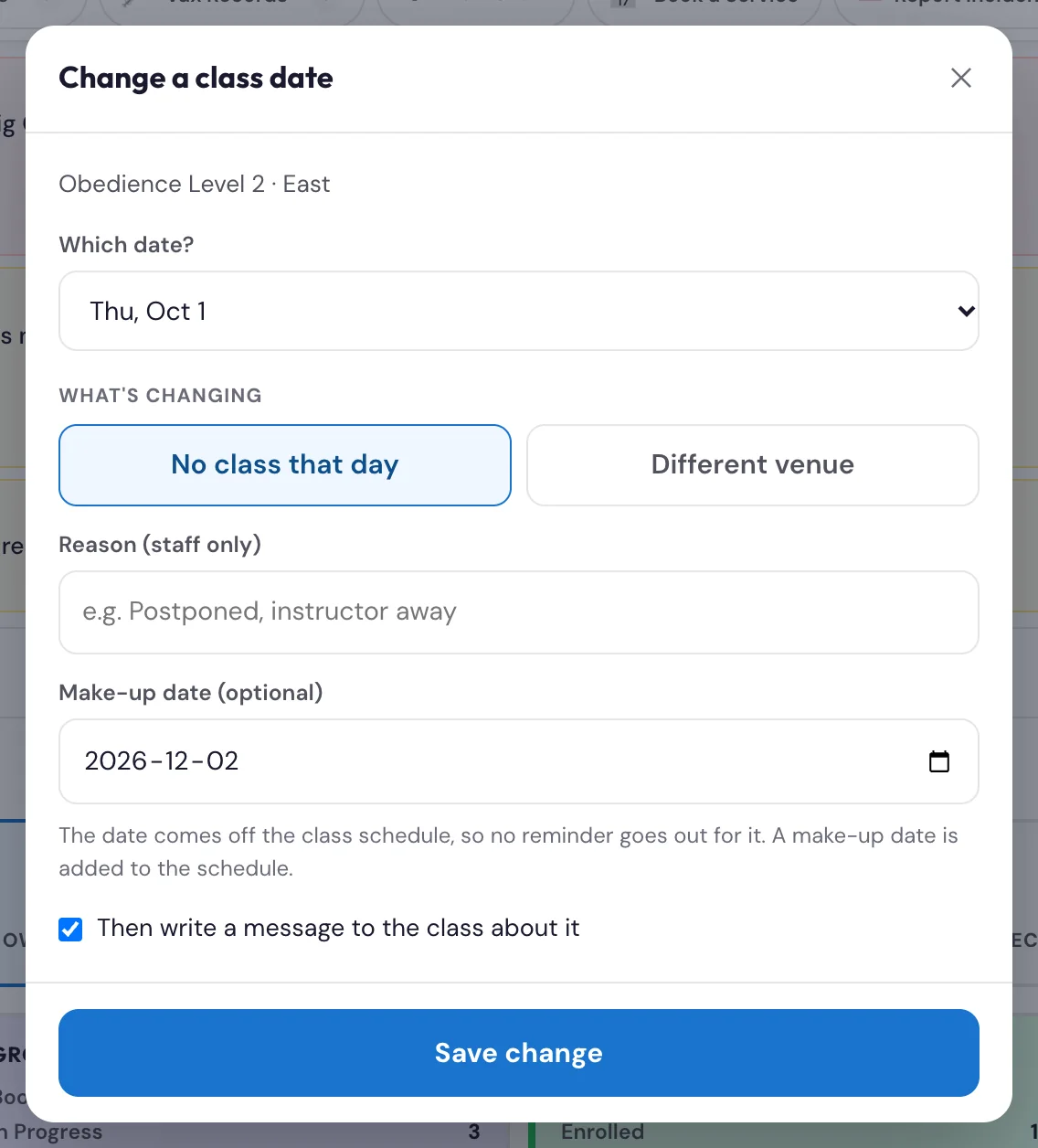
Trainers · Front desk · ManagersHow do I cancel a class date, add a make-up date, or move a class to another venue?#
On the Training tab, tap Change a date on the class.
- Under Which date?, pick the date.
- Under What's changing, choose one:
- No class that day — add a Make-up date if there is one, and a Reason (only staff see it). The date comes off the class schedule, so no reminder goes out for it, and the make-up date is added.
- Different venue — pick East, West, Kent Avenue or Other (type the place). Tick Every remaining date of this class if it's moving for good.
- Tap Save change. With Then write a message to the class about it ticked (it is by default), Tell the class opens with the message already written, for example "there's no Good Manners class on Tue, Oct 13. We've added a make-up class on Tue, Dec 1." Edit it and send, or close it.
The change shows on the class as a yellow tag with Undo. Undo puts the schedule back the way it was and doesn't message anyone.
Changing a class's time isn't on the board yet: cancel the date and add a make-up date instead.

Trainers · Front desk · ManagersWho can message a class or change a class date?#
Front desk, trainers, managers and admins (trainers since September 29, 2026) can message a class, change a date and move a dog to another class. Edit class (price, dates, seats and details) is for admins only. Groomers and View only see the Classes list and who's enrolled, with a line saying who can make changes, but none of these buttons. The server checks the role too, so the buttons can't be forced on.
Front desk · ManagersHow do I enrol a dog in a training class?#
Open the customer's profile (search their name, then tap them) and tap + Enroll in Training.
- Pick the dog. A family with one dog has it picked already.
- Pick the class. Full classes are greyed out.
- Pick how they're paying (Cash, Card (terminal), E-transfer or On account) and tap Complete enrollment.
The dog shows in the class on the Training tab straight away, and the family gets their receipt and the class confirmation by email. An enrolment always needs a dog: if none is picked, nothing is made.
Watch: Training classes walkthrough ›Front desk · Trainers · ManagersHow do I move a dog to another class?#
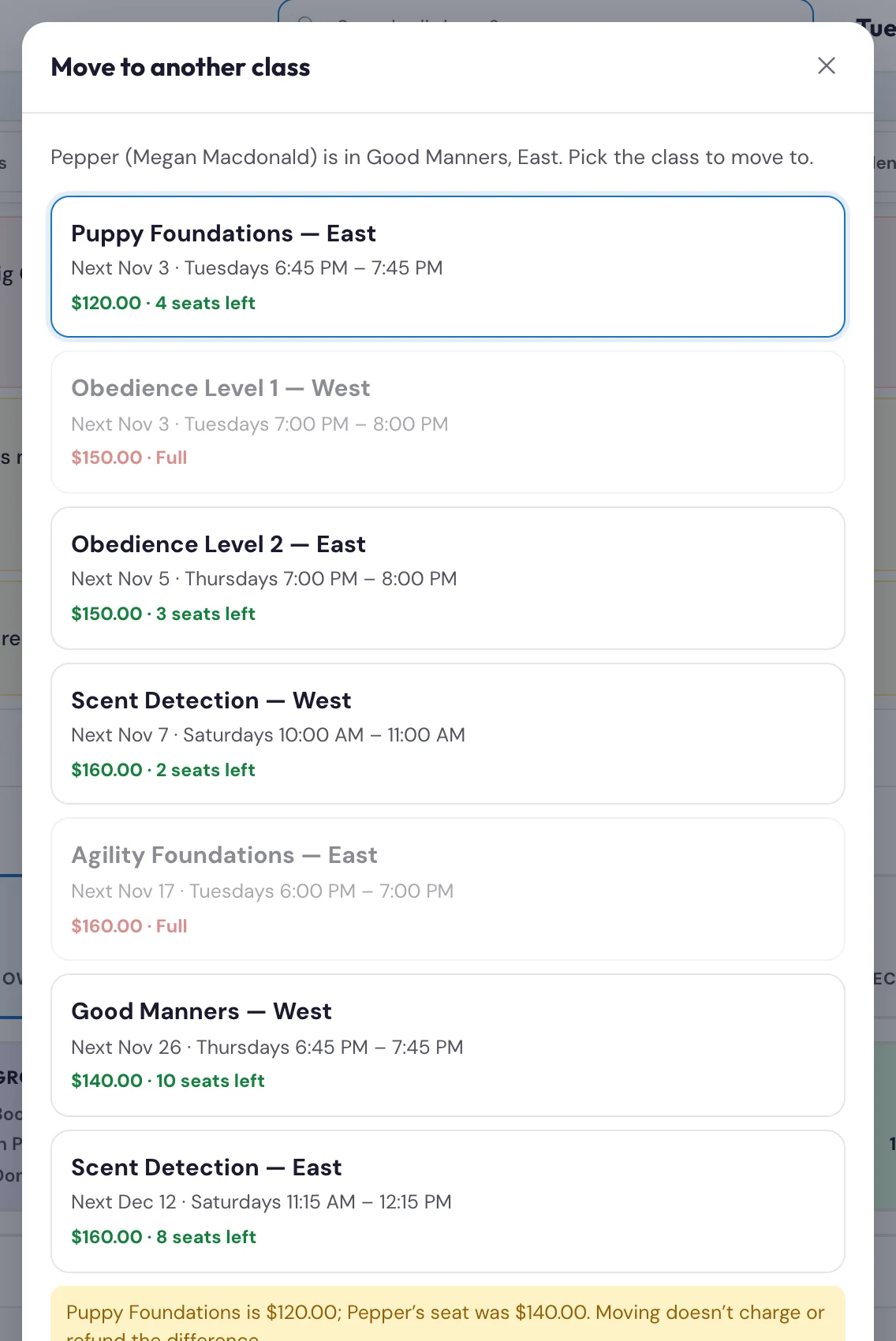
On the Training tab, tap N enrolled on the class the dog is in, then tap Move next to the dog.
- Pick the class to move to. You see every class that's running or coming up, with its next date, time, price and seats left. Full classes can't be picked.
- Tap Move and the dog's name.
The dog leaves the first class and shows in the new one straight away, with the trainer's class list in the staff app too. What the family paid moves with the seat: nothing is charged or refunded. If the new class costs more or less, the sheet says so, so you can settle the difference at the desk (a New Charge for the extra). Moving doesn't message the family: let them know the new class and dates, or use Message class on the new class. Moved the wrong dog? Move it back the same way. Front desk, trainers, managers and admins can move a dog.
ManagersHow do I open a new training class?#
Admins only. Tap your person chip → New training cohort, then fill in:
- Class — the class name, the location (East or West), the start time and, if you like, the end time.
- Schedule — the first class date and the number of weeks, then tap Generate weekly dates. Each date can be changed: take a week out for a holiday, or + Add a date for an extra one.
- Seats & Price — how many dogs it takes, and the price per dog before tax (GST is added at checkout).
- Details (optional) — the instructor, a prerequisite class, and what to bring.
Tap Open this cohort. The class is ready for enrolment and shows in the Classes list on the Training tab. To change its price, dates or seats later, use Edit class on the class (next question). A single date that's called off, or a class that runs at another venue that day, is Change a date on the class.
Watch: Training classes walkthrough ›ManagersHow do I change a class's price, dates or seats?#
Admins only. On the Training tab, find the class and tap Edit class. It opens the same form as New training cohort, filled in with the class as it is now. Change what you need:
- Price per dog (before tax). A new price is charged on new enrolments only: dogs already enrolled keep what they paid.
- Dates: remove a date, + Add a date, or set the first date and weeks and tap Generate weekly dates.
- Seats: the form says how many dogs are enrolled. Seats can't go below that number.
- Instructor, Prerequisite and What to bring.
Tap Save changes. If dogs are already booked and you changed the dates, the form asks first: tap Save anyway, then use Message class to tell the families, because changing dates doesn't message anyone. The class name, location and time can't be changed here.
While a class's bookings still come from the previous booking system, its first and last date must stay as they are there (that's how those bookings find the class). Dates in between can change here. To move the first or last date, change it there and ask Sadie to match it here.
Payments and packages 23
Front deskHow do I take payment for a visit?#
Open checkout from the dog's card. The panel handles the whole sale: it lists the visit as a line item, works out GST/PST for you, lets you pick a payment method (Cash / Card Terminal / E-Transfer / On Account), and lets you send a receipt by email or SMS. Review it, then tap to complete the checkout — that records the payment and (if you chose) sends the receipt.
Front deskHow do I change the quantity on a line, or add an extra item?#
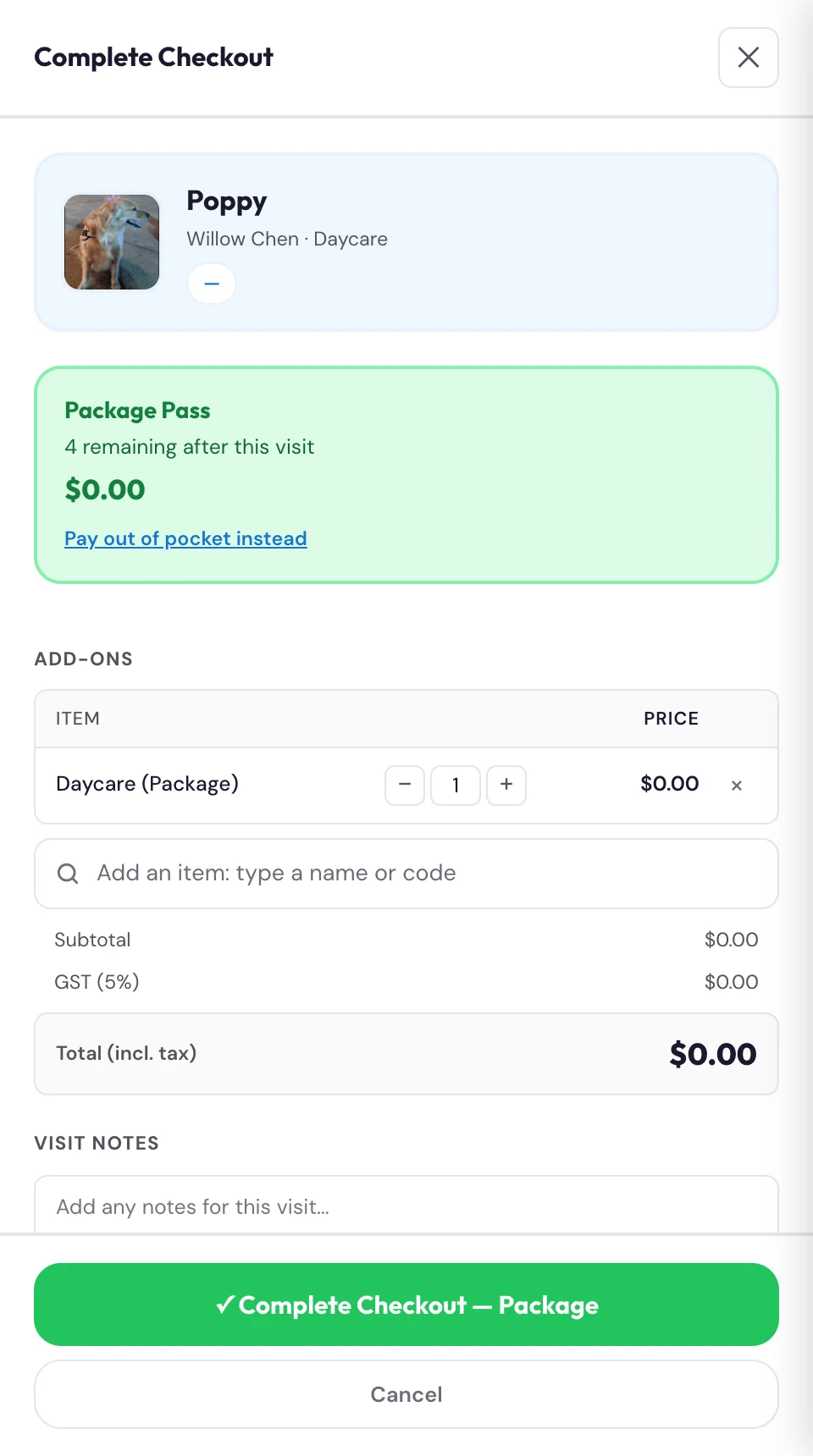
Each line has − / + quantity steppers — tap to change how many. To add another item (a nail trim, a fee, a package), use the search box under the lines, "Add an item: type a name or code". Type part of the name, its group or its product code (for example bff, oodles 30 or late pickup), then press Enter to add the highlighted match, use the arrow keys to pick another, or tap the one you want. Click into the empty box to see every item by group. The box clears after each item, so you can add the next one straight away. The same search is in Family Checkout and New Charge. A fully custom line item (your own description + price) is manager/owner only.
Change a price (a discount, say): tap the price on the line, type the new one, and the totals follow. It works the same in a dog's Check Out, Family Checkout and New Charge, and the invoice shows the price you typed. A visit a pass covers stays $0.00, and an item with no set price keeps its own box to fill in.
The grooming fees (from November 10, 2026): Cancellation Fee (<12hr) $25 for a cancellation with less than 12 hours' notice, and No Show Fee $35.
Front deskHow do I see if a family has confirmed their details?#
Open the customer's profile (search their name, then tap them). Under their name it says Details confirmed with the date, or Details not confirmed yet. Families confirm in My Dogs: they open My Account, check their phone and address, add a second owner and an emergency contact if they have them, and tap Everything's correct. The profile also lists the second owner and the family's emergency contact. If a family asks for help, walk them through My Account in My Dogs; the date appears on their profile as soon as they tap the button.
Front deskA family says one of their dogs is missing from My Dogs. How do I bring it back?#
Open the customer's profile (search their name, then tap them). Under Dogs there's a Hidden dogs list when any of their dogs are hidden from My Dogs, with the reason and the date. A dog is hidden when the family tapped This pet is no longer in my care in My Dogs, when someone at the desk tapped Remove from account under the dog in Daily OS (the reason then ends "removed by" and their first name), or, before the account invites, when we hadn't seen the dog in over two years (no booking and no visit). If the dog still comes to us, tap Restore, then tap Confirm? to be sure. The dog moves back to their Dogs list and shows in their My Dogs straight away. Nothing is sent to the family.
Front deskA family's dog has passed away. How do I remove it from their account?#
Open the customer's profile (search their name, then tap them). Under Dogs, tap Remove from account under the dog. Choose why: Passed away, Rehomed, No longer coming to us, or Other (you can add a short note). Tap Remove and the dog's name, then Confirm?. The dog comes off the family's account and out of their My Dogs, and moves to Hidden dogs on the profile with the reason and the date. Their past visits stay on record. If the dog still has bookings coming up, the screen says how many: cancel those too, or the family still gets reminders. Nothing is sent to the family. Removed the wrong dog? Tap Restore under Hidden dogs. The front desk, managers and admins can remove a dog; families can also do it themselves in My Dogs.
Front deskA family asks how to sign out of My Dogs. What do I tell them?#
Tell them to tap Sign out at the top of My Dogs, next to their name (on a phone it's at the top right). It signs them out of My Dogs and of their Sprockett's portal on that phone or computer, then shows the sign-in page. It also closes My Dogs in any other tab they have open, and going Back shows nothing of their account. It's worth doing on a shared or family computer. Next time they sign in to the portal as usual and tap My Dogs.

Front deskWho can pick up a dog, and where does the family set it?#
Every dog has one owner, the account it's on. Anyone else who may pick the dog up (a partner, someone in a second home who shares the dog, family, a dog walker) is listed on the dog as Authorized to pick up. You see it on the dog's card. Families add and remove people in My Dogs, on the dog's page or in My Account under Who Can Pick Up Your Dogs, one person per line, and can save the same list for all their dogs. A dog can have up to 8 people listed. Someone who isn't on the list and isn't the owner should not take the dog: call the owner first.
Front deskWhere do I see a dog's past visits?#
Two places, and they show the same list. On a customer's profile, Visit history (under Upcoming) has each of their dogs: how many visits and the last one, a count per service, and the last 5 visits with the date, what it was and which location. Tap Show all for every visit, newest first. On a dog's card, Visit History shows the last visit, visits this month and lifetime, then the same list. The family sees the same visits on the dog's page in My Dogs, without staff names. It goes back to September 2023 and includes anything finished in Kanamé; today's visits are added overnight. Daycare days the dog didn't come in, and cancelled bookings, aren't counted. If a family says a visit is missing and it's more than a day old, send it through System Feedback with the dog and the date.
Front deskCan I scan a product's barcode at checkout?#
Yes, once the product's barcode is its product code in Kanamé. Click into the "Add an item" search box and scan: the scanner types the code and presses Enter, and the product is added. Scan again to add another. Typing the code by hand works the same way (every retail product has a code like R051). If nothing is added, the product doesn't have that barcode as its code yet, so search by its name and ask a manager to add the barcode (see "How do I add or change a retail product (price, name, code)?").
Front desk · ManagersHow do I sell a retail item, a special service or a donation?#
The same way as any extra: use the "Add an item" search in a dog's Check Out, in Family Checkout, or in New Charge on the customer's profile.
- Type part of the name (bully 6), the group (retail) or the product code (R051), or scan the barcode.
- Press Enter or tap the item. Retail items, special services and donations are listed after the services, in three groups: Retail, Special services and Donations & raffles.
- Take payment as usual. The tax is worked out for you: retail is GST + PST, special services are GST only, and donations and raffle tickets have no tax.
Something that isn't in the list: add Retail item (code R000) and type the price in the box on its line. The charge won't go through until a price is typed. Then tell a manager, so the product can be added properly.
A donation of any amount (for example Poppy Donations): add it and type the amount in its box.
A price is wrong or a product is missing: a manager fixes it in Kanamé, and the desk has the change within about 5 minutes. Nothing on the board needs to change.
The search says retail and special services didn't load: close the window and open it again. The services (daycare, grooming, fees, packages) still work while it's out.
Managers · Front deskHow do I add or change a retail product (price, name, code)?#
Retail items, special services and donations all live in Kanamé, under Payments, then Products. The desk reads them from there, so a change shows up at checkout at both locations, usually within about 5 minutes (allow up to an hour). Anyone whose Kanamé login has Payments turned on can do this; front desk staff without it, ask a manager.
Change a price or name
- In Kanamé, select Payments in the left menu, then Products at the top.
- Search for the product and select its name to open it.
- Change the Title (the name), or the price in the Prices table.
- Select Save at the top right.
Change the product code (SKU)
- Open the product as above.
- In the Prices table, select the three dots at the end of the price's row, then Edit.
- Under Inventory, type the code in SKU (Stock Keeping Unit). To use a barcode, scan it into that box.
- Select Save, then Save on the product.
Add a new product
- In Payments, then Products, select Create Product at the top right.
- Type its Title and its price. Leave Include in Online store off, so it doesn't appear in the online shop.
- Select Save. Then give it a product code (SKU) as above: the next free number (retail R…, special services S…, donations D…) or the product's barcode.
- Put it where it shows at the desk, which also sets its tax. At the top, open the Products menu and select Collections, then open the collection:
- Retail: GST + PST (treats, food, toys, collars, anything you hand over)
- Special services: GST only (photos, enrichment activities, facility rental)
- Donations & raffles: no tax
- In Search Products, find the new product and tick it, then select Save.
A product that isn't in one of those three collections doesn't show at the desk.
Sizes or flavours: add them as Variants on one product, each with its own price and code. At the desk each one shows as its own line, for example Bully Stick — 6 in.
A price that changes every time: set the price to $0. The desk then asks for the price on the line, the way Retail item does.
Stop selling something: take it out of its collection (open the collection, untick it, Save). It leaves the desk within about 5 minutes. Past receipts keep their own copy of the line.
Front deskA dog is on a package — why does the visit show $0?#
The board auto-detects an active package (day passes or monthly unlimited) on the owner's account and shows that visit at $0 automatically — the visit is covered, and one pass is deducted (or the unlimited covers it). You don't have to do anything special; just complete the checkout.
Front deskHow does the Monthly pass work, and what does "Monthly 17/22" mean?#
A Monthly pass is 22 visits inside 30 days. The month starts the first day a dog checks in on it (not the day it was bought) and ends 29 days later. The badge on the dog's card shows how many visits are left this month, for example Monthly 17/22. At checkout the banner reads "Monthly pass — 16 of 22 visits left after this one, ends Sept 30" and the visit is $0. Two things end the free visits: the month closing, or all 22 being used. Either way the board switches back to normal pricing on its own and tells you why ("Monthly pass ended" or "Monthly pass used up"). Multi-dog families share the 22.
Balances carried over from the old system arrive with the same numbers the old system had, so a family mid-month keeps their remaining visits and end date.
Front deskHow do I sell a package at checkout?#
In the "Add an item" search box, type the pass (e.g. full day 10 for the Full Day 10-Pass, or monthly for Monthly Unlimited) and press Enter, or click into the empty box and pick it from the Package group. Set the quantity if they want more than one. Packages are tax-exempt — no GST is added to package lines. When you complete the checkout, the passes are added to the owner's account automatically (a 10-pass adds 10 visits; Monthly Unlimited is set up to activate on first use).
Front deskA customer wants to buy a pass AND use one today — how does that work?#
When you add a day-pass package line, you'll see a toggle: "Use one for today's visit → N left after." Tick it and the board:
- covers today's visit with the new pass (the separate daycare charge drops off — so there's no double-charge), and
- leaves the right number of passes on their account (e.g. a 10-pass, used once today, shows 9 left).
So a customer can buy and use in one transaction without being charged twice. (This toggle is for day passes; Monthly Unlimited just activates on first use.)
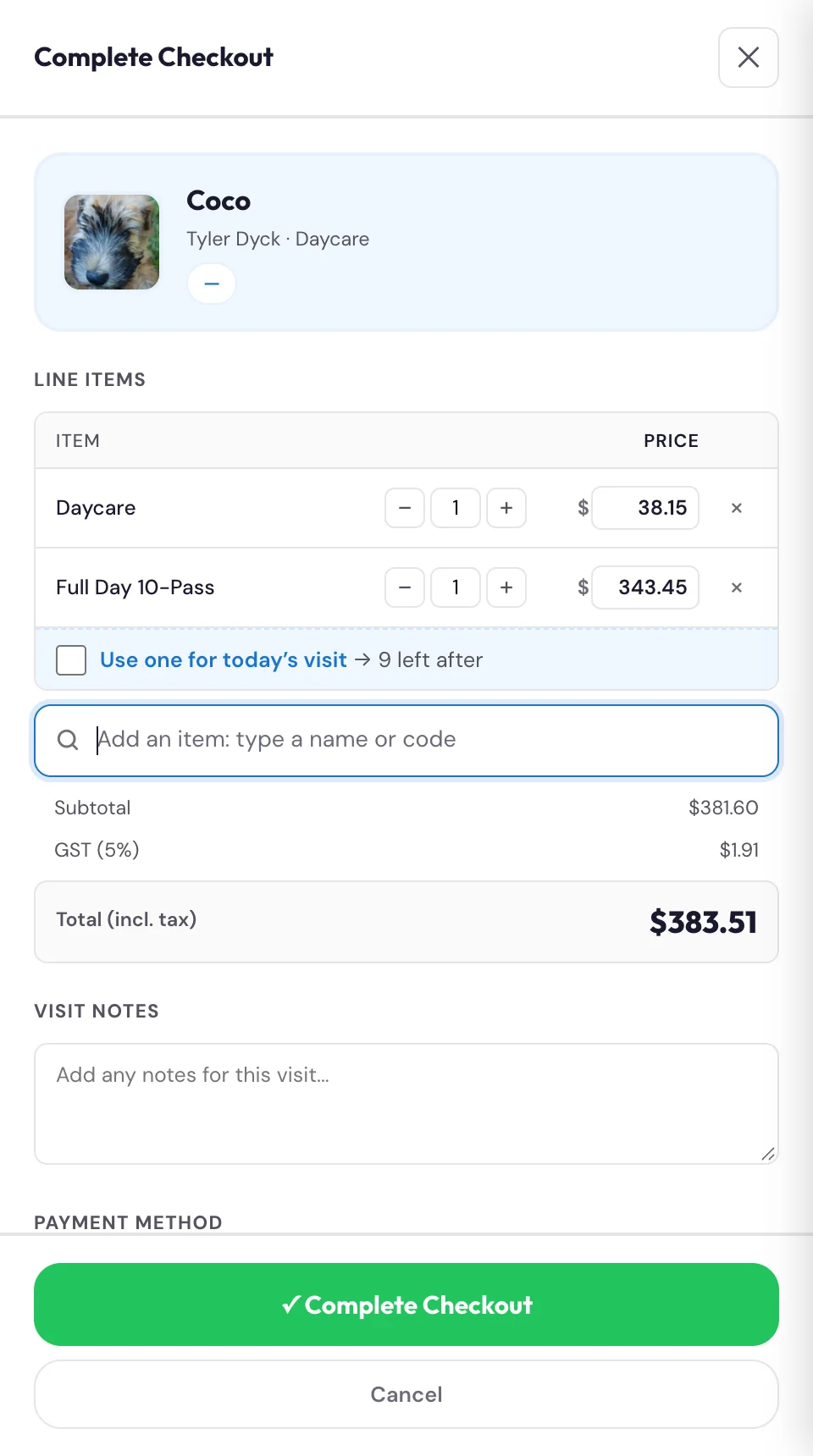
Front deskCan a customer use any pass for any visit, or do passes have to match the visit type?#
Right now the system is flexible — at checkout it subtracts 1 from whatever pass is on the account, regardless of the visit type (so a Half-Day visit could spend a Full-Day pass). It runs on staff judgment. (This is an open policy question for Theresa — whether to keep it flexible or lock passes to their matching visit type. Until that's decided, flexible is the live behaviour.)
Front deskWhich payment methods can I take, and how does the receipt get sent?#
Payment methods are Cash, Card Terminal, E-Transfer, and On Account. Tax (GST/PST) is calculated automatically on taxable lines (packages are exempt). Before completing, you can toggle a receipt by email and/or SMS — the system sends it to the contact on file.
Card payments: after you tap Card Terminal (or Card (terminal) in New Charge and Family Checkout), tap the card the customer used: Visa, Mastercard, Amex or Debit. Nothing is picked for you, and the payment won't go through until you pick one. It's saved with the payment, so the day's card totals can be matched to the terminal's settlement by card type. Picked the wrong one? Tap the right one before you complete the payment.
Family not at the desk, or paying from their phone? Send them a pay link instead: see "How do I send a family a pay link so they can pay on their phone?"
Front deskHow do I send a family a pay link so they can pay on their phone?#
A pay link is a text (or an email) with a link to a secure page where the family pays by card for exactly what you added. Use it when the family isn't at the desk: they booked by phone, they owe a fee after they've gone home, or they'd rather pay on their phone.
- Search the customer's name and tap them to open their profile.
- Under Charge, tap + New Charge.
- Add what they owe with the "Add an item" search, the same way as at checkout, and set the quantity with − / +. The total shows the GST and PST.
- Under Send Pay Link, pick how it goes: Text (SMS) (picked to start), Email or Both.
- Tap Send Pay Link. The button says Building invoice…, then Sending…, and "Pay link sent via text" (or email) shows at the bottom of the screen.
The family gets a text from Sprockett's with the link. They tap it, see the bill (each item, the tax and the total) and pay with their card. This is real money: it goes to Sprockett's through Stripe, not through the card machine.
Good to know
- Don't also tap Record Payment for the same items. The link is the payment; recording one as well counts it twice.
- Don't put a package in a pay link. The passes go on the family's account as soon as the link is sent, before they pay. Sell a package with + Add Package once they've paid.
- Did they pay? In Kanamé, open Payments, then Invoices & Estimates, and search their name. Sent means not paid yet; Paid means it went through.
- The text didn't arrive: check the phone number and email on their profile. Tapping Send Pay Link again makes a second bill, so ask a manager to send the first one again from Kanamé instead.
- They paid another way after all (they came in with cash): take the payment on the board as usual, then ask a manager to Void the unpaid bill in Kanamé, so it can't be paid twice.
- Two or more dogs from one family: Family Checkout has Send Pay Link too, and sends one link for the whole visit.
- + Add Package and + Enroll in Training have no pay link: take those payments at the desk.
Front deskHow do I sell a package from a dog's profile instead of at checkout?#
Open the customer's profile and tap + Add Package. Pick the package, tap + Add, choose how they paid (Cash, Card (terminal), E-transfer or On account) and tap Record Payment. The days go on the owner's account straight away and the sale shows as a paid invoice under Payments, the same as selling at checkout. Use this when someone is buying a package but isn't checking a dog in right now (e.g. pre-buying for next week). For buy-and-use-in-one-go, selling at checkout (above) is simpler. There is no pay link for packages: the days are added when the sale is recorded, so take the payment first.
ManagersA cash payment was recorded wrong. Where do I fix it after the fact?#
A payment can't be edited once it is recorded, so a correction is always the same: reverse the wrong one, then record the right one. The reversing happens in Kanamé under Payments; the new payment is recorded on the board.
- Find the payment. Payments → Transactions. Search the customer's name or the dog's name. Cash payments show Manual in the Provider column, and the Source column names the visit.
- Refund it. Open the menu on that row and choose Refund. Leave the full amount, add a short reason in Notes if you like, and tap Refund. For cash no money moves and the customer gets no email or text: it only records the correction. The row then shows Refunded. If nothing happens when you tap Refund, tap it once more; Kanamé never refunds more than was paid.
- Void the invoice. Payments → Invoices & Estimates, search the same name, open the menu on that invoice and choose Void, then confirm. Kanamé allows this once the payment is refunded. The invoice drops out of the list and out of your received total; it is kept under the Void status filter, not deleted.
- Record the right one. On the board, open the customer's profile and tap + New Charge. Add what they owe, choose how they paid (Cash, Card (terminal) or E-transfer) and tap Record Payment. There is no need to check the dog out again.
The wrong payment stays on file marked as refunded, so the day's cash still adds up. Last, leave a short note on the customer's record saying what changed and why: in Kanamé, open them under Contacts, tap Notes (the pencil on the right) and + Add.

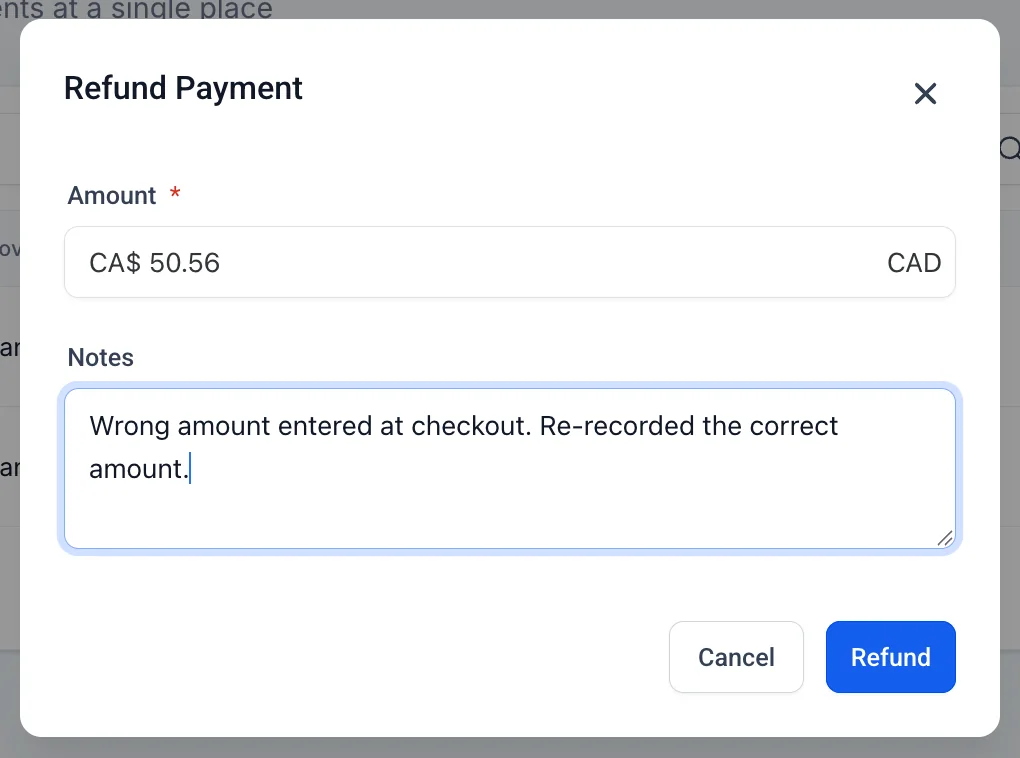
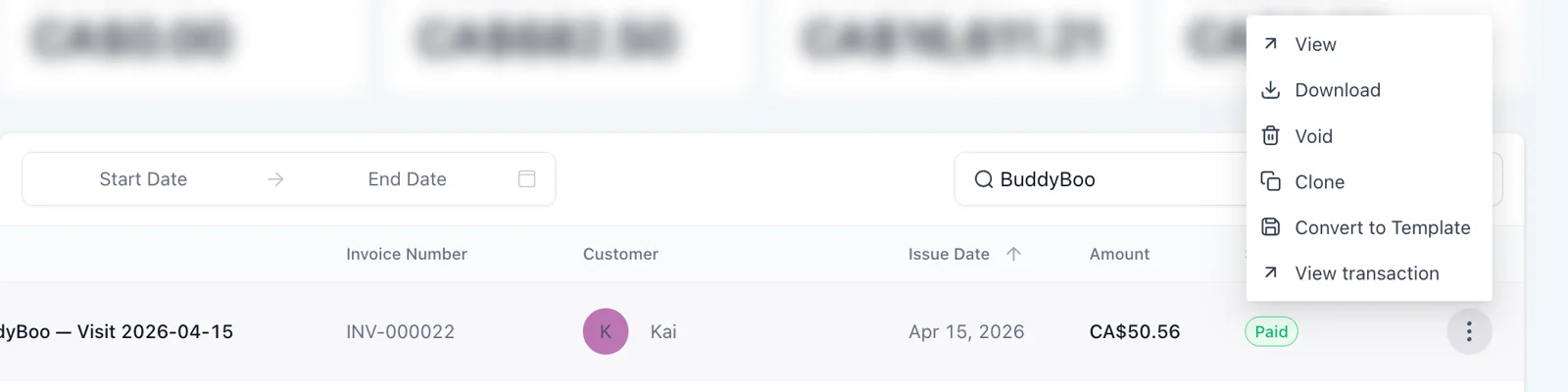
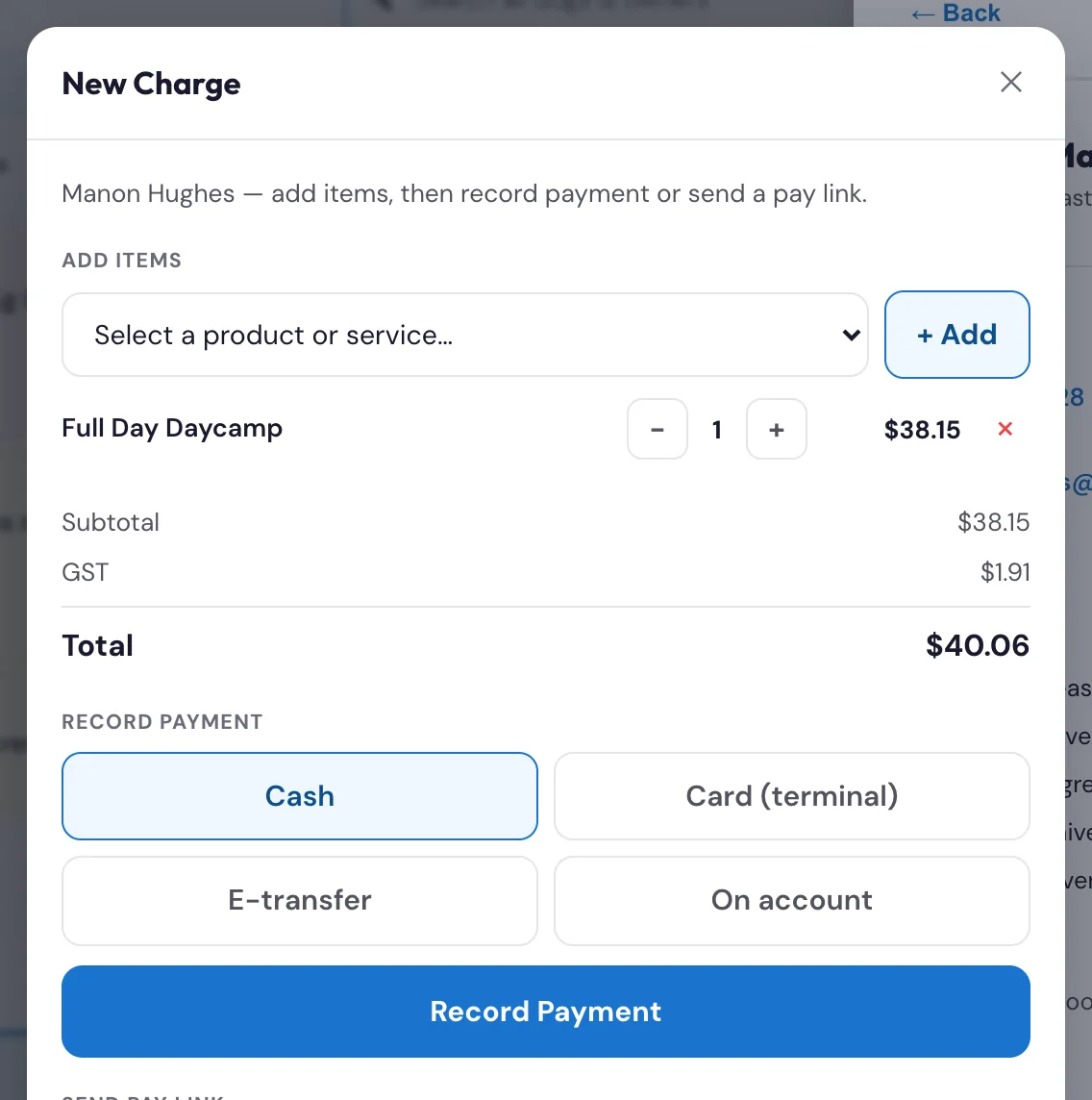
Front deskA family wants their money back. How do I refund a payment?#
How the money goes back depends on how they paid. To check, open Payments, then Transactions in Kanamé, search the customer's or the dog's name, and look at the Provider column on their payment.
Cash, e-transfer or the card machine (Provider says Manual). Kanamé never moved this money, so it can't send it back. Give the cash back, send the e-transfer, or refund the card on the card machine the way you do now. Then a manager corrects the record in Kanamé: see "A cash payment was recorded wrong. Where do I fix it after the fact?" (the same steps work for e-transfer and card machine payments).
Paid online with a pay link (Provider says Stripe). A manager or admin refunds it in Kanamé, and the money goes back to the family's card:
- In Payments, then Transactions, find their payment with Stripe in the Provider column.
- Open the menu at the end of the row and choose Refund.
- The full amount is filled in. For part of it (one item, say), type the amount instead. Add a short reason in Notes.
- Tap Refund. The row then shows Refunded (or Partially refunded).
The family's bank usually shows the money back in 5 to 10 business days. A card refund can't be undone, and Stripe keeps the fee it took on the original payment. If the screen doesn't seem to change, refresh the page and check the row before you try again.
At the front desk: tell the family a manager will look after it, and pass on their name, the date and the amount.
Front deskHow do I see the payments taken at one location (cash for East or West)?#
Every payment taken on the board ends its name with the location, for example "Delta — Visit 2026-10-08 — West". In Kanamé go to Payments → Transactions and type West (or East) in the search box; open a payment to see whether it was cash, card or e-transfer. A dog's own visit takes the location of its booking. A sale from + New Charge or + Add Package takes the location the board is set to at the top, so keep each desk's board on East or West, not Both. Payments taken before October 7 don't carry a location.
Front deskWhat do families pay online once online booking opens?#
Booking online doesn't charge anything. Families pay the way they do now:
- Daycare and boarding: booked online, paid at the desk when the dog goes home (or covered by a pass).
- Grooming: booked online. The price on the menu is a starting price; the groomer's price is what's charged at pickup.
- Classes: families ask for a spot online. The class page tells them payment in full is needed to confirm it, at the desk or by phone. Take it with + Enroll in Training.
- Packages: sold at the desk.
The one way a family pays online is a pay link the desk sends them. So if a family asks "Can I pay online?", the answer is yes: send them a pay link.
Care 9
Front deskWhat is the Care Scorecard and how do I open it?#
The Care Scorecard is the digital version of the old paper scorecard — it's where you record that a dog got fed, got its meds, and went to its play area, with your initials and the time. Open it with the Care button on the dog's card. Daycare dogs get a simple daily card; boarding dogs get a day-by-day grid for their whole stay.
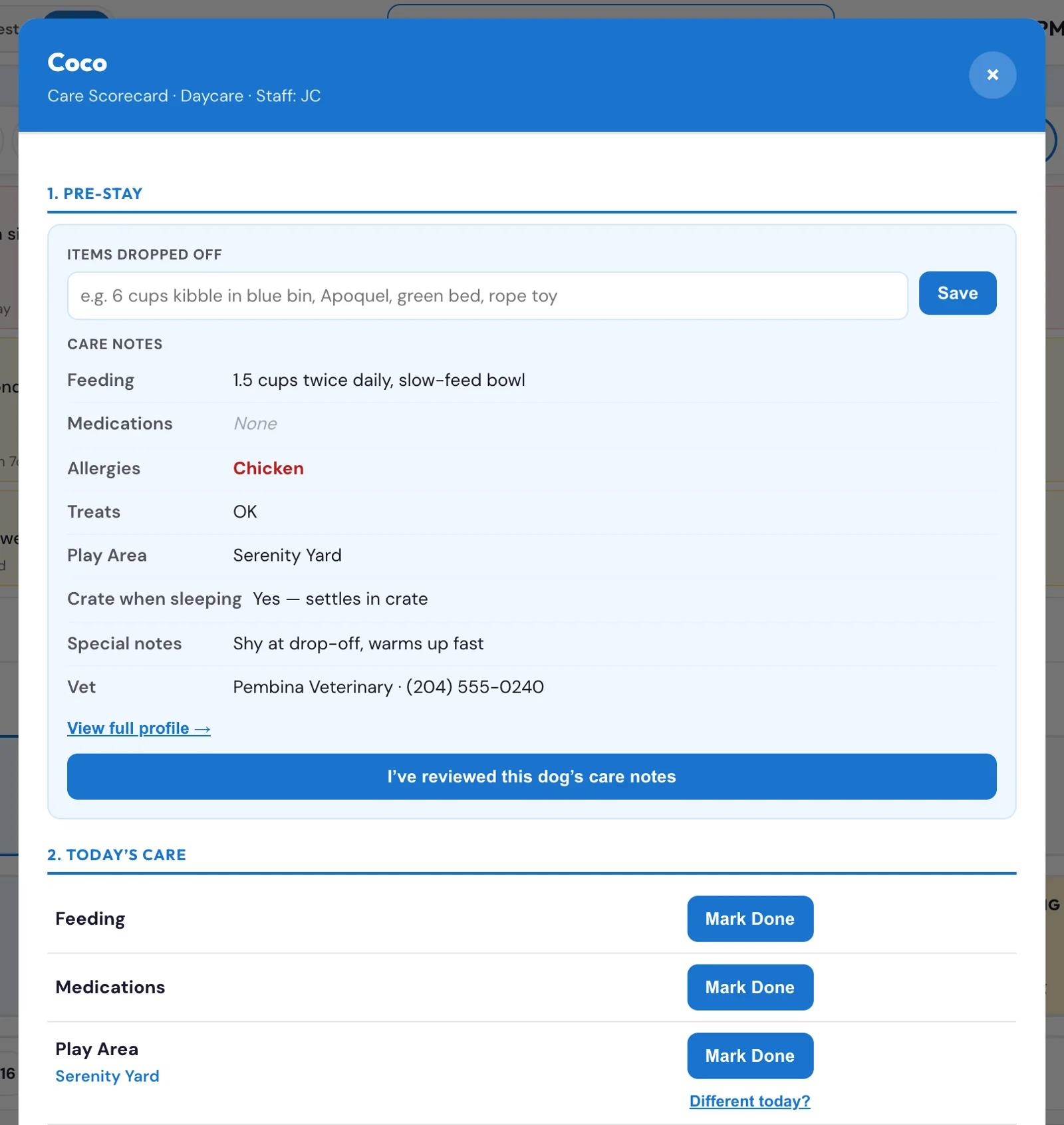
Front deskWhat's the "pre-stay review" at the top of the scorecard?#
At the top of the scorecard is a Care Notes summary — the dog's feeding, medications, allergies, and notes at a glance — with a "View full profile →" link that opens the dog's full profile if you need the whole record. Read it, then tap "I've reviewed this dog's care notes." It's a quick safety confirmation that whoever's caring for the dog has seen its needs before the stay starts.
Front deskWhat is the Care Profile, and how is it different from the scorecard?#
The Care Profile is a read-only, at-a-glance view of a dog's care needs — feeding, medications, allergies, treats (OK / NO / conditional), play area, crate-when-sleeping, special notes, behaviour notes, and vet. The scorecard is where you do and log the care (mark feeding/meds/play area done). The Care Profile is where you read the care notes. You can open the Care Profile from the pre-stay summary's "View full profile" link or from the dog's card/profile.
Front deskHow do I record that a dog was fed / given meds today?#
In Today's Care there are rows for Feeding and Medications. Tap Mark Done, enter your initials, and it logs with a timestamp. If feeding or meds aren't on this dog's schedule, that row is greyed out automatically so you don't log something that doesn't apply.
Front deskHow does the Play Area row work?#
The Play Area row shows the dog's assigned play area (set at its Meet & Greet — it's read-only here). The play area is the dog's group — in Sprockett's a dog's play area is its group (a dog in the Big Camper Yard plays with the big-dog group). The daycare play areas are Big Camper Yard, Lil Camper Yard, Serenity Yard, and Quiet Yard (both locations); boarding dogs are placed in the Bunkhouse. Tap Mark Done each visit to log that the dog went to its area (initials + time). If the dog needs a different area just for today, tap "Different today?", pick the area, and Log for today — that's a one-day note in the care log and does not change the dog's permanent assigned area.
Front deskHow does the Care Scorecard work for a boarding dog staying multiple nights?#
Boarding shows a day-by-day grid — each stay day across, the care slots down (feeding and medication slots). Tap a cell as you complete each one over the stay, so the whole stay's care is visible at a glance for shift handoffs. Under the grid is a Play Area section with the dog's assigned group and a per-day Mark Done button for each stay day.
Front deskAt pickup, how do I close out a stay?#
In the Departure section, write a short stay summary (a note for the owner about how the stay went), note any items returned (leash, food, bed, meds), and tap Mark Checked Out & Save Summary. (Note: in this version the stay summary is saved on the record for staff; automatic delivery of the report card to the owner by email/portal is a planned later addition.)
Front deskHow do I leave a note for the next shift?#
At the bottom of the scorecard there's a free-text shift notes / handoff area — type anything the next shift should know (behaviour, appetite, a vet call, etc.). It saves to the dog's care log.
Front deskWhere can I see everything that's been logged on a dog's stay?#
The scorecard has its own activity log — a running, timestamped list of every care action recorded on this stay (who fed it, who gave meds, play area, shift notes), newest first. It's your audit trail and handoff record for the visit.
Dog profiles 11
EveryoneHow do I open a dog's full profile?#
Tap a dog on the board (or find it via global Search and open it). The profile shows the dog's photo, breed and age, weight (lbs + kg), safety status, and care flags, plus the owner's contact info and the dog's care details.
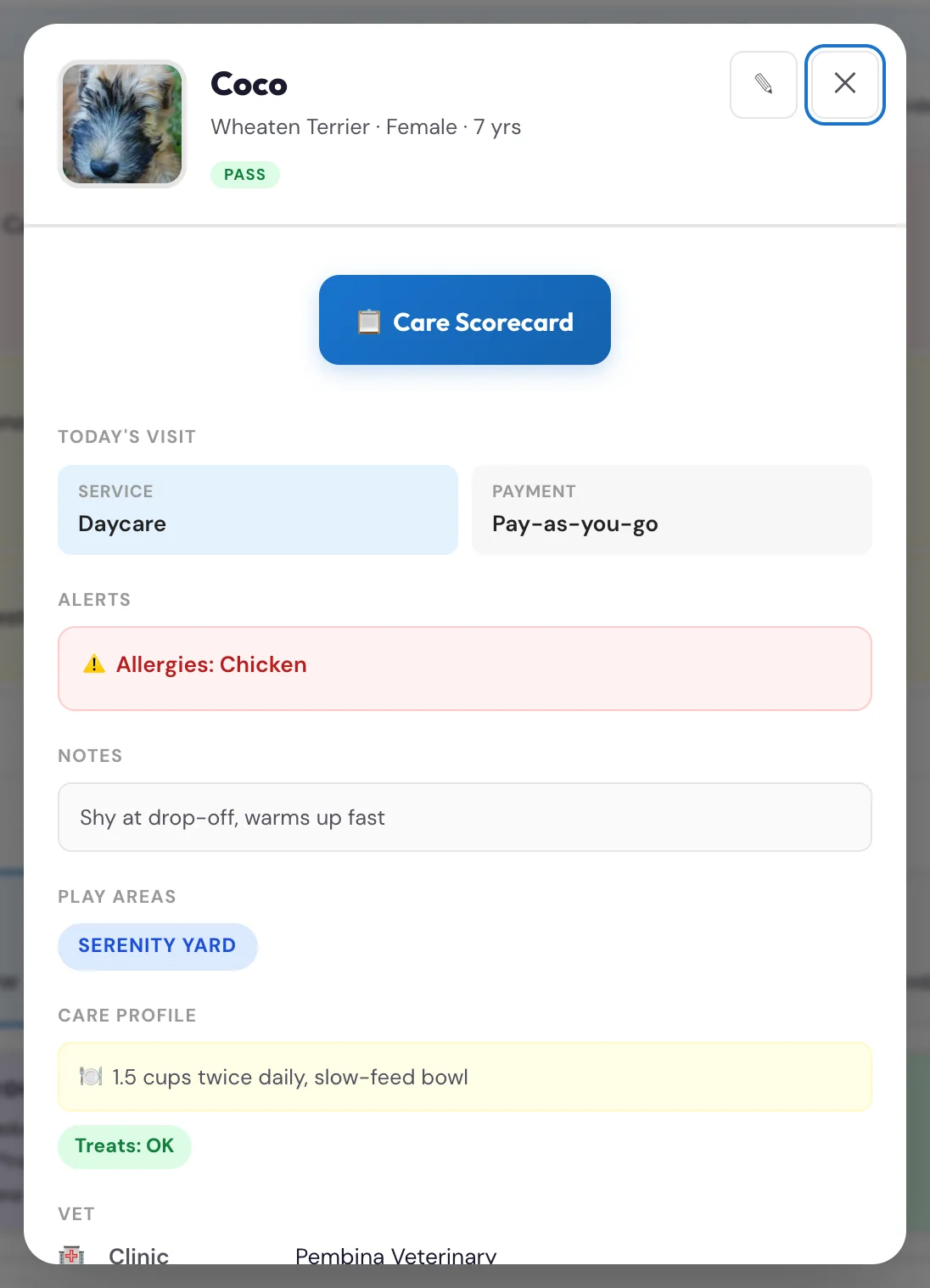
Related
EveryoneHow do I edit a dog's details, and which fields can I change?#
Tap the pencil to enter edit mode. The fields you can edit are:
- Feeding instructions (text)
- Treats OK — yes / no / conditional. Blank means allowed (decided 2026-09-10): the board only shows the NO TREATS flag when a dog is explicitly marked No; Conditional shows the condition on the card
- Crate when sleeping (yes/no)
- Medication required + medication details
- Allergies / sensitivities
- Special notes and behaviour notes
- Temperament status + notes
- Weight (lbs)
- Vet name + vet phone
- Vaccine expiry dates — Rabies, Distemper, Parvo, Bordetella (staff only. Customers send the vet record with the dates from it; the front desk, a manager or an admin checks those dates before they go on the dog)
- Vet vaccination record — upload a photo or PDF for a customer who brings one in
- Description
Tap save when you're done. Always double-check vaccine dates — they feed the dog's safety status.
EveryoneCan customers change their dog's breed or photo?#
Yes (since Oct 23). In their portal, Update Profile on the dog opens with Your dog: the dog's current photo with Choose a new photo, and Breed. A new photo shows on the dog's page in their portal and on the dog's card on the board straight away; the breed saves with the rest of the profile. Nothing comes to the desk to approve. Breed suggests common breeds as they type, cats included (Domestic Shorthair, Siamese, Maine Coon and so on, since Oct 27); they can still type anything. The board shows a dog's breed but doesn't change it: if a customer can't manage it, change it on the pet's record in Kanamé.
EveryoneWhich of our notes on a dog can the family see?#
In their portal, the family sees their dog's feeding instructions, medications, vet, weight, breed, photo and vaccine dates, because they keep those up to date themselves. Write those as the family's instructions. Everything else is for staff only and never shows to the family: Special notes, behaviour notes, temperament and its notes, play area, incidents and the hold reasons. Your own remarks about a dog ("can resource guard", "doesn't like people in his face") go in Special notes or behaviour notes. When a family fills in Anything else we should know? in their portal, it's added under the Special notes as "From the family (date): ...", so nothing you wrote is replaced. (Before Oct 23 the family could see Special notes. That's fixed.)
EveryoneA customer sent their dog's vaccination record. How do I check it?#
Customers add a photo or PDF of their vet's record in their portal (Update Profile on the dog, or when they add a new dog) and enter the expiry date for each vaccine from it. Their dates are held for a check: they don't go on the dog, and they never lift a hold on their own. The dog goes into Vax Records on the board as waiting for review.
- Tap Vax Records at the top of the board. Every dog with a record waiting is listed, with the owner, the day it came in, and whether the customer entered dates.
- Tap Review & approve. You land in the dog's edit view with a yellow note listing the customer's dates beside the dates on file, and the customer's dates already filled in.
- Tap Open the record in the note and check each date against it. Fix any that are wrong. If the customer left a date blank but it's on the record, type it in.
- Tick Vaccination record verified by staff.
- Tap Save. The hold lifts once the dates are current, and the dog leaves the list. The family gets one short email saying their dog's vaccination record is approved, with a button to My Dogs (since Oct 27). Each record gets one email, so unticking and ticking again doesn't send another. Families with email turned off don't get it.
The front desk, managers and admins can all do this, at both locations (since Oct 23). Groomers, trainers and View only sign-ins see the customer's dates as a note only. If the record is hard to read or the shots are out of date, call the owner and leave the dog on hold. Until a record is checked, the customer's portal says "Vaccination record received. Our team is checking it."
A record with more than one page: the customer can choose a photo of each page (up to 4), and My Dogs joins them top to bottom into one image, so Open the record shows every page in one place. One PDF can hold every page too. A second upload replaces the first, so a customer should send all the pages together. (My Dogs v1.28, Oct 26, after a 2-page certificate went in as 1 page.)
EveryoneA customer brought in paper vaccination records, or emailed a photo. How do I add them?#
Open the dog and tap the pencil. Under Vet vaccination record, tap Upload record (on a phone or tablet you can take a picture of the paper copy). Type the expiry dates from it, tick Vaccination record verified by staff and tap Save. The front desk, managers and admins can tick it; if it isn't ticked, the dog stays in Vax Records until someone checks it.
EveryoneWhy didn't the vaccination dates save?#
Vaccination dates, the record check and temperament only save while you're signed in with your PIN. If your sign-in has run out, the board saves everything else and says "Saved, except the vaccination and temperament details." Sign in again and save them again. The verified tick is for the front desk, managers and admins; anyone else sees "Saved, except the record check".
EveryoneWhy can't I edit the play areas or the assigned play area from the profile?#
Play areas and the assigned play area are set at the dog's Meet & Greet and shown here as read-only — they're a temperament decision, not a day-to-day edit. If a dog needs to be in a different group just for today, use the "Different today?" option on the scorecard's Play Area row (a one-day note). To change the permanent assignment, redo/adjust it through the Meet & Greet evaluation.
EveryoneCan I update an owner's emergency contact?#
Yes — the owner's phone, email, and emergency contact name + phone are staff-editable from the pet profile. Edit them and save; the changes write back to the owner's record. (This is the right place to fix a wrong emergency number a client gives you at drop-off.)
On the dog's card the emergency number is tap-to-call (and the emergency email, when there is one, opens your mail app). If the card says "no phone on file" next to the emergency contact's name, the owner never gave us a working number — ask at drop-off or pickup and add it through the pencil (edit) button. Some cards also show a note like "Number from the old system (incomplete, confirm with owner)" — that is a partial number carried over from the old software; confirm it before relying on it.
EveryoneCan I change a customer's pickup password?#
No — the pickup password is set by the customer and is display-only for staff. You can see it (to verify whoever's picking up knows it) but you can't change it. If it needs changing, the customer updates it themselves in their portal.
EveryoneHow many times has this dog visited? Where's its visit history?#
On the dog's card, Visit History shows the last visit, visits this month and lifetime, then the list of visits. The customer's profile has the same list under Visit history: tap Show all for every visit, newest first. How far back it goes, what's counted and what to do about a missing visit are in Where do I see a dog's past visits? (under Payments and packages).
Incidents 7
EveryoneHow do I report an incident?#
Tap Report Incident (the pill in the quick-link row, or the floating ⚠ button bottom-right). Fill in: the location, the category (dog-on-dog, dog-on-person, person-on-person, environmental, medical, or injury-without-cause), the severity, then search to tag the dogs and owners involved with their role, any category-specific details, a description, what action you took, any photos (see below), and your name. Submit — it logs the incident and records the type on each tagged dog.
Groomers (and the desk) can also report an incident on a groom from the staff app: see "How do I report an incident from the staff app?"
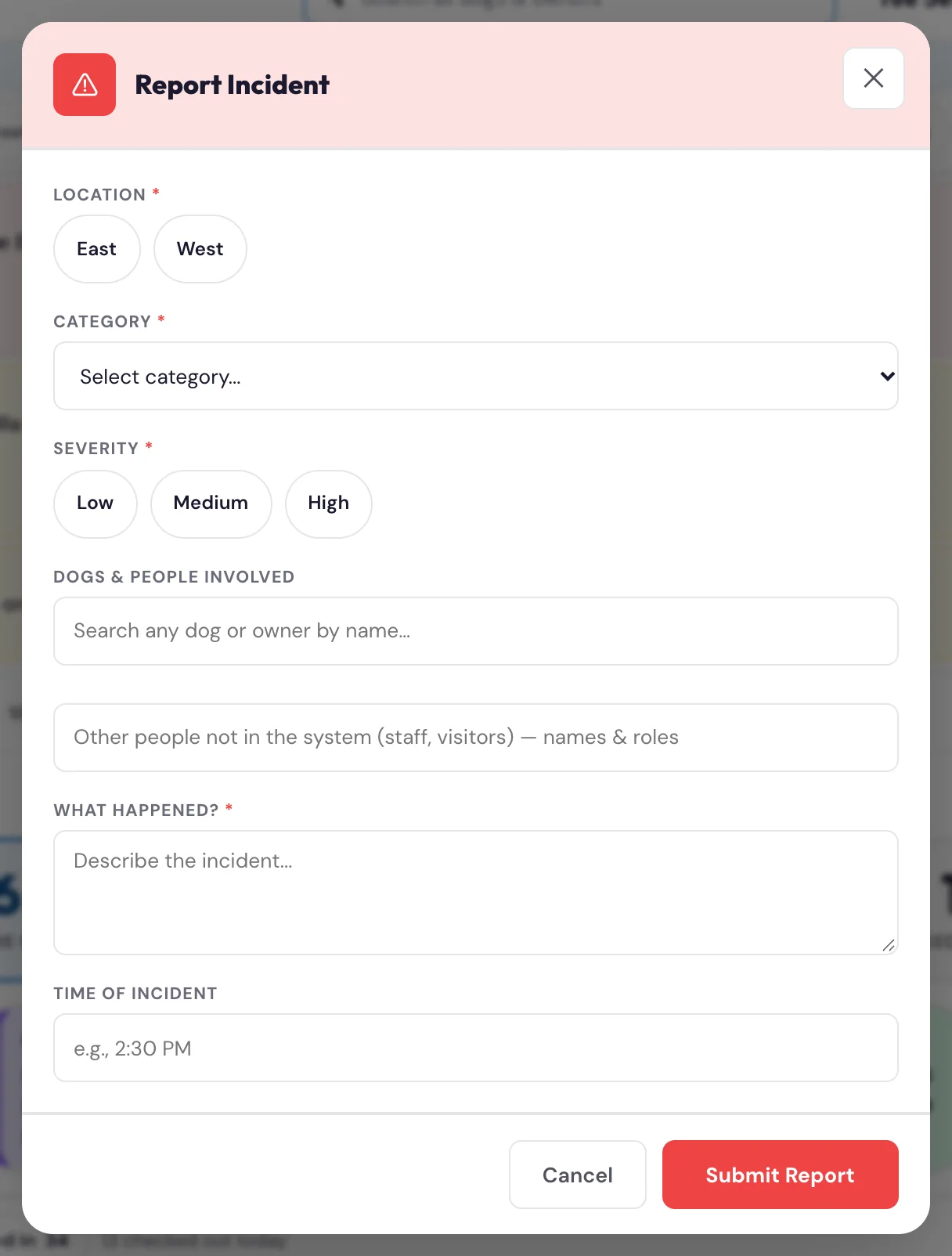
EveryoneHow do I tag the dogs and people involved in an incident?#
In the incident form, use the search to add each involved dog and owner, and set each one's role (e.g. aggressor / victim / witness). You can tag more than one of each. Tagging writes the incident onto each of those dogs' and owners' records so the history is searchable later.
Related
EveryoneThe incident form changes depending on the category — why?#
Each category asks for the details that matter for that kind of incident (a medical event asks different questions than a dog-on-dog scuffle). Pick the category first and the form shows the right category-specific fields. Fill what's relevant — it keeps incident records consistent and useful.
Related
EveryoneCan I add photos to an incident?#
Yes. The Report Incident form has a photo upload — tap it to add one or more images (on a phone or tablet it opens the camera so you can snap the photo right there, e.g. an injury or a damaged gate). The photos you add show as thumbnails in the form before you submit. When you submit, the photos are stored privately with the incident on the dog's and owner's records in Kanamé, so they're part of the permanent incident history — not just a note saying a photo exists somewhere.
Keep it to what's relevant to the incident. Injury and bite photos are sensitive — they stay private in the records, never anywhere public.
Related
EveryoneWhere do I see open incidents?#
Tap the Incidents pill in the quick-link row. The Incidents view lists open incidents sorted by severity so the most serious are on top, ready to be followed up and resolved.
EveryoneHow do I view the full detail of one incident?#
In the Incidents view, open an incident to see its detail — the category, severity, everyone tagged and their roles, the description, the action taken, and who reported it, with timestamps. This is the full record of what happened.
Related
EveryoneHow do I follow up on or resolve an incident?#
From an incident's detail, use Follow up to record follow-up actions and mark the incident resolved when it's handled. The incident's follow-up status shows whether it still needs attention, so nothing falls through the cracks.
Meet & Greets 3
Front desk · ManagersWhere do I see dogs waiting for a Meet & Greet?#
Tap the Meet & Greets pill in the quick-link row. The view lists dogs pending their evaluation — new dogs have to pass a Meet & Greet (temperament evaluation) before they can start daycare or boarding. Each card shows the dog and the owner's name + a tappable phone number, because it's the owner who calls, schedules, or walks in — so you know who you're dealing with at a glance.
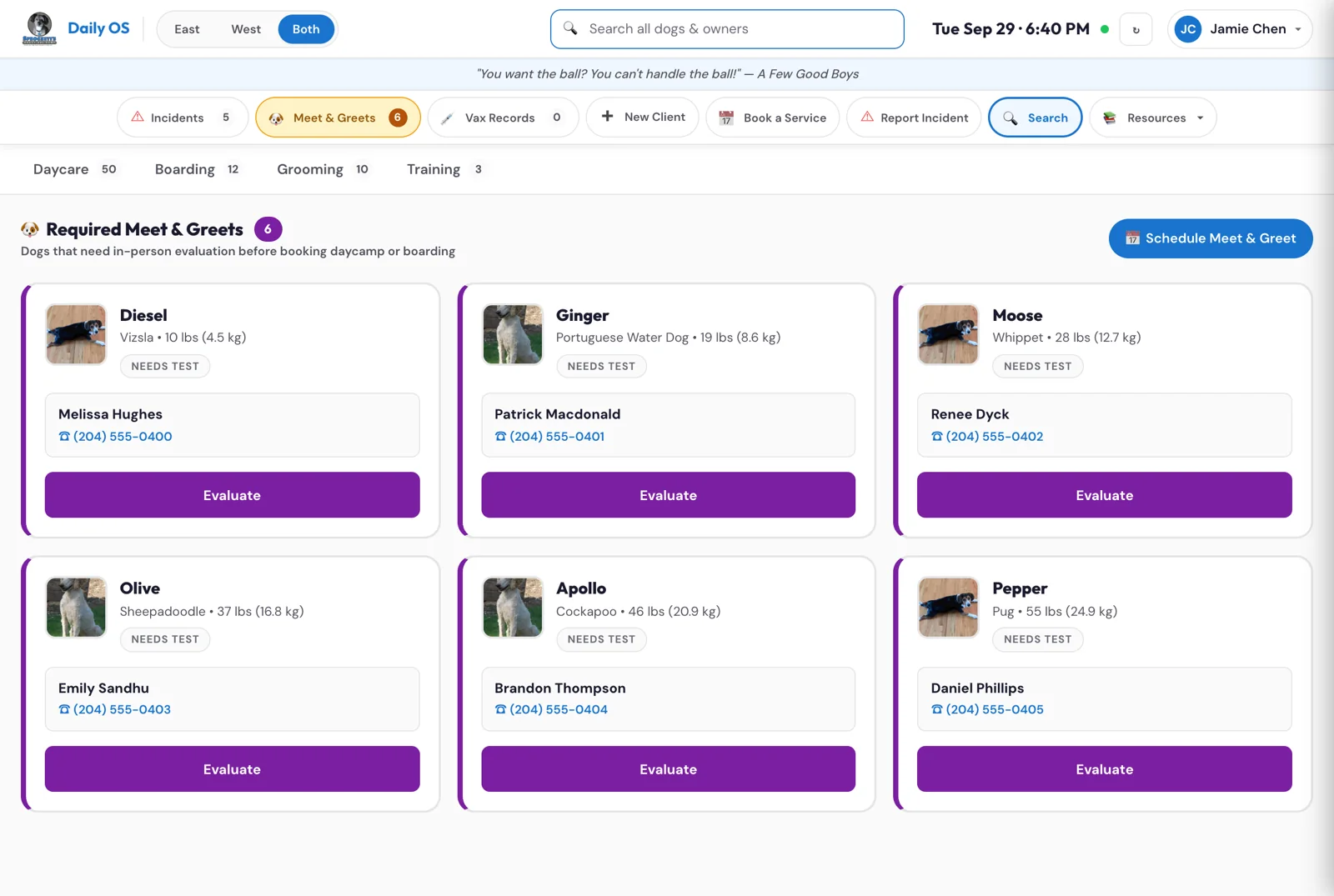
Front desk · ManagersHow do I schedule a Meet & Greet for a new dog?#
In the Meet & Greets view, tap Schedule Meet & Greet — it opens the booking widget for the temperament-test calendars (East + West). Book the dog into a slot from there.
Front desk · ManagersHow do I record the result of a Meet & Greet?#
Open the dog from the Meet & Greets view to bring up the evaluation modal. It's laid out in two columns so it reads like a proper profile, not a form to grind through:
- One side is the dog's identity card — large photo, name, breed · age · weight · sex, the owner (name + tappable phone + email), location, vaccine status, and registered date. This is your "am I evaluating the right dog?" confirmation before you record anything.
- The other side is the evaluation form — Result (Pass / Conditional / Not Suitable), the dog's Assigned Play Area, Evaluation Notes (required for a Conditional result), and Your Name. Then Submit.
This is the dog's "you passed" moment and the first real entry on its record, so the modal is built to feel like one. Submitting runs the safety check automatically and updates the dog's status — a Pass lets the dog start daycare/boarding, and the Assigned Play Area you pick here is the group the dog joins (it shows read-only on the dog's profile and Care Scorecard afterward).
Staff notes and resources 7
EveryoneWhat's the coloured strip of notes under the topbar?#
It's the announcements board — the digital version of the sticky-notes/group-text everyone used to share at the front desk. Pinned staff notes show here so everyone on shift sees the same information (a reactive dog on site, a schedule change, a supply note).
EveryoneHow do I post an announcement?#
Tap + Post (to the right of the notes) to write one. Any signed-in staff member can post an Info note. Posting Important or Urgent notes, and pinning, is for managers/admins. Write the note, set the severity (if you can), and it appears on the strip for everyone.
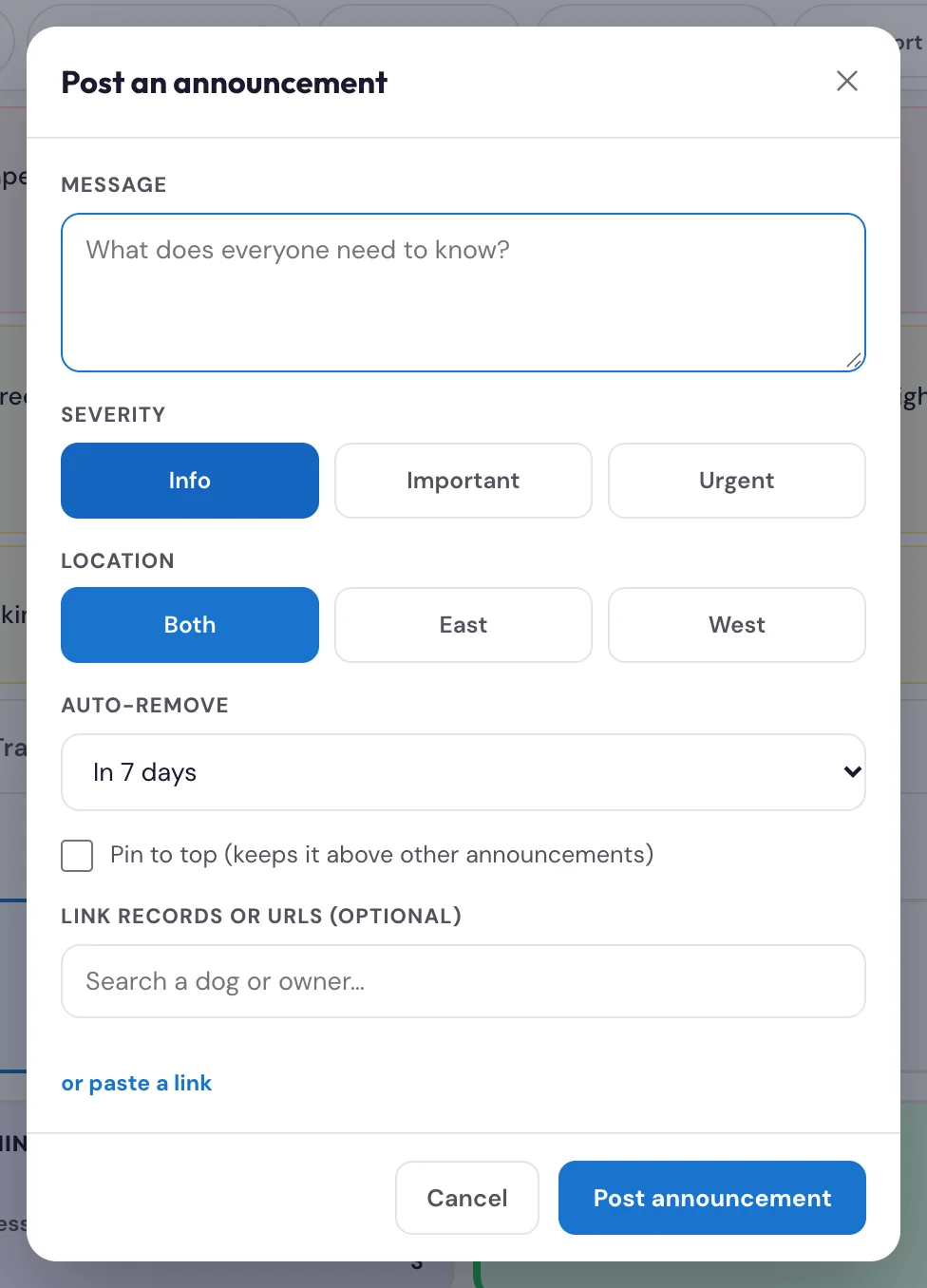
EveryoneWhat do the announcement colours and the expiry mean?#
Colour shows urgency — Info, Important, Urgent. Every note has a required expiry (default +7 days), so the board cleans itself up and doesn't fill with stale notes. Important and Urgent notes always show; Info notes can be dismissed per person (next question).
EveryoneHow do I get rid of a note I've already seen?#
For an Info note, tap dismiss — it hides for you without removing it for anyone else. Important/Urgent notes stay visible to everyone (they're too important to dismiss). To remove a note for everyone, a manager/admin expires or unpins it (see the Admin guide).
EveryoneA note has a link on it — where does it go?#
An announcement can carry a tappable link: a dog (opens that dog's profile in the portal), an owner (opens the owner's profile), or an external web link. So a "reactive dog on site" note can be one tap from that dog's record. Tapping it resolves the record fresh and opens it.
EveryoneWhat's in the Resources menu?#
Tap Resources in the quick-link row for a dropdown of staff links:
- New Staff Onboarding — the get-started guide: the welcome email, the staff app, setting up your PIN and signing in at the desk.
- Training classes — video — how training runs and how to enrol a customer from the board (about 2 minutes).
- Help centre — every how-to, video and guide in one place, with a search box.
- System Feedback — report something that isn't working, with up to 3 screenshots (see "How do I report a problem?").
- Kanamé Support — the platform's own help centre, for anything standard in Kanamé.
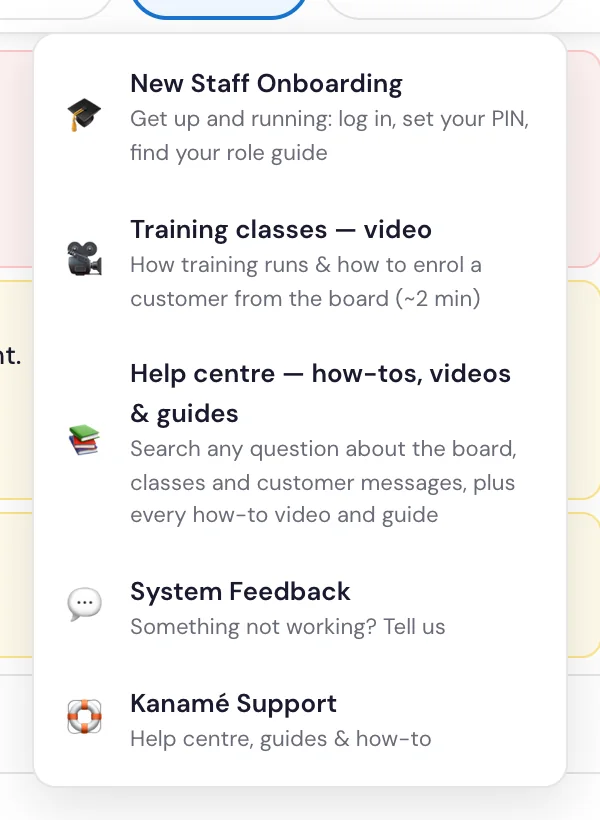
Related
EveryoneHow do I report a problem?#
Open Resources → System Feedback. Fill in your name, your role, what kind of feedback it is, and what happened (what you did, what you expected, what you saw). Add where it happened if you can, for example "Training tab, Edit class". Add up to 3 screenshots: tap the box to take a photo or pick images, or drag them in on a computer. Tap the ✕ on one to take it off. Then tap Submit Feedback. The screenshots are kept with the report, so we see exactly what you saw. Families can use the same form from the link at the bottom of My Dogs.
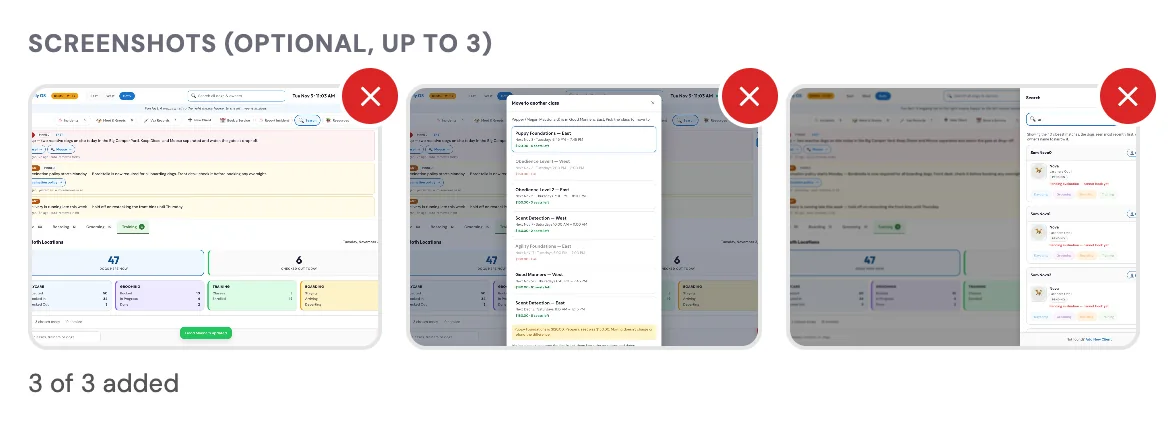
Customer messages 6
ManagersWhich automatic texts and emails can we change ourselves?#
The wording of the automatic texts and emails customers get, and whether each one sends at all, lives in Kanamé under Settings → Custom Values. Type Msg in the search box and they all show together. Each message has up to four settings:
- On — Yes sends it, No stops it.
- Subject — the email's subject line.
- Text — the text message.
- Email — the words in the email.
The messages you can change this way:
- Waiver reminder
- Daycamp booked, Boarding booked and Grooming booked
- Training booked online and Training enrolled by staff
- Day before daycamp, Day before grooming, Day before boarding and Day before training (texts)
- Scent waitlist joined (email)
- Incident medium (text) and Incident high (text and email)
- Pay link and Checkout receipt (texts)
- Class reminder — switched off until Theresa and John decide to turn it back on.
Two more, Msg · Phone · East and Msg · Phone · West, hold the phone numbers the messages give customers to call. Change one and every message that mentions it changes with it.
Anyone with Settings access in Kanamé can change these; they sit on the same screen as your prices and booking links. Kanamé's own emails aren't here: the welcome email for new sign-ups, the account invite, and the invoice, receipt, waiver-copy and login-code emails. Ask us to change those.
ManagersHow do I change the wording of a text or email customers get?#
- In Kanamé, open Settings → Custom Values and type Msg in the search box.
- Find the message and the part you want to change, for example Msg · Daycamp booked · Text.
- Click it, change the words, and Save.
The next message that goes out uses the new wording. Nothing else needs to happen.
Keep the placeholders in curly brackets, like {dog_name}, spelled exactly as they are: that's where each customer's details go (see the next question). If one is mistyped, that part of the message goes out in its standard wording instead, so a customer never sees a broken message. Emptying a value brings the standard wording back.
After changing an email, look at the next one that goes out, or ask us to send you a test, to check the layout.
ManagersHow do I switch a customer message off, or back on?#
- In Kanamé, open Settings → Custom Values and search Msg.
- Open that message's On setting, for example Msg · Grooming booked · On.
- Type No to stop it, or Yes to send it again, and Save.
It takes effect from the next message. Anything starting with N counts as off.
Don't delete an On setting to switch a message off: a missing setting counts as on. The one exception is the Class reminder, which stays off unless its setting says Yes.
ManagersWhat can I put in a message: placeholders and formatting?#
Placeholders fill in each customer's details. Type them exactly, in single curly brackets:
- {first_name} — the owner's first name ("there" if we don't have it)
- {dog_name} — the dog's name, "Rex & Luna" for two dogs ("your pup" if it's missing)
- {date}, {checkin_date} and {checkout_date} — written out, like "Monday, October 5"
- {location} — East or West, and {location_phone} — that location's number
- {class_name}, {time} and {weeks} — in the training messages
Each message's standard wording already uses the placeholders that message supports, so keep to those.
Square brackets hide a phrase when a detail is missing: [First class: {date}.] disappears instead of printing an empty date.
In emails, a blank line starts a new paragraph, a line that starts with a dash and a space becomes a bullet, and two stars on each side of a word make it bold. The email's heading, colours, footer and buttons stay the same whatever you type.
Some characters make texts cost more. An emoji, a long dash (—) or a curly apostrophe (’) makes the whole text count in 70-character pieces instead of 160, so a long text can cost two or three times as much. A plain apostrophe and a hyphen keep it cheap.
ManagersI changed a message, but customers still get the old wording. Why?#
Check these, in order:
- The right part? A text and an email are separate settings (… · Text and … · Email).
- A mistyped placeholder, like {dog_nme} for {dog_name}, sends that part in the standard wording. Fix the spelling and save.
- Too long? Very long wording is replaced by the standard wording too. Shorten it.
- Switched on? Check the message's On setting says Yes.
- One of Kanamé's own emails? The welcome email, the account invite, invoices and receipts aren't in Custom Values.
Still stuck? Ask us: every message records whether it used your wording or the standard one, so we can tell you which part was replaced and why.
Front desk · ManagersHow do I see which customer messages still need a reply?#
Use the Needs a reply view in Conversations.
- In Kanamé, open Conversations.
- In the menu to the left of the message list, under Views, click Needs a reply. If that menu is folded away, tap the small arrow beside the list to open it.
The list shows only conversations where the customer wrote last: texts, emails and Google reviews. Anything your team sent last doesn't show. Reading a message doesn't take it off the list; replying does. Everyone on the team has the view, and anyone added later gets it too.
To reply:
- Click the customer in the list. Every message you've exchanged with them opens in the middle.
- At the bottom, check the channel on the left of the message box. Kanamé picks the one they last used, so an email gets an email back. Click it to switch to a text.
- Type your reply and click Send. They drop off Needs a reply.
Replies to the emails the system sends (new account, agreements, vaccine approvals) land here too. Emails sent straight to the studio's own address still arrive in your regular inbox. More on the inbox: Answer your messages in one inbox.
Watch: Answer your messages in one inbox ›Read more in Kanamé Support
Managers and owners 7
ManagersWhere did Manage staff go on the board?#
Staff are managed in Team, in the staff app. On the board:
- Tap your name at the top right.
- People who manage the team see "Staff are managed in Team, in the staff app." Tap Open Team.
Team opens in a new tab. Adding people, changing roles, temporary PINs, unlocking and removing all happen there (see "What is Team, and who sees it?").
ManagersHow does someone get a PIN?#
They set it up themselves.
- In Team, tap the person and make sure their email is right.
- Tap Send the welcome email. It has the link to put the staff app on their phone and tells them to tap Set up my PIN, or forgot it?
- A code goes to their email and they choose their own PIN.
Send the welcome email to everyone not set up (at the top of Team) does the same for everyone who has an email and no PIN yet.
Someone with no email: tap them in Team, then Give a temporary PIN in person (no email needed), and tap it again to set the PIN it shows. Tell them the PIN face to face, never by text or email. They choose their own the first time they sign in.
ManagersSomeone is locked out after too many wrong PINs. How do I let them back in?#
In Team their row says Locked (too many wrong PINs). Tap them, then Unlock their PIN, and they can try again straight away. If they've forgotten the PIN, they can tap Set up my PIN, or forgot it? themselves, or you can tap Give a temporary PIN in person (no email needed).
ManagersHow do I add a new staff member or remove someone who left?#
Both happen in Team, in the staff app (tap Team on Home).
To add someone:
- Tap Add a person.
- Fill in their full name, role, location and email (their sign-in codes go there). Turn on the Kanamé login only if they need one.
- Tap Add them, then open them and tap Send the welcome email when you're ready.
When someone leaves: tap them, then Remove (they've left), and tap again to confirm. Their sign-in stops at once, they drop off the sign-in list, and their Kanamé login is removed within a few minutes. Away for a while? Pause (keeps their PIN) stops them signing in; Bring them back undoes it. Keeping the list current keeps the initials on every action accurate.
ManagersWhat do the staff roles mean, and who can do what?#
The roles are Front desk, Groomer, Trainer, Manager, Admin and View only.
- Admin — everything a manager can do, plus New training cohort and Edit class.
- Manager — can post Important/Urgent announcements and pin them.
- Front desk / Groomer / Trainer — day-to-day board use; post Info announcements.
- View only — can look at the board and the staff app, but can't change anything (see "What is View only?").
- Classes on the Training tab — front desk, trainers, managers and admins can Message class, Change a date and Move a dog to another class; groomers can see the classes and who's enrolled.
Managing the team isn't a role. The owner (Theresa) lets an admin or a manager manage the team: Theresa and John to start. You change a person's role in Team, in the staff app.
ManagersHow do I remove an announcement for everyone, or unpin one?#
As a manager/admin, open the announcement and use Expire (remove it now) or Unpin (take it off the pinned strip). Info notes self-expire after their date; this is how you clear an Important/ Urgent note early or tidy the board.
ManagersWhat monthly/seasonal housekeeping should an owner do?#
A light monthly pass: expire any stale announcements, look over Team (remove anyone who left, check who has No PIN yet or is Locked, and send the welcome email to anyone not set up), and confirm roles are right (who's a manager, who's View only). These keep the board clean and the audit trail accurate.
When something goes wrong 7
EveryoneI tapped Check In and it said "Check-in failed."#
The action didn't go through (usually a brief connection hiccup). Just tap Check In → Confirm? again. If it keeps failing, tap Refresh in the topbar and retry; if it still won't work, the internet or the system may be down — tell a manager and fall back to a paper note until it's back.
EveryoneA dog isn't showing on the board.#
Check three things first: (1) you're on the right service tab (a grooming dog won't be on the Daycare tab), (2) the location toggle (East / West / Both), and (3) the date is today. Still missing? Use the topbar Search to look the dog up across the whole system — if it's a brand-new client, use New Client to sign them up.
EveryoneA HOLD dog is standing at my desk — what do I do?#
Don't check it in. HOLD means vaccines or the temperament evaluation aren't cleared. Tell the owner what's missing (the profile shows it — e.g. an expired vaccine date, or a Meet & Greet still needed). Once that's updated and the dog re-passes the safety check, the badge flips to PASS/REVIEW and you can check it in. If you're unsure, get a manager.
One exception: a HOLD that is only the Meet & Greet is for daycamp and boarding. That dog can be booked for grooming and checked in for it (the check-in warning still shows; tap Check In again).
EveryoneThe customer says a package visit was deducted by mistake.#
A manager/owner can correct the balance. The fix is to add the visit back to the owner's package balance (done from the contact record in Kanamé). Note what happened so there's a record. Don't argue it at the desk — log it and let a manager adjust.
EveryoneA multi-dog family — does each dog use a pass?#
Packages are per-household (shared pool). Each dog that comes in that day uses one deduction from the family's shared balance. So three dogs in on a package day = three passes used.
EveryoneA walk-in wants a nail trim.#
Add it as a line item at checkout — Nail Trim (Walk-in) is $20, or $15 for a daycare dog. It doesn't need a separate booking; just add the item and take payment.
EveryoneA family says they signed an agreement, but My Dogs or the board still says it isn't signed. Why?#
The agreement form asks the family to type their name and email. If they type a different email from the one on their account, or mistype it, Kanamé files the signature under that email as a separate contact, and their account stays unsigned.
- Same name as the account, signed from inside their My Dogs: this now fixes itself within about 15 minutes. The agreements are copied onto the family's account with a note saying so, and the separate contact gets a note pointing to the account. A matching name alone isn't enough: the family has to have been signed in to My Dogs when they signed. My Dogs shows it straight away, and the board within about 10 minutes more.
- A partner listed as the other owner, signed from inside the family's My Dogs: this fixes itself the same way (a partner's signature counts when their name is listed under owners). The account's Other Owner Name has to match the name they typed on the form, and the account has to have been signed in to My Dogs when they signed.
- Anything else, for example a partner who isn't listed as the other owner: we get an alert and check with you which account it belongs to.
When a family is about to sign, remind them to type the email they use for My Dogs.
Words we use 1
EveryoneWhat do the words on the board mean?#
- Pass / Package — pre-paid visits on the owner's account; checkout uses them automatically.
- Safety status — PASS / REVIEW / HOLD, computed from a dog's vaccines + temperament evaluation.
- PIN — your code for the board and the staff app: 6 digits for the front desk, managers and admins, 4 for groomers and trainers.
- Set up my PIN — the button under the keypad: a 6-digit code goes to your email, then you choose your own PIN. It's also how you reset a forgotten PIN.
- Temporary PIN — a PIN someone who manages the team gives you in person, when email won't do; you choose your own the first time you use it.
- Team — the staff app screen where staff are added, changed and removed, for people who manage the team.
- View only — a role that can look at the board and the staff app but not change anything.
- 15 min left — what the groomer taps when a dog is about 15 minutes from done; the board shows it on the dog's row.
- Staff app — Sprockett's Staff on your phone: My day for groomers, Grooming notes for the desk, Classes, and the way into Daily OS.
- Meet & Greet — the temperament evaluation a new dog does before it can start daycare/boarding.
- Care Scorecard — the digital per-visit care log (feeding, meds, play area) that replaced paper.
- Care Profile — the read-only at-a-glance view of a dog's care needs.
- Daily OS — the menu item in Kanamé's sidebar that opens the Sprockett's staff board.
- Kanamé — the platform the whole system runs on: logins, contacts, messages, bookings and payments.
- Classes list — the Training tab's list of every class, with who's in and every date.
- Custom Values — the Kanamé settings screen that holds the wording of the automatic texts and emails (each one starts Msg ·).
- Pay link — a text or email with a link where a family pays by card on their own phone. Sent from + New Charge or Family Checkout.
- Stripe — the company that takes Sprockett's online card payments and pays them out to the bank. The card machine at the desk is Chase, not Stripe.
- Payout — Stripe sending your online payments, less its fees, to your bank.
- Dispute (chargeback) — a family asking their bank to take back a card payment.
- Provider — the column in Kanamé's Transactions that says how a payment was taken: Stripe (online) or Manual (cash, e-transfer, the card machine).
Videos and guides 16
Videos (the older ones still say "Daily Ops", the board's old name)
Guides and manuals
Kanamé's own help, for anything standard on the platform