 Sprockett's Doggy Day Camp
Get Up & Running
Everything you need to log in and start your first day. It takes about 15 minutes once your welcome email lands. Do the computer steps before your shift — the phone app can wait until you have a quiet minute.
The quick version
- You'll get an email from Kanamé — subject "Activate Your Account | Kanamé." Open it, click the pink button, and set a password.
- Bookmark this one page:
connect.kanameplatform.com— it's your login for everything. - After you log in, click "Daily Ops" in the left menu — that's the board you run the day from.
- On the shared front-desk computer, set a 4-digit PIN so the system knows it's you.
- On your phone, download the "Lead Connector" app and log in with the same email and password.
First time through? Read the full steps once — this little box is just your reminder afterward. And if your welcome email isn't here yet, don't worry — that's normal. A manager sends it just before your first shift.
What you log into
Good news: there's really just one login. It's called Kanamé, and it runs the whole business. The dog board you'll use all day lives inside it — same login, no second password to remember.

Kanamé
The system behind everything — bookings, calendars, client records, messages. You log in here once and you're in.
connect.kanameplatform.com
"Daily Ops" board
Every dog here today, check-ins and check-outs, search, care notes, incidents. You open it by clicking "Daily Ops" in the Kanamé menu — it lives inside Kanamé, not at a separate web address.
connect.kanameplatform.com, log in, then click Daily Ops. That one habit keeps everything running smoothly.
Activate your account
Before your first shift, a manager adds you to Kanamé. You'll get one email — it's the only setup email you need.
-
Find the email from Kanamé
Look for the subject line "Activate Your Account | Kanamé." When you open it, the big heading reads "Welcome to the Kanamé platform," and it comes from
noreply@ml.kanameplatform.com. Not in your main inbox? Check your Promotions tab and your spam folder — it often hides there. Still nothing? That's normal if your first shift hasn't come around yet. Just ask your manager to send it again. -
Click the pink "Activate Your Account" button
It opens the page where you set your password. The link is only good for 24 hours — if it expires, a manager can send a fresh one.
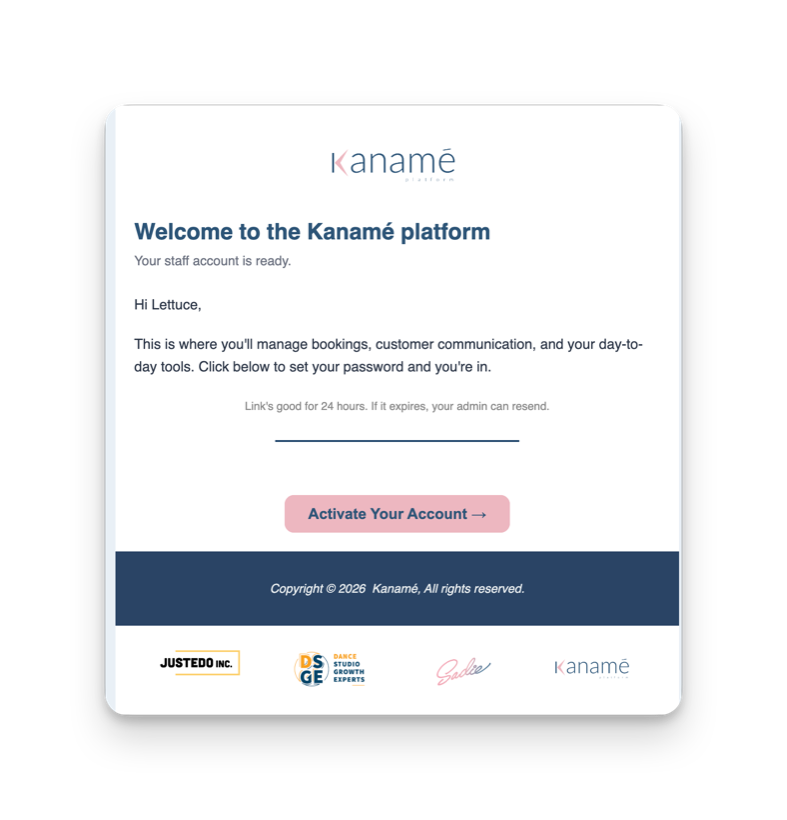
What to look for: a Kanamé email headed "Welcome to the Kanamé platform," with a pink "Activate Your Account" button. - Set your password Pick a password that's at least 8 characters, with a mix of uppercase and lowercase letters, a number, and a symbol. This is your login from now on, so keep it private. If you need to, let your browser or phone save it for you — just don't leave it on a sticky note at the desk where customers can see it. Once it's set, you go straight into Kanamé.
Log in & save it for one-click access
-
Go to your login page
In your web browser, go to
connect.kanameplatform.com. You'll see a blue page headed "Sign into your account" — that is the Kanamé login (the address bar showsconnect.kanameplatform.com). Type your email and the password you just set, and click Sign in.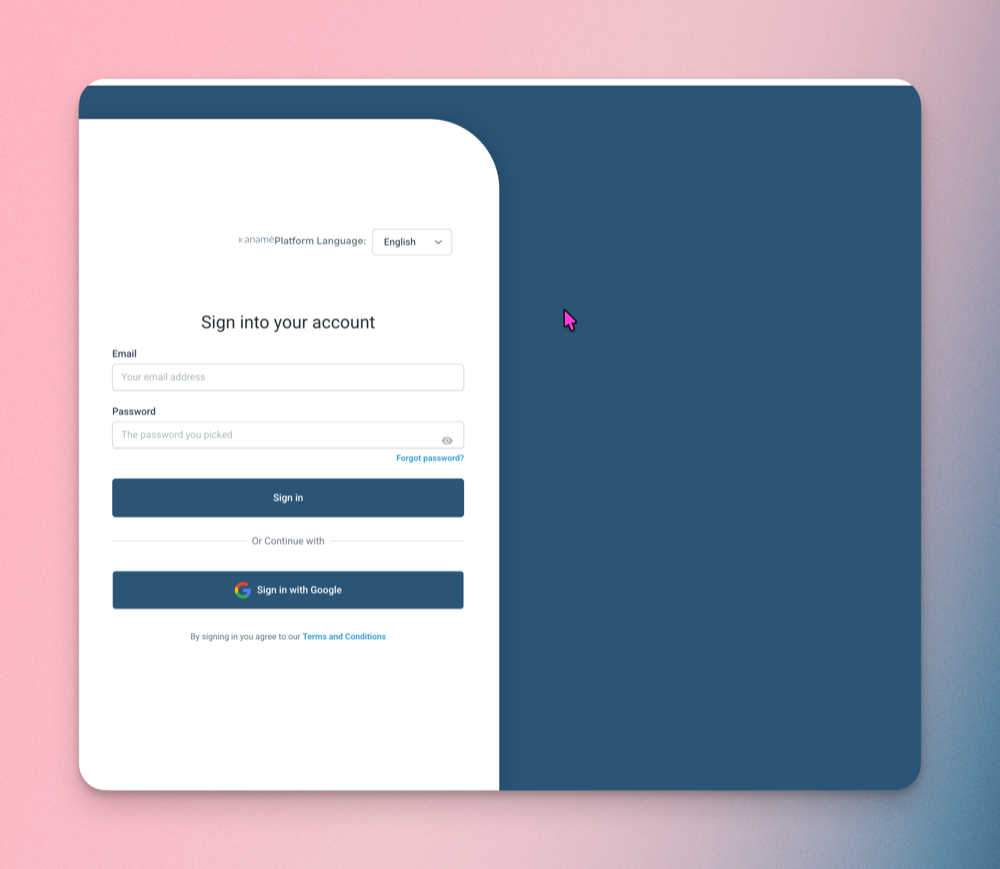
The Kanamé login at connect.kanameplatform.com. The page header reads "Sign into your account." Forgot your password? There's a "Forgot password?" link right on this page. -
Save it so you never type it again
Easiest: with
connect.kanameplatform.comopen, press Ctrl‑D (Windows) or ⌘D (Mac) to bookmark it. Then it's one click from your bookmarks every morning.Windows · want a desktop icon? optional
In Chrome or Edge, click the three-dots menu (⋮) at the top-right, then choose Save and share, then Create shortcut. Tick "Open as window" and click Create.Mac · want a desktop icon? optional
Drag the little icon in the address bar onto your desktop. (Or in Chrome: the three-dots menu (⋮), then Cast, save, and share, then Create shortcut.)Tip: A bookmark is all you need — the desktop icon is just a nice extra. If you can't find the menu, don't worry about it.
Open the Daily Ops board
Once you're logged into Kanamé, the dog board is one click away. Look down the left-hand menu and click "Daily Ops." Your menu might have more items than the picture below — that's fine. Just find the one labelled "Daily Ops" (usually partway down) and click it.
Kanamé- Dashboard
- Conversations
- Calendars
- Contacts
- Daily Ops
- Support Center
opens here
Set your PIN on the front-desk computer
The front-desk computer is shared by the whole team, so the board needs to know who's working right now. That's what the quick 4-digit PIN is for. It's separate from your Kanamé password — think of it as a quick name tag that stamps your name on check-ins, check-outs, care notes, and incident reports, so everyone knows who did what. Setting it takes a second, and you can't get it wrong.
-
Find "Sign in" — top-right of the board
Look in the top-right corner for a small circle with a "?" inside and the word "Sign in" — tap it. (It says "Sign in" when nobody's signed in yet.)
Sign in
-
Tap your name, then set a 4-digit PIN
Pick your name from the list. The first time, you'll see "Set PIN" next to it — choose any 4 digits you'll remember and confirm. That's you enrolled. Don't see your name? Ask a manager to add you (takes a minute) — until then, a co-worker who's signed in can stamp the work.
A 4-digit PIN — quick to tap, easy to remember. Keep it private, and don't write it anywhere customers can see.
- Every shift after that: tap your name + PIN Your name then shows in the top-right corner so everyone can see who's on the computer. After 45 minutes of no activity it signs out on its own — just tap your name and PIN again; it picks up right where the board was, nothing is lost. After 5 wrong tries it locks for a bit — a manager can unlock it. Forgot your PIN? A manager resets it and you pick a new one.
Set up your phone do anytime
On your phone, look for the app called "Lead Connector." Don't worry that the name is different from Kanamé — that's the official app it runs on. Groomers and trainers use this app all day for their calendars and bookings. Front-desk staff mostly work from the computer, but the app is handy when you're on the go.
- Install "Lead Connector" Search "Lead Connector" in the App Store or Google Play (look for the one by LeadConnector), or tap a button below.
- Log in with the same email and password Open the app and sign in with the exact same login you set for Kanamé on the computer — it works in the app unchanged. Turn on notifications so you don't miss bookings or messages.
Now learn your role
You're in — now learn your job. Each role has a short Day-0 walkthrough. Find your guide in the Resources menu inside Daily Ops, or ask your manager.
| Your role | Start with this guide |
|---|---|
| Front Desk | Front Desk Day 0 — the Daily Ops board, checking dogs in & out, taking payment, Meet & Greets, incident reports, search & booking. |
| Groomer | Groomer Day 0 — your weekly hours, your services, test booking, your calendar in the Lead Connector app, checking your dogs in & out. |
| Trainer | Start with Front Desk Day 0 for the basics, then add your class calendar in the Lead Connector app. Ask your manager for any trainer-specific notes. |
| Owner / Manager | Owner Day 0 — reporting, adding staff, configuration, daily oversight, plus the Care Scorecard guides for daycare & boarding. |
First-day checklist
- Got the email from Kanamé ("Activate Your Account | Kanamé") and set my password
- Logged into connect.kanameplatform.com on the work computer
- Bookmarked it (Ctrl‑D / ⌘D)
- Opened the board by clicking "Daily Ops" in the menu
- Set my 4-digit PIN and signed in on the front-desk computer
- Installed the Lead Connector app and logged in with the same email and password anytime
- Found my role guide (Resources menu in Daily Ops, or my manager)
- Skimmed the Meet & Greets and Care Scorecard guides
- Know how to report a problem and who to ask for help (below)
If something's not working
| Problem | What to do |
|---|---|
| No email from Kanamé yet | Check your Promotions tab and spam. Still nothing, or the link expired (24 h)? Ask your manager to send the invite again. (If your first shift isn't here yet, it may simply not have been sent.) |
| Forgot my password | On the login page, click "Forgot password?" and follow the email to reset it. |
| There's a "Sign in with Google" button — do I use it? | For most people, no — just type the email and password you set up. Only use it if your manager set your account up that way. |
| Can't find the board | Make sure you're logged in at connect.kanameplatform.com, then click "Daily Ops" in the left menu. Don't see it? Tell your manager — your account may need it switched on. Don't type a different web address. |
| My name isn't on the PIN list | Ask a manager to add you — it takes a minute. Until then, a co-worker who's signed in can stamp the work. |
| Forgot my PIN / locked out | After 5 wrong tries it locks for a bit. A manager unlocks or resets it, then you set a new 4-digit PIN the same way you did the first time. |
| The board is slow or blank | Click the circular refresh arrow near the top of your browser (or press Ctrl‑R on Windows / ⌘R on Mac). Still stuck? Tell your manager, take bookings on paper until it's back, then enter them once it's working again. |
Need a hand?
support@sprockettsddc.cadoghouse.sprockettsddc.ca/systemfeedback) — it goes straight to the people who built the system. System totally down right now? Tell your manager and take bookings on paper until it's back, then enter them once it's working again.