Training Classes — Staff Guide
Everything you need to set up and run dog-training classes — even if you've never touched the system before.
For front desk, managers, and owners. Plain language. No technical setup required.
- What training looks like here
- Setting up a new class (cohort) staff
- Managing a class day-to-day staff
- When a class fills up — the waitlist staff
- Scent detection — always by requestEnrolling a customer (the front-desk way) staff
- Online self-enrolment (coming soon) coming
- What happens automatically
- Changing or closing a class staff
1. What training looks like here
Training runs as cohorts. A cohort is one class that meets on the same day and time each week for several weeks — for example, "Obedience Beginner, five Tuesdays, 6:45–7:45 PM, starting September 8." It's a whole course, not a one-off appointment.
Each cohort has a set number of seats. A customer enrols once and that covers the entire course. When the seats are gone, the class is full and offers a waitlist instead.
Two words worth knowing:
| Word | What it means |
|---|---|
| Cohort | One run of a class — a specific set of weekly dates with its own seats (e.g. the September Obedience Beginner group). You open a new cohort each term. |
| Seats | How many dogs can join that cohort. When they're full, enrolment stops and the waitlist opens. |
SET UP2. Setting up a new class (cohort)
You open a cohort right from the Daily Ops board with the New Cohort form. It's one short form — fill it in once and the bookable class is created for you. There's no spreadsheet and no calendar to set up.
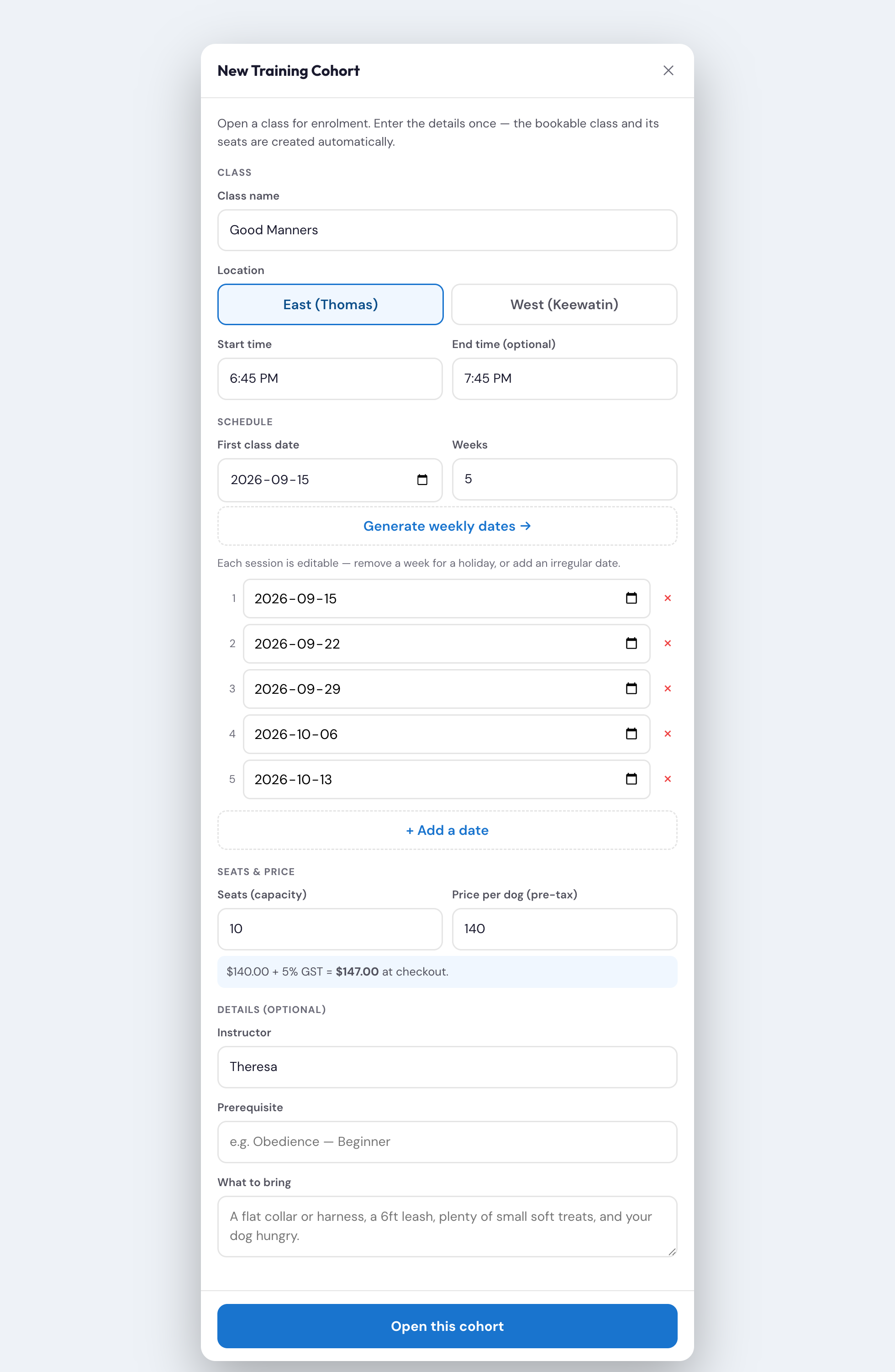
Fill it in, top to bottom
- Class name — the class you're running (e.g. Obedience Beginner, Obedience Novice).
- Location — tap East or West.
- Class start time / end time — when each weekly session runs (e.g. 6:45 PM to 7:45 PM).
- First class date + number of weeks — pick the first session date and how many weeks the course runs, then tap Generate weekly dates. It fills in the weekly dates for you.
- Check the dates — each date is editable. Skipping a holiday week? Remove that date. Need an odd extra date? Tap Add a date. The list can be any set of dates.
- Seats (capacity) — how many dogs can join (e.g. 10).
- Price per dog — the fee before tax. GST is added automatically at checkout.
- Details (optional) — instructor, any prerequisite (e.g. "Obedience Beginner first"), and what to bring.
- Tap Open this cohort.
MANAGE3. Managing a class day-to-day
Once a cohort is open, there's very little to do — it largely runs itself. Here's the whole picture of who does what:
| Task | Who / how |
|---|---|
| Customers enrol | You enrol them at the desk (section 5). Online self-enrolment is coming when card payment is switched on. |
| Seats count down | Automatic — every enrolment uses one seat. At zero, the class shows full. |
| Confirmation | Automatic — sent the moment you enrol someone (section 7). You don't send anything. |
| Full class | Customers join a waitlist; you promote them by hand (section 4). |
| Change a date/price, or close early | Let the Sadie team know for now (section 8). |
MANAGE4. When a class fills up — the waitlist
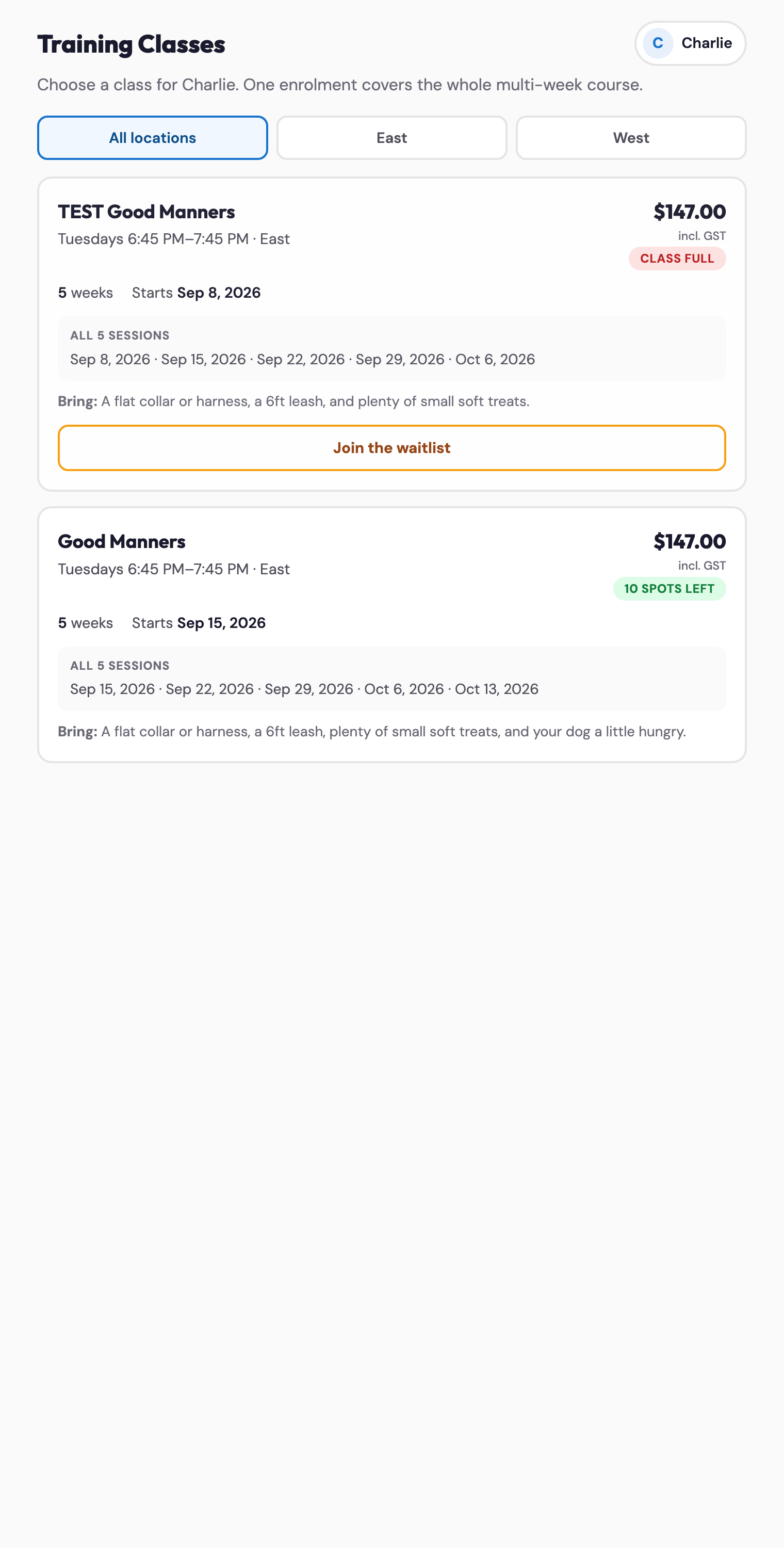
When the last seat sells, the class shows Class full and customers see a Join the waitlist button instead of an enrol button. Joining tags that dog so they appear on the class's waitlist.
When a seat opens up
- Open the waitlist for that class (a saved list, by class).
- Call or text the next person on it.
- If they want the spot, enrol them the same way as a walk-in (section 5) and take payment.
- Their waitlist tag clears once they're enrolled.
MANAGE4b. Scent detection — always by request
Scent classes are never bookable online. John and Jess fill them, so they don't appear in the customer's class list at all — which means the Class full waitlist in section 4 never comes into play for them.
Instead there is a standing sign-up page a customer can use any time, whether or not a class is running:
book.sprockettsddc.ca/training_classes/scentwaitlist
What happens when someone signs up
- They give their name, email, phone, the dog's name, and which sessions suit them.
- Nothing is charged and no seat is held — it's an expression of interest.
- They're tagged scent-waitlist-west, and the dog and preferred session are saved as a note on their record.
- When a class is ready, you contact them and enrol them the front-desk way (section 5).
Where to find who signed up
Open the saved list for scent-waitlist-west. If you can't see it, it was saved privately by whoever built it — ask for it to be shared rather than making a second one, or two half-lists end up competing.
MANAGE5. Enrolling a customer (the front-desk way)
You enrol customers right from the Daily Ops board — for walk-ins, phone bookings, or promoting someone off the waitlist. It works just like ringing up any other service: pick the dog, pick the class, take payment.
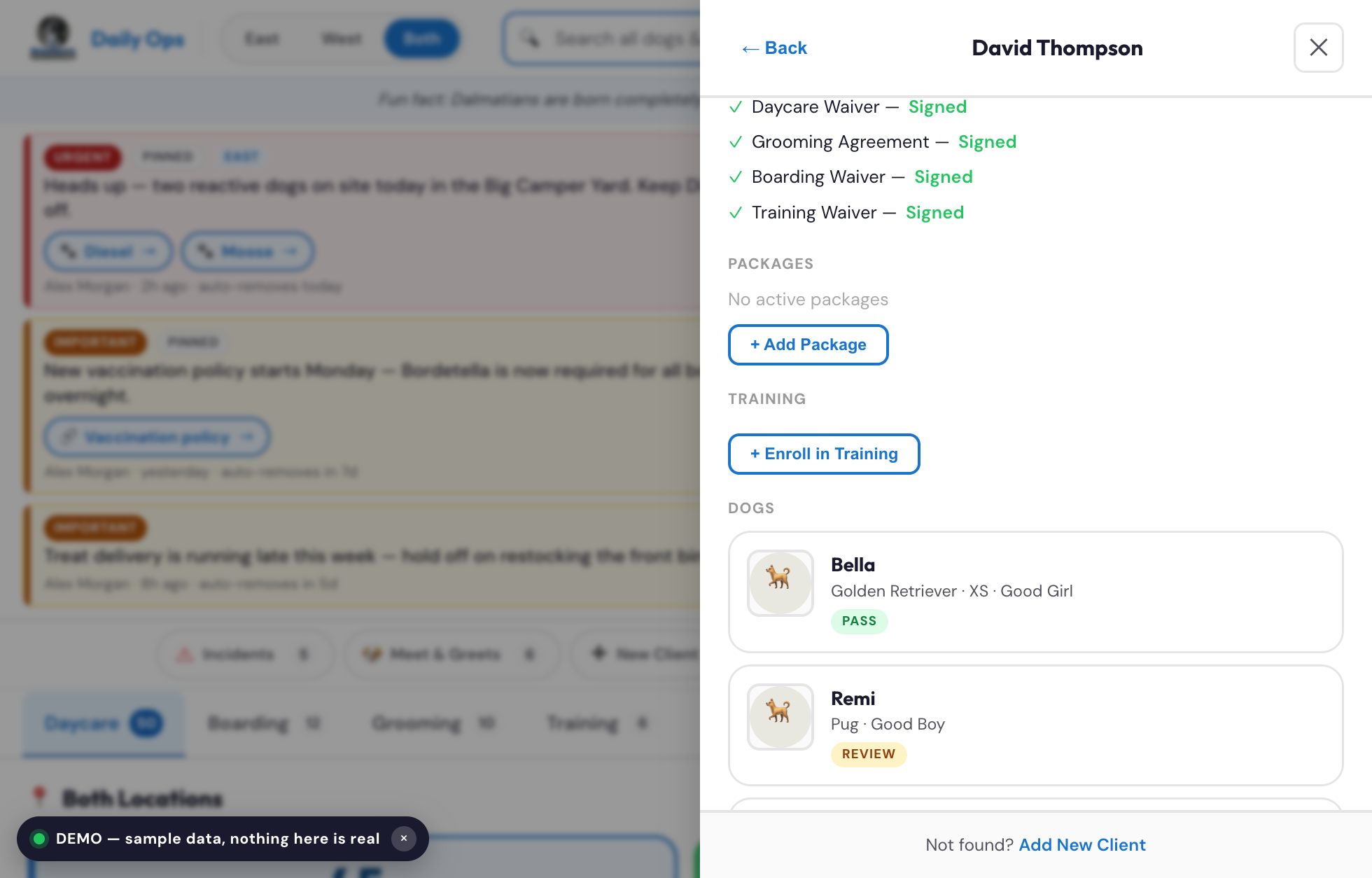
- Find the customer — search their name or their dog at the top of the board, and open their profile.
- In the Training section of their profile, tap + Enroll in Training.
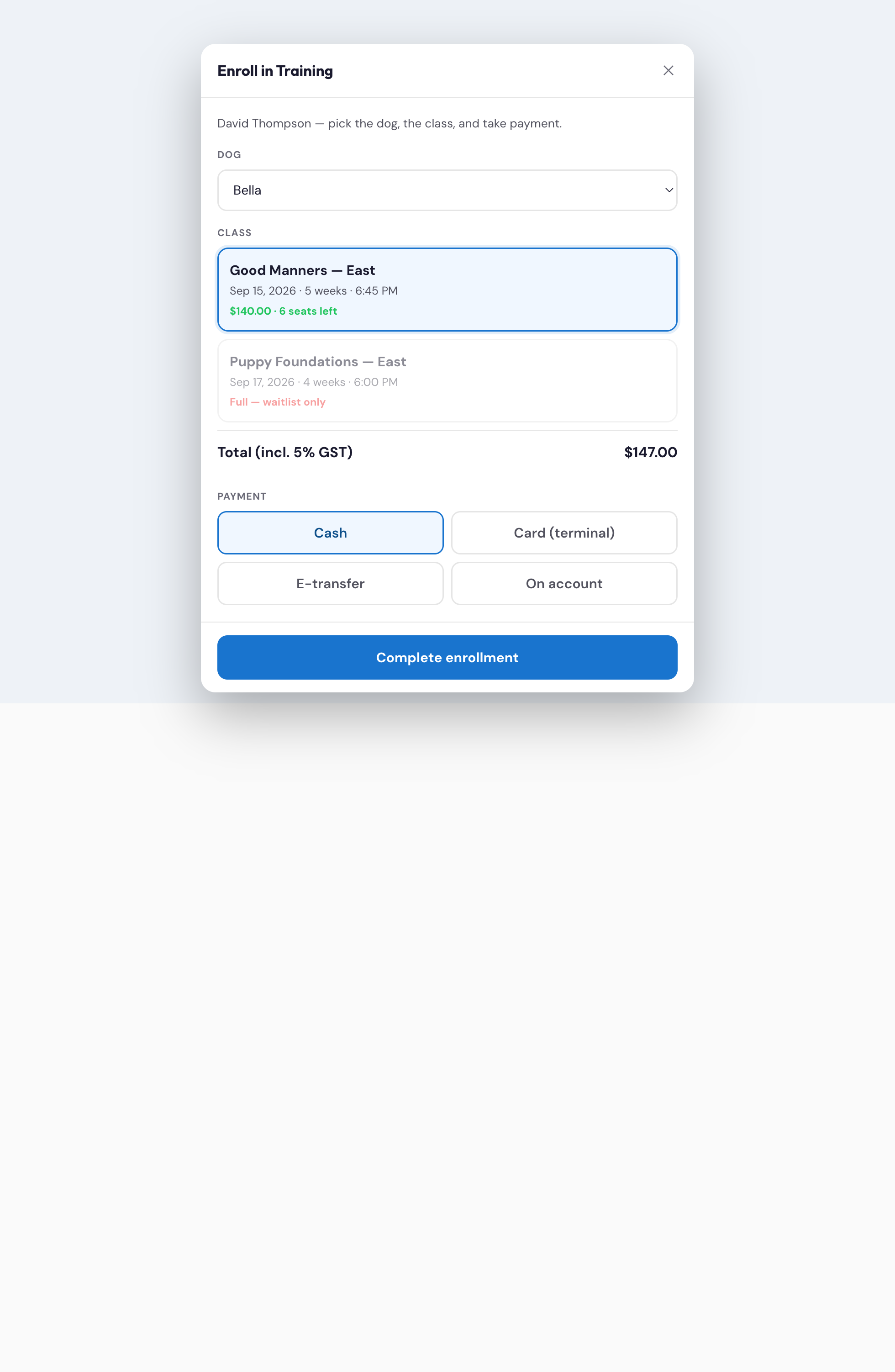
- Pick the dog.
- Pick the class — open classes show the dates, price, and how many seats are left. A full class shows waitlist only.
- Check the total (the price plus 5% GST), choose how they're paying — Cash, Card (terminal), E-transfer, or On account — and tap Complete enrollment.
That's it. The seat is reserved, the dog is linked, the invoice is created and marked paid, and the customer gets their confirmation email automatically.
COMING6. Online self-enrolment (coming soon)
Right now, all enrolments happen at the desk (section 5). Online self-enrolment — where customers enrol and pay from their own portal — switches on once card payment is enabled. Here's what it will look like so you can speak to it.
Browsing classes
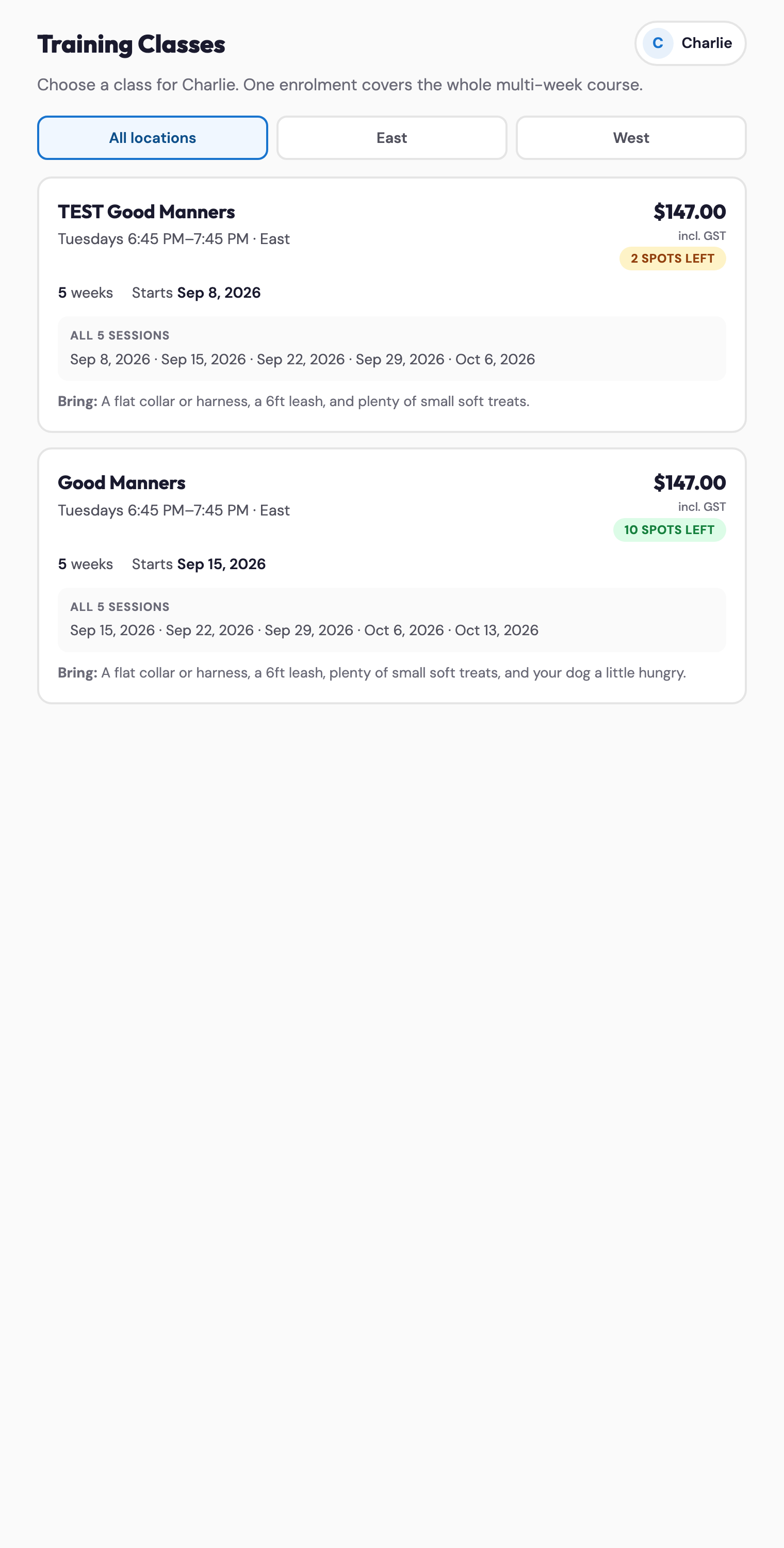
From their portal, they'll open Training and see the open classes — but only the ones their dog is cleared for. Each card shows the class, the full list of dates, the price including GST, and how many spots are left, with their dog already selected. They pick a class, pay, and get the same confirmation email.
7. What happens automatically
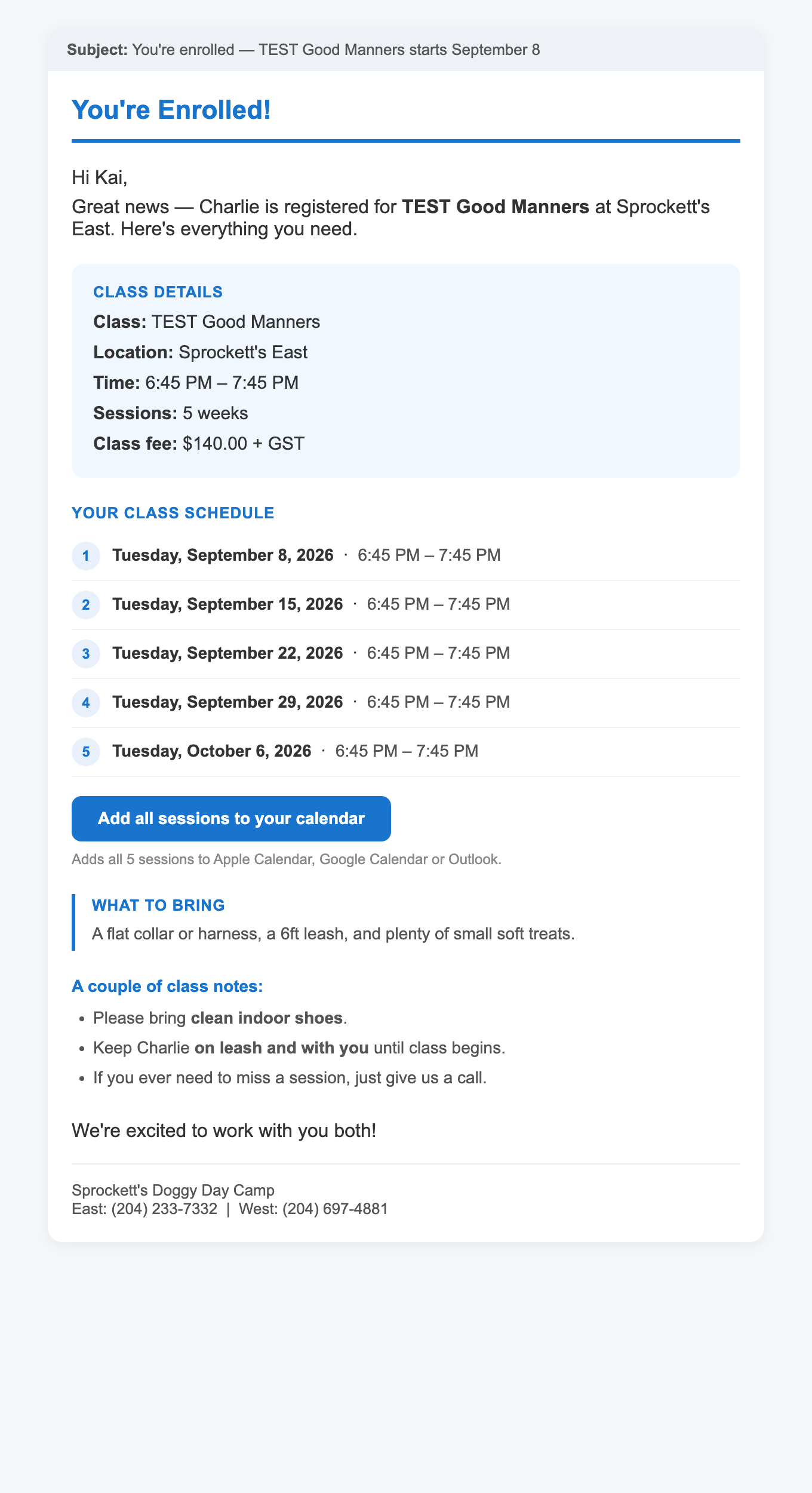
You don't send confirmations by hand — the system does it.
| What | When |
|---|---|
| Confirmation email live | The moment you enrol a dog. Lists every class date, the time, fee, and what to bring. |
| Class reminder coming | An automatic day-before reminder switches on with the first live cohorts. Until then, no reminder goes out. |
SET UP8. Changing or closing a class
Opening a new class is fully self-serve — you do it with the New Cohort form any time.
Changing a class that's already open (a time or price change, or closing it early) is the one thing still handled by the Sadie team for now — just let them know. A self-serve "edit class" step is on the way.
© 2026 Sprockett's Doggy Day Camp · Built by Sadie. (justedo inc.) · Staff Guide v1.1 · 2026-06-19